
CDN is short for Content Delivery Network which is a network of servers that deliver cached static content from websites to users based on the geographic location of the user. A CDN will not take the place of your web hosting account but simply improve website speeds.
Advantages of Using a CDN
When a website has a high volume of traffic then the site can overload the server, which leads to a slow loading site or even server crash. This is where a CDN comes in handy because it is a network of servers, but most importantly these servers are spread throughout the world.
When a CDN is being used, the static content is cached and stored on all of these servers. Static content includes images, stylesheets (css files), javascripts, Flash, etc. When a user visits the site (original server), the CDN technology redirects them to the closest server to their location.
If your website is receiving heavy traffic and you have not yet enabled an CDN here are some good reasons to get started today:
- Speed – Your site will move faster and speed matters.
- Crash Resistance – The distribution of information will prevent servers from crashing.
- Improved User Experience – When you only have a few seconds to make a first impression a user needs to be able to access all aspects of your website with no difficulties.
- SEO Optimization – Better speed, means better rankings in Google Searches.
Choosing a CDN That’s Right For You
According to Brian Jackson, most people will configure their CDN with a caching Plugin such as WordPress Cache Enabler, WP Rocket, WP Super Cache, or W3 Total Cache.
However, if you are running on a managed WordPress host such as Kinsta, WP Engine, or Pagely you might not want a full blown caching plugin just to enable your CDN. This is where the free lightweight CDN Enabler WordPress plugin from KeyCDN comes into play. Note: You don’t have to be using KeyCDN to take advantage of this plugin. It will work with any CDN provider.
Installing CDN Enabler – WordPress CDN Plugin
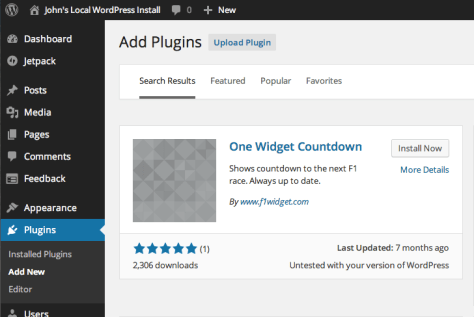
To install your CDN Plugin follow the simple five step process with screenshots. Once the Plugin is installed you will find the following features:
- Ability to set up CDN URL. By default it will already have the “wp-content” and “wp-includes” folders setup.
- By default it will have “.php” setup.
- Relative paths are enabled by default.
- Ability to enable HTTPS.




 ClarkWP WordPress Magazine