# Quickstart
> Install the Stacksync CLI on macOS, Linux or Windows, log in to your workspace and check that everything works.
Source: https://docs.stacksync.com/developers/getting-started-with-stacksync-cli/quickstart
This page gets the Stacksync CLI installed and logged in. It takes about two minutes. When you are done, [build your first workflow connector](/developers/getting-started-with-stacksync-cli/build-your-first-workflow-connector).
## Prerequisites
* A Stacksync account with access to a workspace. [Create an account](https://app.stacksync.com/) if you don't have one.
* macOS (Apple Silicon or Intel), Linux (x64 or arm64) or Windows (x64).
* Python 3.10 or later. The CLI itself needs no Python, but `stacksync workflow-connector run` uses it to run your connector on your machine.
* `git` is optional. When it is installed, `create` starts a Git repository in the new project.
## Install and log in
### Install the CLI
The CLI is a standalone program. You don't need `pip` or a virtual environment to install it.
```bash
curl -fsSL https://cli.stacksync.com/install.sh | sh
```
The installer detects your operating system and CPU, downloads the matching archive and installs the `stacksync` command in your home folder (`~/.local/bin`). It never asks for a password. It also adds that folder to your shell's `PATH`, so `stacksync` runs from any folder once you open a new terminal.
To install somewhere else:
```bash
curl -fsSL https://cli.stacksync.com/install.sh | STACKSYNC_INSTALL_DIR=~/bin sh
```
To install a specific version instead of the latest one:
```bash
curl -fsSL https://cli.stacksync.com/install.sh | sh -s -- v1.0.11
```
Run this in PowerShell. Administrator rights are not needed. The installer puts the CLI under `%LOCALAPPDATA%\stacksync` and adds it to your user `PATH`.
```powershell
irm https://cli.stacksync.com/install.ps1 | iex
```
Open a new terminal afterwards so that it picks up the updated `PATH`.
Check the installation:
```bash
stacksync --version
```
```text
stacksync, version 1.0.11
```
Read the installer before running it
The installer is a short shell script. To read it before it runs, download it first:
```bash
curl -fsSL https://cli.stacksync.com/install.sh -o install.sh
less install.sh
sh install.sh
```
Every release is published at `https://cli.stacksync.com//`, and `https://cli.stacksync.com/latest` returns the current version. The archives are:
| Archive | Platform |
| ------------------------------ | -------------------- |
| `stacksync-macos-arm64.tar.gz` | macOS, Apple Silicon |
| `stacksync-macos-x64.tar.gz` | macOS, Intel |
| `stacksync-linux-x64.tar.gz` | Linux, x64 |
| `stacksync-linux-arm64.tar.gz` | Linux, arm64 |
| `stacksync-windows-x64.zip` | Windows, x64 |
### Log in
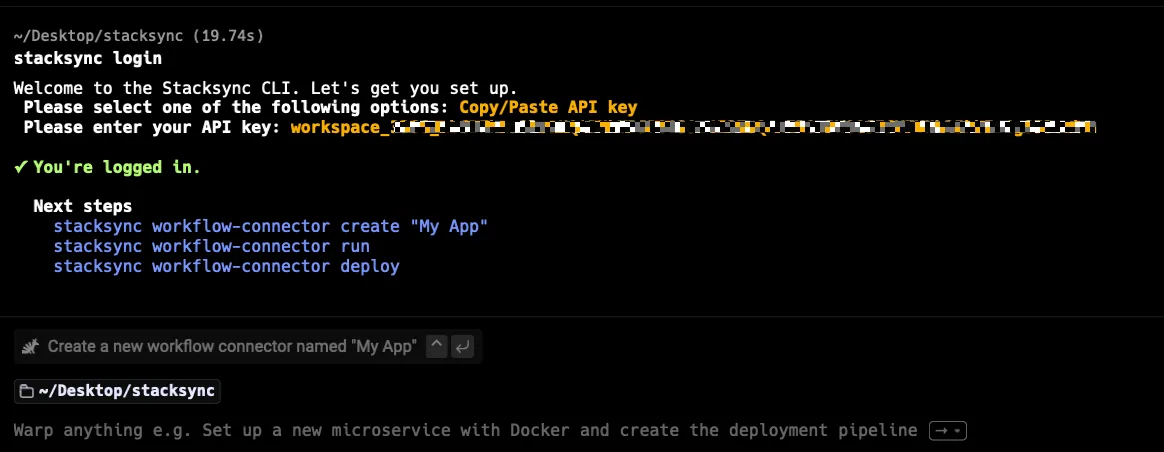
```bash
stacksync login
```
Choose how to authenticate:
Select **Log in via the web**. Your browser opens the Stacksync login page. If it doesn't open, copy the link that the terminal prints. After you sign in, pick the default workspace in the terminal.
Log in to [Stacksync](https://app.stacksync.com/) and open **Workspace Settings** with the gear icon.
Generate a new API key under **Stacksync Workspace API Key**.
Select **Copy/Paste API key** in the terminal and paste the key. The key is not shown while you type.
If you are already logged in on this machine, `stacksync login` offers to keep the existing login. If you log in again through the web, Stacksync generates a new key and the previous one stops working.
#### Log in without prompts
In CI, on a remote machine, or when an AI agent drives the CLI, there is no terminal to answer the prompts. Pass the API key and the workspace id instead:
```bash
stacksync login --api-key --workspace
```
The CLI also reads them from the `STACKSYNC_API_KEY` and `STACKSYNC_WORKSPACE` environment variables:
```bash
export STACKSYNC_API_KEY=
export STACKSYNC_WORKSPACE=
stacksync login
```
To find the workspace id, see [Workspaces and regions](/api-reference/workspaces-and-regions).
### Check your setup
```bash
stacksync login --check
```
It prints `Logged in` and exits with code `0`, or prints `Not logged in` and exits with code `1`. Scripts and AI agents can use it to decide whether to log in first.
Run `stacksync` on its own to see the welcome screen with the getting-started commands, and `stacksync -h` to list every command. `stacksync logout` logs this machine out.
## Keep the CLI up to date
The CLI keeps itself up to date. To update on demand, run `stacksync update`.
On version 1.0.10 or earlier, run `stacksync update` once; after that, updates are automatic.
## Uninstall
On macOS and Linux, remove the program and its saved login:
```bash
rm -rf ~/.local/lib/stacksync ~/.local/bin/stacksync ~/.stacksync
```
Then delete the line ending in `# stacksync CLI PATH` from `~/.zshrc`, `~/.zprofile`, `~/.bashrc` and `~/.profile`. If you installed with `STACKSYNC_INSTALL_DIR`, remove the `stacksync` link from that folder and the `lib/stacksync` folder next to it. On Windows, delete `%LOCALAPPDATA%\stacksync`, remove it from your user `PATH`, and delete the `.stacksync` folder in your user folder.
## Next steps