# Cloud SQL

> Find your Cloud SQL connection URL.

Source: https://docs.stacksync.com/two-way-sync/connectors/postgres/authorize-postgres/cloud-sql

### 1. Go to your [Google Cloud Console](https://console.cloud.google.com)

### 2. Click on SQL

<figure>
  <img src="/https/docs.stacksync.com/images/connectors/google-cloud-console-sql-menu.webp" alt="Google Cloud console navigation menu with an arrow pointing to the &#x22;SQL&#x22; product." width="1340" height="631" loading="lazy" decoding="async" />

  <figcaption />
</figure>

### 3. Write down the public IP address of the SQL Instance you want to use

<figure>
  <img src="/https/docs.stacksync.com/images/connectors/cloud-sql-instance-public-ip.webp" alt="Google Cloud SQL Instances list with the public IP address of the &#x22;tutorial_database&#x22; instance highlighted." width="711" height="186" loading="lazy" decoding="async" />

  <figcaption />
</figure>

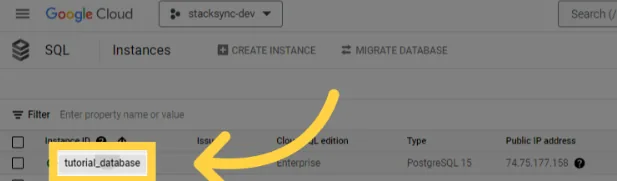
### 4. Click on the instance you want to use

<figure>
  <img src="/https/docs.stacksync.com/images/connectors/cloud-sql-select-instance.webp" alt="Google Cloud SQL Instances list with an arrow pointing to the &#x22;tutorial_database&#x22; instance ID." width="617" height="181" loading="lazy" decoding="async" />

  <figcaption />
</figure>

### 5. Go to "Users"

<figure>
  <img src="/https/docs.stacksync.com/images/connectors/cloud-sql-users-menu.webp" alt="Google Cloud SQL instance side menu with &#x22;Users&#x22; highlighted." width="277" height="442" loading="lazy" decoding="async" />

  <figcaption />
</figure>

### 6. Make sure the user you want to use is listed here, let's take "fake_user"

<figure>
  <img src="/https/docs.stacksync.com/images/connectors/cloud-sql-users-list.webp" alt="Google Cloud SQL Users list with the built-in user &#x22;fake_user&#x22; highlighted." width="597" height="111" loading="lazy" decoding="async" />

  <figcaption />
</figure>

### NOTE: You can manage the user's password by clicking on the 3 dots

<figure>
  <img src="/https/docs.stacksync.com/images/connectors/cloud-sql-user-actions-menu.webp" alt="Google Cloud SQL Users list with an arrow pointing to the three-dot actions menu for &#x22;fake_user&#x22; to manage its password." width="746" height="170" loading="lazy" decoding="async" />

  <figcaption />
</figure>

### NOTE: you can add a new user by clicking "ADD USER ACCOUNT"

<figure>
  <img src="/https/docs.stacksync.com/images/connectors/cloud-sql-add-user-account.webp" alt="Google Cloud SQL Users page with an arrow pointing to the &#x22;ADD USER ACCOUNT&#x22; button." width="481" height="149" loading="lazy" decoding="async" />

  <figcaption />
</figure>

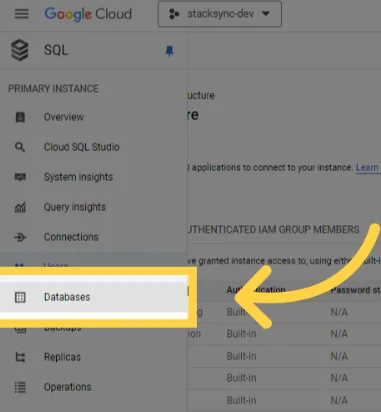
### 7. Click on "Databases" and find the database inside the SQL Instance

<figure>
  <img src="/https/docs.stacksync.com/images/connectors/cloud-sql-databases-menu.webp" alt="Google Cloud SQL instance side menu with an arrow pointing to &#x22;Databases&#x22;." width="381" height="412" loading="lazy" decoding="async" />

  <figcaption />
</figure>

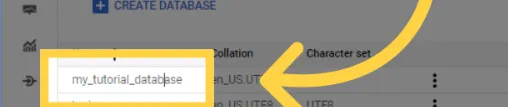
8. Write down the Database Name you want to use, here let's take "my_tutorial_database"

<figure>
  <img src="/https/docs.stacksync.com/images/connectors/cloud-sql-database-name.webp" alt="Google Cloud SQL Databases list with the database name &#x22;my_tutorial_database&#x22; highlighted." width="508" height="107" loading="lazy" decoding="async" />

  <figcaption />
</figure>

8. In Cloud SQL the port is always 5432, the connection string will then have the form: postgres\://\[USER]:\[PASSWORD]@\[PUBLIC_IP_ADDRESS]:5432/\[DATABASE_NAME] In our example: postgres\://fake_user:\*\*\*\*\*\*\*\*@74.75.177.158:5432/my_tutorial_database- you can now paste into Stacksync

<figure>
  <img src="/https/docs.stacksync.com/images/connectors/postgres-connection-string-field.webp" alt="Stacksync Postgres connection dialog with an arrow pointing to the empty &#x22;Connection String&#x22; field." width="1600" height="925" loading="lazy" decoding="async" />

  <figcaption><p>Paste your database connection URL into Stacksync</p></figcaption>
</figure>

## That's it! 🥳