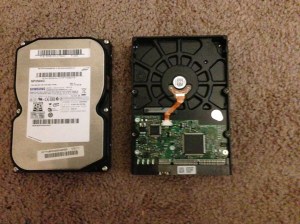
What is a hard drive anyway?


 SATA  and ATA/IDE Hard Drive Today, we are going to be talking about the hard drive.   What is a hard drive, you  ask. Well,  It is basically a device that stores all your files, including the Operating system, music, pictures, games, and so forth.  Sometimes files get corrupted, and this can create problems for the hard drive. To be safe  a disk check,once a month will help, along with  a disk fragmentation, and disk cleanup.  Do not do a disk check but, once a month, this is very hard on the drive.

As an  extra precaution, Make sure to  transfer all your files on Compact Discs, or DVDs.  That way, should the hard drive die you will be ready. To help keep the hard drive from getting over-cluttered, you can you Ccleaner put out by Piriform. They also offer a  disk Defragmenter called  Defraggler. for disk recovery, they offer Recuva. All these programs are free.

Should you ever start to hear your hard drive making a scratchy noise, this will be the first sign that there is a problem. It may take time before it finally gives out. Hard drive’s are quite inexpensive. Usually run about 50-70 dollars at Bestbuy .

So, to find out what the computer looks inside and find out what that hard drive looks like. Let’s open up the computer. First thing, unplug the computer from the wall-socket.  After you have disconnected the mouse, Keyboard, Display and any USB devices, lay the computer down on a work table, attach the Electrostatic discharge band to your wrist. Grounding the alligator clip to a piece of metal on the computer.

To tell you about the Electrostatic discharge band click here:  https://infotechcomputing.wordpress.com/2012/08/28/warning-use-this-before-working-on-a-computer/

Once you have slid off the cover, you’re going to see many parts. How do you figure out where the hard drive is located? Well the hard drive is thinner, than say an optical drive. On the front of the optical drive you will see the button that slides open the tray, when you want to listen to your favorite  music on a Compact Disc, or CD which is what everybody calls it. Same thing if you want to watch a Movie, DVD, Blue-Ray.  SATA Hard Drive (2)

The Hard drive even though it is enclosed, it  will look different.  It may be inside   what is called a Bay, or it could be by itself such as a SATA Hard Drive. If it is a SATA the wires will be color coded,  IDE(Integrated Drive Electronics) will have a wide 40 pin Ribbon, known as a IDE Interface Cable.

Now, if you are using two  IDE/ATA hard-drives, there is a small plastic connector, that you have to remove from one place to another, on the back of the device. this is known as a Jumper. either case, there are four settings:  single, Dual Master, Dual Slave,  or  cable Select.

Remember this is only if you are using two hard drives. If you are only using the one, set the jumper to Master Setting.

On a SATA device, the computer has what is called auto-detection, which does the setting for you.

This link gives an in-depth illustration on the history of the hard drive

http://www.computerhope.com/jargon/h/harddriv.htm

This is a link on   how to make adjustments using jumpers on an IDE hard drive.

http://www.computerhope.com/issues/ch000413.htm


Data recovery how is it done?

Video


IMG_0303 (2)

Have you ever had your hard drive die and you need to get your pictures or music. What do you do now? I know there are programs out there that allow you to do this, but, let say what if there was another way, where you could do it yourself. Well, there is a device put out by Sabrent,and other companies, however the one from “Sabrent” also have a light indicator and gives you different connections.  It is called a USb 2.0 to Sata/Ide Hard Drive Adapter. I found this device from a YouTube video by accident. I picked up the device from the Walmart.com Website for about 35.00. Lets see how it worksIMG_0312 (2)

I will be transferring the data from an   Iomega IDHD 320-U External Hard Drive to a Compaq Presario cq5320y on a 64 bit motherboard that is running Windows 7

Now, taking the Iomega External hard drive, remove the two screws from the rear ,  the housing should  slide right off.

You will need to  disconnect the  power and 40 pin connector from the hard drive. Make sure you are using the ESD Strap. To prevent damaging the hard drive.
Next connect the  Sabrent hard drive adapter. this will be the  Square plastic  connector, this will plug in to back of the Hard drive depending if you are using a IDE or SATA. the SATA connection is at the top, IDE will be on the left, the other one is used to connect a laptop hard drive.  a USB   will plug into the computer, the other end will plug into the back of the IDE hard drive. Should you be using the Sata connection you will need to use Sata colored wire.

You will find that there is a power cord, like on the back of your computer. which will  connect to the Power Adapter. On the end of the power Adapter, is a power plug that goes into the back of the hard drive.

Now, that you have connected the SATA,  or IDE connection,  go to the computer.

Click on computer tab  to see if your connected devices appears with your list of hard drives.

Once the Hard Drive has been identified,  double Click on it .  You Should  see  the files of the folder.making a new folder

Now, you need to make a new folder. To do this, go to the desktop, Right-Click, go down to New and click on Folder.  Open up the folder and  Drag one of the folders to the new folder then it  should start to copy the new files.

When that is done drag the next folder until  you have completed transferring all the files or what will fit on your hard drive. God Bless

Replacing the Hard drive


Photo of SATA ports on a motherboard

Photo of SATA ports on a motherboard (Photo credit: Wikipedia)

Today we begin by working on a hp Pavilion a1709n Desktop. We will replacing the hard drive. The old hard drive has died, so we are going to replace it with a Western Digital sata 500GB.

We will start by going into the Bios(Basic Input/Output System) you should be able to find this on the screen when you first start the computer, however if you don’t find it, try one of the Function Key‘s F1 thru F12

Once you have entered the Bios, look for Advanced setting, you will want to look for something that allows you to adjust the boot order, and make the settings for the cd-rom to be the first so when you put in the cd and start the computer, it will start to load Windows. http://www.ehow.com/how_6186103_boot-cd-hp-pavilion.html

First off, we want to shut off the computer. Then remove the Keyboard, Mouse, Ethernet, Display, which is either a VGA, or DVI power cord from the back of the computer. Put on your Esd (Electrostatic wrist band) grounding yourself to the computer. Next, remove the cover from the computer, removing the thumb screw and sliding off the cover.

There are three tabs on the inside of the case that holds on the front panel , push in on each of these to remove the front panel, it will swing out.

Remove the Sata (“Serial Advanced Technology Attachment Source:http://www.pmicomputersupplies.com) colored wire, and power connector from the back of the hard-drive. you will need to remove the memory card Reader Drive, there is one screw holding in this device, once you slide this out, you can disconnect the cable to the Memory Card Reader or just move it out-of-the-way.

Now, the HP has what is called a latch drive bracket, you have to pull up on the plastic tab to release the hard-drive. Then, you should be able to pull it out through the front of the computer. Remove the new hard drive from the packaging, you will need to remove the mounting screws from the old hard-drive or you can use the several screws that HP has embedded in the front of the computer case.

Once you have screwed in the mounting screws on the hard drive, pull up on the plastic Latch Drive Bracket and slide in the new hard drive. If you are going to use another bay for the hard drive you will have to remove the blank plate, using a flat head screwdriver. Insert and twist to remove this plate.

Once the Hard drive has been slide into the bay, reconnect the Serial(SATA ATA hard drive disk cables to the back of the unit. Reconnect the memory Card Reader Drive,if you had to remove it. Once this is done, remove the ESD static strap from inside the computer, replace the side and front cover.

Now, we can start reformatting the Hard Drive. We will installing Windows Vista Operating system. Take the recovery discs, open up the CD-Rom, pop in the first disc and you should see Windows Loading Files. It will then bring on the screen the recovery Manager, after you click Next, it will ask for the Supplemental disk, place this inside the CD Rom, close the tray and the formatting will begin.

Than it will tell you that it is reformatting the Windows partition of the hard drive. After using the supplemental disk, it will ask for you to put in the first disk. after it is done, it will ask for the Second disk. When it is finished it will display that the “Recovery is Complete.” Click Finish to restart the computer. Make sure you remove the disk.

At some point you will have to produce the product key for the Microsoft operating system. You should find this somewhere on the desktop.

Don’t forget to partition the hard drive. If you notice that the hard drive is only showing 50GB of your 500GB then you didn’t partition the hard drive correctly. Use the Link below

http://pcsupport.about.com/od/windowsvista/ht/partition-hard-drive-vista.htm

You may need to reinstall Windows, after that your done.

Once at the HP website, type in the model of the computer, this will bring you to the drivers and download page. You want to make sure to update your drivers and the Bios.

Now the Bios is tricky in that if for some reason you lose power while downloading the bios, you will lose the computer. Any interruption of power will cause this to happen. This Bios loads directly to the motherboard, I have done this several times and never ran into a problem.

The link below will take you to the downloading page for drivers and Bios

http://h10025.www1.hp.com/ewfrf/wc/softwareCategory?cc=us&dlc=en&jumpid=reg_r1002_usen_c-001_title_r0001&lc=en&product=3354752&

If you run into any problems working on the computer you can go to the link below

Click to access c00873755.pdf


HTG Explains: Do You Really Need to Defrag Your PC? – How-To Geek


HTG Explains: Do You Really Need to Defrag Your PC? – How-To Geek.

HTG Explains: What’s a Solid State Drive and What Do I Need to Know? – How-To Geek


HTG Explains: What’s a Solid State Drive and What Do I Need to Know? – How-To Geek.

OCZ Vector 256GB SSD Review – TechSpot Reviews


OCZ Vector 256GB SSD Review – TechSpot Reviews.

checking hard drive for errors


This slideshow requires JavaScript.

Today we are going to talk about on how to check your hard drive for errors,you should do this at least once a month but, no more than that. To do this we want to head over to the start button, click on my computer for Windows  xp, computer for Windows Vista and Windows 7, once this opens up click on the hard-drive, right-click, a scroll will open up left click on properties. Then click on the tools tab, under error checking, click check now than check the two boxes Automatically fix file system errors and scan for and attempt recovery of bad sectors.

Click Start, then schedule disk check, reboot the computer, this will present a black screen letting you know that a scan had been scheduled after a few minutes the scan will start. Do not turn off the computer, for this will cause your computer to be turned into a paper weight. This will take around an hour, so make sure you have the time.