So, how do I shut off the track pad on my ASUS X550CA Laptop?


Apple Macbook Pro (Early 2008) 17

Apple Macbook Pro (Early 2008) 17″ Trackpad (Photo credit: Wikipedia)

The Track pad on a  laptop is a useful tool,  however, I found out early on,   it got to be more of a nuance when I tried searching for something on the internet.

YouTube, had several people who had different ideas, however since I was working with Windows 8.1 at the time, this being a tablet format nothing worked.

To give you an example,  I would try to type inside the search field, and I would end up with garbage as the text. This would then  delete itself and it got to be so frustrating. I went as far as switching to a large keyboard for a while.  I was at my wits ends and just thought that it was something I was going to have to deal with.


Embed from Getty Images

I feel the Lord lead me to the answer when I thought of giving it one last try on the internet. It was like there it was, so I figured well it wasn’t going to be easy, having to go through the Bios, my thinking was why there of all places. So, I gave it a shot and sure enough it was just what I needed. Thank You Lord Jesus.

We will be working on Windows 10,

When you open Windows 10, click on the Microsoft Windows logo,

Microsoft Windows Key

menu tabnew start menu

Once you click on this, you will see the New Start Menu, move down where you see settings.

Untitled

double-click on settings

Go to Security and Update

windows 10 setting for bios

Click on Recovery:

recovery

Off to the Right is Advanced Startup>

Advanced Startup

Click restart.

When the computer restarts, click Troubleshoot

Once you see Advanced Options then click UEFI Firmware Settings>

IMG_0156

Click Restart

 The BIOS Will open up click on the Advanced Tab>Internal Pointing

device>

Click the + or minus  to disable Internal pointing device(Track pad).

press F-10 to save and exit.

The computer will restart and you should have no other problems with the tracking pad.

Putting God First

Lenovo PCs ship with man-in-the-middle adware that breaks HTTPS connections [Updated] | Ars Technica


If you are thinking of buying a Levovo computer, you might want to read this first.

Lenovo PCs ship with man-in-the-middle adware that breaks HTTPS connections [Updated] | Ars Technica.

Windows media player (ripping)


Today, we are going to be talking about the Windows Media Player:   I have a friend who ran into a problem in getting his CD‘s to rip inside Windows 7 and so I figured if he had the problem maybe there might be others.

Windows Media Player

When you first open Windows Media Player, you have two options  Express or Custom.  Choosing Custom allows the user to decide what is important. Now, if you’re in a hurry and just want to delve into the Windows media player the user can choose Express.

At the next window  the user can select what privacy options they prefer.

selecting privacy options


Display media information from the internet and Update music files by retrieving media information from the internet will help the user to download album art and titles of those songs.

usage rights, which has Windows media player to acquire digital rights if you are trying to use a protected file. This protects the artist of the music  Under the Privacy tab is how Microsoft handles your personal information and goes into detail on Usage Rights.

Under Enhanced content is sending unique player ID, what this means, is that when streaming Media content, this identifies your specific computer to the server. Which also gathers statistics and may help improve quality.

cookies tab, Gives the user the option to modify the use of cookies. Cookies: allow the user to enter their favorite website without having to re-enter the password.

Windows Media Player customer experience improvement program is designed to send information to Microsoft, which covers the type of Hardware you use and how to improve the software.

History is your most recently played music files.

Next you are given the option to place an icon on the task-bar and on the desktop. On default you can set this to play all your music.

By selecting choose file types, this will bring up a list of type of files that you can listen to on the media player.

Click select All.set associations

Click Media Files and Finish.

Once you have windows media player running, Press Alt on the keyboard, and this will bring up the main menu.

Menu

Click on Tools, Options and this menu will appear

Options

Upon clicking Rip Music go down where you see Windows media Audio then depending on your preference click the proper box, click Apply and OK.

rip music

Putting God First

God Bless

Microsoft Announces Windows 9, but Names it Windows 10


Well if you haven’t  heard, Windows 9, is the new “10” This is a sample of what the new windows will look like. Everybody will get a chance to download a rough version of the new  operating system and take it for a test drive. Windows 10 won’t officially be out until 2015.

Microsoft Announces Windows 9, but Names it Windows 10.

Putting God First

God Bless

CD Drive acting up try this!

Video


The Registry Editor in Windows Vista and Windows 7

The Registry Editor in Windows Vista and Windows 7 (Photo credit: Wikipedia)

Today, we are going to be talking on how to fix a cd drive.  It’s one of those problems sitting in the background, not unlike a sleeper-cell. It wasn’t until I purchased An ASUS laptop.  I recently  had popped open my CD Rom, inserted “Passion of the Christ” to begin to watch a great Movie. Closed the tray and waited,  nothing seemed to be happening. This is when you start to wonder  is there something wrong with the computer. I know I could always, pick up a external CD Rom however, this is not the option one would like if they have a laptop. Who wants to carry an external drive around.

Continue reading

Windows 8.1 consumers: It’s time to move to Update 1 | ZDNet


Windows 8.1 consumers: It’s time to move to Update 1 | ZDNet.

custom or Quick: Avoiding problems

Video


This slideshow requires JavaScript.

Today, we will be talking about how to prevent problems in the future, by doing something simple, it may take a few minutes but, in the long run, it will be well worth it. I run across several computers and they all run into the same problem, be it something they were in a hurry to do, or they didn’t know that there is an alternative, or just didn’t notice. Like for instance do we notice that when you are about to download Adobe, that it includes a free virus Scan from McAfee.

Enhanced by ZemantaThere are many programs out there it is sometimes hard to keep track of them, some them even include toolbars, so where am I going with this? Once a person download a new program, the immediately want to run it sometimes overlooking the obvious, if you do the quick install you will not notice it until your computer starts to act strange. Then there are those that include a toolbar and all of sudden your browser is offering something, that you really didn’t want. By downloading something simple as “SpeedFan” we find we could end up with such programs as Conduit Search, Optimizer Pro, so in order to avoid having these programs installed on our computer, we clicked on decline, now if we didn’t notice that there was a decline button, and just pressed next, we would have these two programs, to not install Optimizer pro, you still have to UN-check the box, then click “Decline”I hope this gave you some insight into what can happen, and if we go slowly and just don’t click with out reading each item, we will solve a lot of problems and headaches in the long run. If you do get into a mess if you download from my blog Malwarebytes, this should take care of all of your problems.
Putting God First
God Bless

SpeedFan

Video


A couple of weeks ago, we talked about how to keep your computer cool, by keeping the fan free of dust, that includes all the ports on your laptop especially. I figured it would be a good time to look into a product called “SpeedFan” This monitors your fans, allows you to make adjustments in control of the fans, it also gives a reading on how the temps are on your CPU, and the ability to check the health of your hard drive.

Instead of downloading from speed fan.com use the link below. It is much faster and easierspeedfan 1
http://download.cnet.com/SpeedFan/3000-2094_4-10067444.html

After downloading, make sure you decline the extra products you don’t want installed on your computer. Take it slow as go through each one.

You have several settings to choose from.

Disclaimer: the feature Clock(is used for over-clocking the processor) Before you try to over-clock the processor, make sure you know what you are doing or you will fry the processor, thus destroying your computer.  Info, Exotics, and Chart are the other features in the program

Some or most will have  SMART (Self-monitoring analysis  reporting technology)used to monitor  to let  know when their  hard drive might be failing, so, you can prepare for it by placing your files on discs, such as DVDs or CD‘s.

To enable this you need to go into the BIOS;(Basic Input Output System) In order to get here restart your computer. On the Splash screen look for   the F  key to reach setup. Once you have arrived at  the BIOS. Look under the main tab, we are using a Phoenix Bios. So, if you’re using a different Bios. You are looking   for Hdd Smart. We want to enable it, and than press f-10  to save.

Now, open Speed Fan, click on SMART, on the drop down tab, select your hard drive, and click short test or Extended test tab to see how healthy your hard drive is.

Under the Exotics tab, is where you can monitor your fans, hard drive and CPU temps. Just click on the tab “show the Magic

Under the Charts tab, you are able to see how each part is doing from hard drives, to fan speeds, to Temps.

The reading for the temps is Celsius, if you would like  Fahrenheit for your settings,  click configure, under the tab Minimize, than  Options, click the radio button from Celsius to Fahrenheit ,  then OK.  By pressing F-1, you will able to use the help feature. You can make adjustments to the speed of the fan, or just leave the settings where they are.  Your choice.

Putting God First

God Bless


Enhanced by Zemanta

So, what is the cloud?

Gallery


Today, we are going to be talking about what the Cloud is and what companies  offer free storage. We will only cover a few. First off, we find that there are different ways to store our stuff, maybe, a bigger … Continue reading

Microsoft CEO Nadella may unveil Office on iPad on March 27 | ZDNet

Video


Microsoft CEO Nadella may unveil Office on iPad on March 27 | ZDNet.

Microsoft updates its free remote desktop apps for iOS, Mac, Android | ZDNet

Video


Microsoft updates its free remote desktop apps for iOS, Mac, Android | ZDNet.

200 million American IDs compromised in massive credit bureau scam – The Kim Komando Show

Video


200 million American IDs compromised in massive credit bureau scam – The Kim Komando Show.


Enhanced by Zemanta

Microsoft will release a new version of Office for Mac this year | Macworld

Video


Microsoft will release a new version of Office for Mac this year | Macworld.


Enhanced by Zemanta

Printing Poor Quality, try this!

Video


Image representing Apple as depicted in CrunchBase

Image via CrunchBase

Image representing Hewlett-Packard as depicted...

Image via CrunchBase

Printers can bring you a lot of joy, you can print so many things, including greeting cards, things you find on the internet, however when things go bad, it may be hard to figure out what the problem could be. Let’s say your printer isn’t working, you can’t get it to print. First you try the disk but, for whatever reason, you get nothing. The next step is get on the internet, go to the website that is the printer’s manufacturer.

Be it Acer, Gateway, E-machine, Dell, HP, or Apple. You should also be able to  find the manual should you need one at the same place. So, once you get to the website, say HP, you will be asked the model of the printer, after you type this in, you have the choice of 32 or 64 bit, how do you know which one you have? Below is link of an article I wrote on this subject.

32 bit or 64 bit which one do I have?

Once you have determined if it is 32 or 64, click Next, this will give you the download for the driver, if you want the manual, if you look to the top where you see “User Guide“and this will take to the right page. Now, let’s say your printing however, the print is sporadic, it prints the first two lines, however, the third line is missing. Windows 8 users will need to go to the search bar, and type in device and printers or move mouse to the bottom left corner, right-click on control panel and then go to devices and printers.

For apple users click the link below:

http://support.apple.com/kb/ht4670

The next step is to go to the control panel, devices and printers, Locate your printer, right-click on printer icon, move down where you see printing Preferences, here you have the option to choose either portrait or Landscape. Click on tab “paper Quality”,  move down where you see media, click tab, to either “plain paper fast draft quality or plain paper best quality.”   click apply and OK. This should fix any print from missing from the text on the paper.   If this doesn’t work you may have to replace your ink cartridge.

This slideshow requires JavaScript.

Enhanced by ZemantaPutting God First

Keeping Your Laptop Cool

Video


Keeping your fan clean is essential in keeping your investment working and not overheating. The temperature in a laptop, is exceedingly hot, and if the fan is clogged the computers inability to keep cool is hindered and eventually this heat will cause the computer to over-heat and cause your laptop to shut-down permanently. So you want to keep it well ventilated and free from dust particles.

There are things that you can do, by picking up a laptop stand to help in ventilating the computer. This is a metal stand that you can raise or lower that is well ventilated.

A simple can of air, that you can find at your local Wal-Mart in the electronic department will prevent your fan from getting clogged, and allowing the computer fan to do its job. When using the can of air, find  your fan or fans , and blow these out, they are usually in the bottom of the laptop. You will see that the computer has vents to keep it cool, use the air to spray these areas. Purchasing a small fan to put behind the laptop is also something that is beneficial in keeping your computer to run for years instead of days or months.

There are also programs that  help in monitoring  these areas. Such as  Speccy put out by Piriform, the same ones that bring you CCleaner

Enhanced by Zemanta

Is there an alternative to Microsoft Office?


Microsoft Office Ultimate 2007

Microsoft Office Ultimate 2007 (Photo credit: niallkennedy)

Awhile, back  I was looking for a computer. I looked over the new laptops inside of Best buy. The sales rep was going over with a customer who was purchasing a new Laptop for school and recommended in them purchasing   Microsoft Office. The cost alone would set you back thousands adding to the price of the computer.

There are  programs out there that are free and work just like the ones, that you could pay hundred of dollars for. These are an alternative to Microsoft Office.

These programs allow you to work in a Word document, spreadsheet, do presentations, Databases, drawing and it’s all free. And if you’re used  to Microsoft it has the same sweeping layout. If you have a Microsoft documents you can in coöperate them into these programs. Buying a new computer, need a word processor but, don’t have the extra money to pick up Microsoft Office,  These programs will fit the bill. You don’t have to buy separate word programs, all  for free. Listed below are three such programs.

Open Office

http://www.openoffice.org/download/index.html

King soft

http://www.kingsoftstore.com/

Libre Office

http://www.libreoffice.org/download/libreoffice-fresh/

Putting God First

God Bless

Enhanced by Zemanta

movie maker in Windows 8

Video


Today, we are going to download Windows Movie Maker for Microsoft  Windows 8.1

The program is  free, allows you the ability to edit, add music, add credits, use different types of transitions and effects.    I have used this program  in the past, to make a slide show of my dad, and then was able to add music to make it more personal. It was pretty cool. So lets get started. After discovering that Movie Maker was not on Windows 8, I went over to Microsoft.com

I have provided a link below:

http://windows.microsoft.com/en-US/Windows-Live/movie-maker#t1=overview

Once you have started the  download of  Microsoft Essentials 2012, a window pane will open up giving you option to install   Microsoft Skydive, Movie Maker, Photo Gallery, Mail, Writer, and Outlook Connector Pack.

Selecting programs

Selecting programs

I decided I didn’t need all of these  so I just chose Photo Gallery, Movie Maker and Writer. After clicking on your choices, you may be asked to install Net Framework 3.5 to install Windows Essentials.  this only takes a few minutes.

Net-Framework 3.5

Net-Framework 3.5

After Windows Essentials is loaded click close. go to the Start Menu in Windows>  search bar,> type Movie Maker, when it appears Right-click on Movie maker pinning it to start and then to the Task bar, this will make it easier to gain access  . Click on Agreement and you know have Windows Movie Maker.

After you open the program, you will need to click on add Videos and  Photo’s, the next step select a ” Title” then select an effect for your title,  click Home, click on caption, after choosing Caption, you can choose Auto movie theme, click on Home, and choose credits to give it the final touch. It appears unlimited on what you can do with Movie Maker

May the fun begin.

Remember Put God First in everything you do.

Enhanced by Zemanta

Windows 8 accessing Safe-mode

Video


This slideshow requires JavaScript.

Safe-mode is   when you have a problem and you are trying to diagnose what the problem might be. Let’s say you have some malware or a virus, the safest way to remove these problems would be to go into  safe-mode.   If you are using Windows XP, Vista or Windows 7, the quickest way is to hold down the F-8 key or  hitting the F-8 key repeatedly.

For Windows 8, there are some steps that you must take. First off, pull up the Charm Bar, go to Settings, “change PC Settings, Move down to Update and Recovery,this will take you to another page,  Move down to where you see the word” Recovery”, Under Advanced Start-up, click restart.

After restarting the computer, you will have a few options: Choose Troubleshoot>  Advanced Options> Start up Settings> Restart the computer, and this will take you to  Startup Settings,  press the number 5 on the keyboard, which is Safemode with Networking. Using this will enable you to update any anti-Malware program, or anti-Virus.  Use  the administrator account in Safe Mode.

below is link of what devices are working during safemode

http://windows.microsoft.com/en-us/windows-vista/which-drivers-get-loaded-in-safe-mode

This is a break-down of  all safe modes:

http://windows.microsoft.com/en-us/windows-vista/advanced-startup-options-including-safe-mode

below I have provided ways to boot into safe mode with Various Windows operating systems including Mac

http://support.apple.com/kb/HT1564?viewlocale=en_US

booting into Windows XP

http://support.microsoft.com/kb/315222

booting into Windows Vista

http://windows.microsoft.com/en-us/windows-vista/advanced-startup-options-including-safe-mode

booting into Windows 7

http://windows.microsoft.com/en-US/windows7/Advanced-startup-options-including-safe-mode

link for using diagnostic tools in safe mode

http://windows.microsoft.com/en-us/windows-vista/diagnostic-tools-to-use-in-safe-mode

Putting GOD First

Be safe and Aware

Check the Battery

Video


Exquisite-print printer

Exquisite-print printer (Photo credit: Wikipedia)

So, today lets talk about, how crazy things can get. Last week, I needed to print out something, tried to print on Windows 8, but for whatever reason, the printer was not compatible, so, I grabbed my laptop with Windows 7, and connected it, without the cord, so, threw in the battery. Tried to connect the printer but, for whatever reason, it failed to install even with the disk that came with the printer. so, went to the internet, or say tried. I believe I prayed to get the printer to work.

When I returned the next day, tried to get on the internet, couldn’t get on the internet and now the graphics had switched to classic, which is something I never use. I couldn’t figure this out. figured my computer was on its last leg, already the CD-rom was not working, now, there was no internet and somebody must have been  inside the computer, at least that was my thought.We can think of all sorts of things when the computer is not working properly.

Maybe, the Wireless connector was also going out. I decided to restart the computer. There on the screen appeared that the battery had an issue and needed replacing, I removed the battery and guess what everything worked, printer, internet and Windows 7 was back to its normal graphics. My point is this if you are having issues with your laptop, first remove the battery and see if that fixes your problem.

Putting God first


user beware

Video


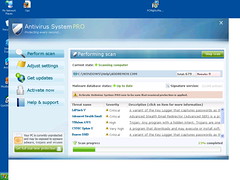
antivirus_system_pro

antivirus_system_pro (Photo credit: chrisdigo)

Spyware

Spyware (Photo credit: Wikipedia)

Below you will find a list of what i like to call rogue spyware software. Their claim is that these will help your computer to run faster, do not believe  their claims most of these do the opposite I have come across a few of these.

Please check the list before downloading any of these rogue software programs.

http://en.wikipedia.org/wiki/List_of_rogue_security_software

Putting God First

Goodbye Microsoft Security Essentials: Microsoft Now Recommends You Use a Third-Party Antivirus


Goodbye Microsoft Security Essentials: Microsoft Now Recommends You Use a Third-Party Antivirus.

Microsoft Recommends Uninstalling Windows 7 Security Update 2823324

Video


Microsoft Recommends Uninstalling Windows 7 Security Update 2823324.

Microsoft pulls Patch Tuesday security fix | ZDNet

Video


Microsoft pulls Patch Tuesday security fix | ZDNet.

Aprils Patch Tuesday to fix two critical flaws in Windows, IE | ZDNet


Aprils Patch Tuesday to fix two critical flaws in Windows, IE | ZDNet.

Security alert: Bogus tech-support phone calls


There is a Bogus company, that claims their company is an authorized Microsoft Partner to learn more, click the link below.

Security alert: Bogus tech-support phone calls.

Can Microsoft bring BI to the masses if the Excel 2013 masses can’t get BI? | ZDNet


Can Microsoft bring BI to the masses if the Excel 2013 masses can’t get BI? | ZDNet.

Dell sold to Microsoft, Silver Lake for $24 billion: What it means for the PC | ExtremeTech


Dell sold to Microsoft, Silver Lake for $24 billion: What it means for the PC | ExtremeTech.

Microsoft Security Essentials 4.0 Review & Rating | PCMag.com


Microsoft Security Essentials 4.0 Review & Rating | PCMag.com.

Microsoft re-issues botched Black Tuesday patch | Microsoft windows – InfoWorld


Microsoft re-issues botched Black Tuesday patch | Microsoft windows – InfoWorld.