No video with supported format and MME type found


After reinstalling the Windows Vista operating system, I had gone to a christian Web site http://www.hischannel.com and when I had tried to watch one of the Sermons from their archive this came up below

No video with supported format and MME type found

No video with supported format and MME type found

I began by trying different things, first updating to Service Pack one , installing the Adobe Flash Player, and Real player nothing was working. I was at the end of my wits, then I  asked Jesus to help me with this. As I was looking over the website,


hischannel

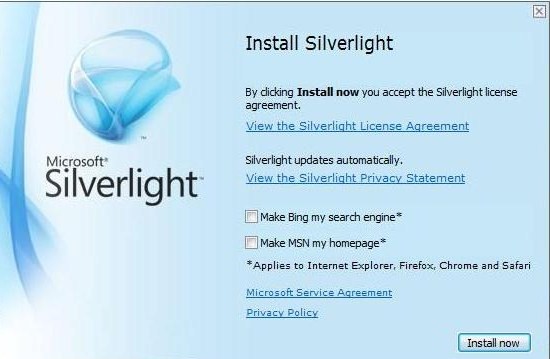
I came across something that said  “LIVE AUDIO Stream” TAB near the bottom was this “Live TV Bandwidth Tester” which included “SilverLight player update.

Once I downloaded and installed it on my computer, I no longer ended up with the error “No video with supported format and MME type found”

silverlight

Before installing SilverLight, make sure you uncheck the installation of the Bing Search Engine, and making MSN as your homepage, unless this is something you would like installed.

I hope this helps.

Putting God First!!! God gets the Glory!!!

No Disc, now what do I do?


I recently was having some trouble with my computer. I was trying to watch a sermon from Greg Laurie at his website http://www.harvest.org. It was becoming very glitchy and I couldn’t figure out what was going on. I believe I was reminded by the Lord, about the video card on my computer which i had totally forgotten about. The Video Card  is a Ati Radeon HD 2600 Xt. What I had forgotten to do was load the driver on the computer, after I had recently reinstalled Windows Vista. i began searching  all over for the disk but, to no avail. I then began checking the internet for a possible website, turns out there are a lot of companies out there that will try to solve your problem, like driver update websites, some end up not helping you at all, just giving you more problems. Lucky I was able to find a link from Microsoft.com, which had a link to the AMD website. I have provided a link below

http://support.amd.com/en-us/download

when you get to the website,

AMD Automatically Detect

go down where you see Latest AMD Drivers and Software, I had tried the Automatically Detect and Install you Driver, and found this was not much help for me, maybe your results will be different.

Once you locate your specific driver, for your particular Video card you will notice that there is not one listed for the Windows Vista,

Radeon HD 2600


here click “OTHER” which will take you to another page, which ask if you have a 32 or 64 bit. To find out you will need to go  to Start> type in the Search Field “System” once you click on this, you will be taken to another window, look under “System Type, here is displayed if your computer is a 32 or 64.

Radeon HD

Once you have clicked on the proper bit size go down to where you see Downloads click on where you see Catalyst Software Suite
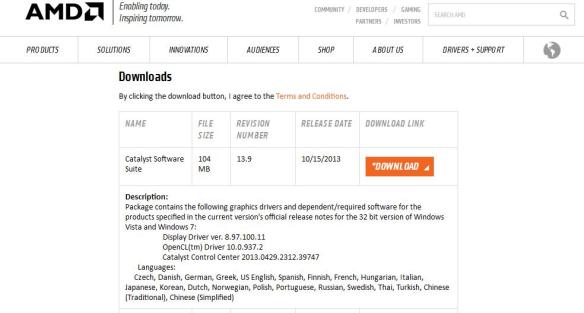
Catalyst Software

After downloading the program, a Window will open up, click install.
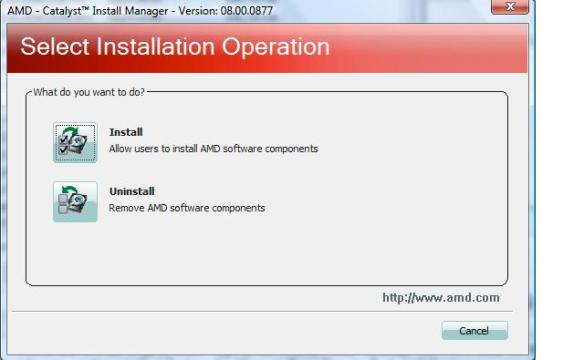
Select Installation Operation


Once the program has loaded you will be prompted to click Next, and install.

Here you will have the option to either choose Express or Custom,
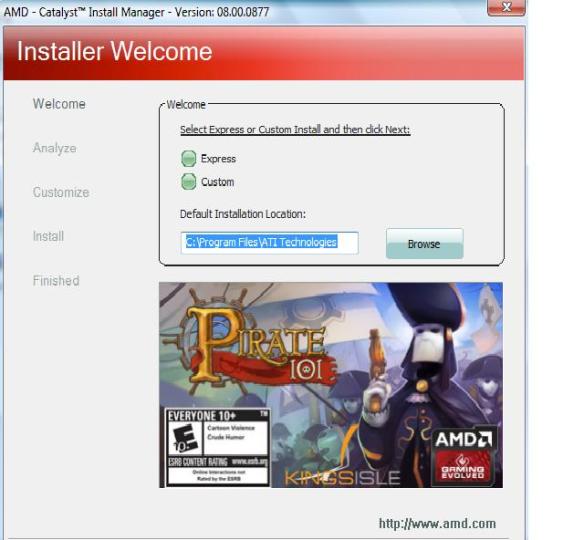
Express or Custom


choosing Custom will provide you more security when downloading programs. After clicking next the program will start loading.

installling components


Make sure to read the End User License Agreement, before excepting.

End User License Agreement


After the program loads it will make some adjustments to your computer monitor, the screen will go blank for a couple of minutes, click Finish and your done.

Putting God First!!!

Using VirtualBox


I have heard about Virtual Ware, and really didn’t know much about it until I ran across  VirtualBox. I decided to write a blog on it use. This provides a safe and secure environment and could be fun!

So, lets get started. I have provided a link below.

https://www.virtualbox.org/wiki/Downloads

Welcome to Virtualbox

We will be using the  Windows, platform. Once downloaded, click New.

VirtualBox Manager

Upon naming your system choose which operating system you are going to be setting up. The program will automatically, select the required memory for that particular OS (operating System)and you have the option to choose to increase the memory size if you wish.

memory size Virtual Machine

Next is setting up the type of drive, if you are a standard user you don’t need to do anything. Below is link to the VirtualBox Manual which goes into detail of the different types of drives

VDI (VirtualBox disk Image) http://www.virtualbox.org/manual/ch05.html#vdidetails

Next is setting up the size of the hard drive, you have the option of setting up a particular size or having it expand as it is being used.

storage on physical drive

Next Place the operating system disc, inside the Cd-ROM, then click the start button as shown in the pane below.

Start Button (2)

Windows will start to load just like your regular computer, so if you’re using windows XP,  I have provided a link below on how to install XP.

How to install a fresh copy of Windows xp

Good Luck. Until Next time.

Putting God First

God Bless

Beginners basic guide of the computer Part three


good motherboard (3)Today, we begin in learning of the interior parts of the computer.

We will start by removing the cover of the computer. First make sure to shut off the computer. Then Unplug the power cord from the socket and disconnect it from the computer. Next make sure to disconnect all wires from the exterior of   the computer.  Lay the computer on its side. Locate the two screws to remove the cover,  there should be two.  Depending on the Manufacturer these could be thumb screws that you unscrew with your fingers or finishing screws that can be removed using  a screwdriver.  Slide off the cover. Now, make sure you put on your electrostatic band, this prevents static electricity from damaging the  interior parts of the computer. You can find these at most electronic stores. Radio-shack carries these along with a static mat, this is used to keep static away from parts of the computer. Like if you were going to replace the hard-drive  Optical Drive, Memory, or a Network Card. Place the strap around your wrist, then take the alligator clip and connect it to a piece of metal on the case of the computer. Now, your ready to begin.

Now there are many types of form factors, these come in different shapes of the motherboard, each one is designed for a specific type of case. Now, we are going to cover the inside of  the computer. Using the diagram starting at the top and to the left  is  the   primary and a secondary connection, these are marked black and white.  Next to this  is  a CMOS (Complementary Metal-oxide Semiconductor) battery it holds the computer settings. Next we have   the Computer Memory Slots this is where you can upgrade memory or RAM(Random Access Memory)

Next we have what is known as the  CPU (Central Processing Unit) this is   the processor, these range in different speeds, the two Main companies that build these are Intel, and AMD. This is the brain of the computer, it performs several types of Calculations.

Next, We have  three white slots,   which are known as PCI slots(Peripheral component interconnect) A PCI slot is used to install hardware, such as a new Network Card, Modem card. Finally we have a clear connector. This  is used  for connecting the  power supply to the motherboard.