I can’t get my cd to play, is there something I can do?


Let’s say we have some music or  videos  and the disc is not playing. Today we are going to be using Windows Vista, and what were are going to be doing is taking files that are not working and placing them on a new compact disc. To get started, go the start button. You will notice that off to the right is a set of tabs, click on computer and a window will pop open. computer WorkGroup

computer kim


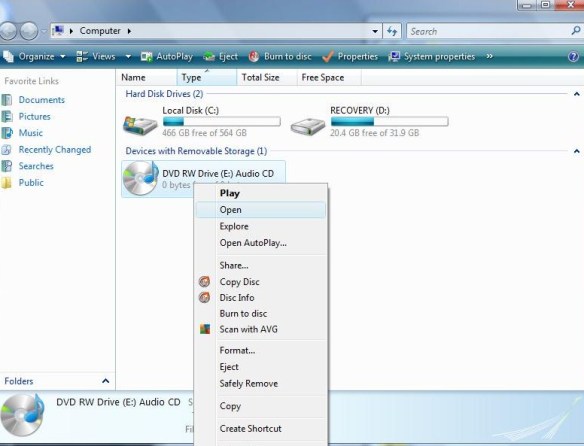
Left click-open

Locate the  Cd-ROM, Right click, on disc, then Left click  this will open the files on the disc.

(Remember, each mouse has two parts, a left side and a right side. so if you are right clicking, use the right side.)

(Below is what pictures of files on computer)

tracks on disc

(Setting up a Folder)

On setting up a folder, Go to the desktop, right-click, and a menu will open up   move down to where you see NEW, then click on FOLDER

kimmy


(Drag and Drop)

After naming  the folder,

Set  both folders, next to each other (The blank folder and the computer folder)

The next step is to highlight those songs or videos you wish to copy.  While holding down the shift key, hold down the  arrow key that points down. This function  will high-light your files.  You can either Right or Left-click then Drag contents to the empty folder.

dragging music to new folder

Now, you have the option to play your music from the desktop .

To do this Right click on the folder, when the menu opens up, it will ask if you wish to open the file, choose either open or Play whichever player is set as the default.. “Play with VLC media player. Once you click on this the player should take over.

Open menu for folder


The next step is to transfer the files to a compact disc,. The way to carry out this is to open Computer Window,  Left click on the file FOLDER on the desktop  and drag it over to the device labeled  DVD RW Drive and release. You will be prompted to insert a BLANK disc, after the computer has  set up the disc for formatting, your files will be transferred and you’ll be on your way, to listening to favorite music.

Remember, Focus on Jesus, not your problem

Putting God First

God Bless

Check the Battery

Video


Exquisite-print printer

Exquisite-print printer (Photo credit: Wikipedia)

So, today lets talk about, how crazy things can get. Last week, I needed to print out something, tried to print on Windows 8, but for whatever reason, the printer was not compatible, so, I grabbed my laptop with Windows 7, and connected it, without the cord, so, threw in the battery. Tried to connect the printer but, for whatever reason, it failed to install even with the disk that came with the printer. so, went to the internet, or say tried. I believe I prayed to get the printer to work.

When I returned the next day, tried to get on the internet, couldn’t get on the internet and now the graphics had switched to classic, which is something I never use. I couldn’t figure this out. figured my computer was on its last leg, already the CD-rom was not working, now, there was no internet and somebody must have been  inside the computer, at least that was my thought.We can think of all sorts of things when the computer is not working properly.

Maybe, the Wireless connector was also going out. I decided to restart the computer. There on the screen appeared that the battery had an issue and needed replacing, I removed the battery and guess what everything worked, printer, internet and Windows 7 was back to its normal graphics. My point is this if you are having issues with your laptop, first remove the battery and see if that fixes your problem.

Putting God first


Warning: Devastating Windows Virus Spreading – Tips, Reviews and Advice on All Things Digital – The Kim Komando Radio Show


Warning: Devastating Windows Virus Spreading – Tips, Reviews and Advice on All Things Digital – The Kim Komando Radio Show.


Apple releases iOS 7 for existing iPhone, iPad upgrades | ZDNet

Video


Apple releases iOS 7 for existing iPhone, iPad upgrades | ZDNet.


Six reasons why you should not immediately upgrade to iOS 7 | ZDNet

Video


As of Wednesday, the new operating system upgrade for i07 is out, however you might want to wait, until you have read the latest from ZDNet.

Six reasons why you should not immediately upgrade to iOS 7 | ZDNet.


Deleteing photos on iPhone 5


Well, I noticed a lot of pictures on my iPhone 5. Like you I do take a lot of pictures, then I forget about them. Just haven’t had a lot of time to look them over. Some need to be edited, while others just need to go. There are two ways in which you can do this. After you switch on the camera, and get IMG_0261past the password lock-screen,  go to the camera Icon, Camera Roll, click on the picture, and on the bottom to the far right you will see a trash can, click on this, you can either delete Photo or Cancel.

This other tip, I learned from the internet. First thing you want to do is switch on your iPhone 5, click on the home button, this is  at  the bottom of the screen. Than once you get past the lock-screen, click on the camera icon. camera roll, at the top you should see all, Photo’s and video. Click on Photo’s, on the bottom you should see a small box with an arrow, click on this and just touch on each photo. A red check mark  will appear on each picture. You can either share or delete these pictures.

Facebook, Apple hacks could affect anyone: Here’s what you can do | ZDNet


Facebook, Apple hacks could affect anyone: Here’s what you can do | ZDNet.


Apple working on cheaper iPhone: Report | ZDNet


It is possible that Apple, maybe coming out with a cheaper iPhone? Read for more info….

Apple working on cheaper iPhone: Report | ZDNet.

iPhone – “Do not disturb”


English: The camera of the iPhone 4. The rear ...

English: The camera of the iPhone 4. The rear camera is on top. (Photo credit: Wikipedia)

Hi, everybody, today we are going to be talking about the “Do not disturb “feature on the iPhone.  This is setting is used to allow your phone to be one, but, if you’re a evening sleepier, maybe you don’t want somebody waking you for whatever reason.  So to begin with go to settings,  switch the “do not disturb” from off to on. Touch the notifications tab below, here you will see “do not disturb“, touch on this then  Notifications. Tap  “Do not Disturb” here you see Scheduled below this will be the time that you want the  iPhone, not to disturb you while you are sleeping. Don’t worry if you have set the alarm, it will still go off. Now you can also choose, if you want to receive certain calls, to do this just touch “Allow calls from”, this will give you a set of choices either everyone, no one, or your favorites. You will know when it is on, by the half shaped moon at the top of the Apple main screen.

I know how  locations services can be very helpful,  when using as a GPS,  to get directions.  However, You might find that your battery will drain more quickly when it is on.   To shut off  Locations services,  go to the” Home Screen” touch the settings icon, then Privacy, then Locations to switch Off.

Setting the password is also something that is needed. To do this touch Settings, then General, turn on Passcode, enter passcode, you will have to do this twice. Then touch “require passcode” it will give you some choices of how long you want before the screen is locked  having you to re-enter the password, these are from Immediately, to 1-5 minutes. Good Luck, God Bless. God Gets the Glory!!!!

How to Power Cycle Your Gadgets To Fix Freezes and Other Problems – How-To Geek


How to Power Cycle Your Gadgets To Fix Freezes and Other Problems – How-To Geek.

Locked out of your Apple iPod, you might want to try this.


English: The logo for Apple Computer, now Appl...

English: The logo for Apple Computer, now Apple Inc.. The design of the logo started in 1977 designed by Rob Janoff with the rainbow color theme used until 1999 when Apple stopped using the rainbow color theme and used a few different color themes for the same design. (Photo credit: Wikipedia)

You have an Apple ipod, that has a password on it but, your nephew got a hold of it, and now you can’t get past the log-in screen. The Apple Ipod has locked  you out.  Now, what do you do? First thing  make sure you have iTunes  on your computer.

If you don’t have iTunes you can get it from the apple website at http://www.apple.com/itunes/ Click the iTunes tab to   download it to your computer.

After downloading, you will want to take your Apple  iPod and hook it to your computer. Open up iTunes, hold down the power button and the home button. When the screen goes blank, let go of the power button, continue to hold down the home button.

You should see the Apple  iPod appear in  iTunes.  You will  have two choices  to pick from. One is for a new Apple iPod and the other is  if you want to restore from the Apple  iCloud.

If you don’t have an Apple I.D, you will be able to create one after , the software is installed.  When it is done, it will display that you can disconnect your Apple iPod.