HP Mini 110-3518cl


HP Mini-Note 2133, Asus Eee PC 701 and Everex ...

HP Mini-Note 2133, Asus Eee PC 701 and Everex Cloudbook (Photo credit: Wikipedia)

Today, we will be doing a recovery on a HP Mini model 110-3518cl. After plugging in the computer, switch on the power which is on the right side of the computer, hold down or press the ESC key.
You should see the starup Menu
F1 System information
F2 System Diagnostics
F9 Boot Device Options
F10 BIOS Setup
F11 System Recovery

Once you press F11 you should see the Recovery Manager. There you will be given three choices.

The first box gives you the option to choose:
Microsoft System Restore
System Recovery
Minimized image Recovery

2nd box allows you to run a computer checkup

3rd box is for if you wish to back up your files

If you wish to continue click on System Recovery

The next page gives you the option to back any files before restoring the computer. If you wish not to back up your files, click where it says“Recover without backing up your files.”

After making your selected choice, then click NEXT. A warning will prompt you to make sure to disconnect any devices except for the power and the mouse. Click OK.

You will see Welcome to Recovery Manager, click NEXT to begin.

The computer will start the process of restoring the computer to Factory settings. This may take a while, so you might want to go and do something else. This should take around 20 minutes.

After recovery is complete click FINISH. Install any software to protect your computer, I have provided some links to help you with this process.

Ccleaner

http://www.piriform.com/ccleaner

Below is a link for Free AVG- Antivirus

http://free.avg.com/us-en/homepage

Below is a link for Free ZoneAlarm Anti-Virus

http://www.zonealarm.com/software/free-antivirus/

Below is a link for Free Avast Anti-virus

https://www.avast.com/en-us/index

Malware Bytes prevents and searches types of Malware that you may have inadvertently loaded inside your computer. If your computer is acting weird, run a scan of Malware Bytes. Below I have provided a link for a Free Malware bytes.

https://www.malwarebytes.org/free/

No video with supported format and MME type found


After reinstalling the Windows Vista operating system, I had gone to a christian Web site http://www.hischannel.com and when I had tried to watch one of the Sermons from their archive this came up below

No video with supported format and MME type found

No video with supported format and MME type found

I began by trying different things, first updating to Service Pack one , installing the Adobe Flash Player, and Real player nothing was working. I was at the end of my wits, then I  asked Jesus to help me with this. As I was looking over the website,


hischannel

I came across something that said  “LIVE AUDIO Stream” TAB near the bottom was this “Live TV Bandwidth Tester” which included “SilverLight player update.

Once I downloaded and installed it on my computer, I no longer ended up with the error “No video with supported format and MME type found”

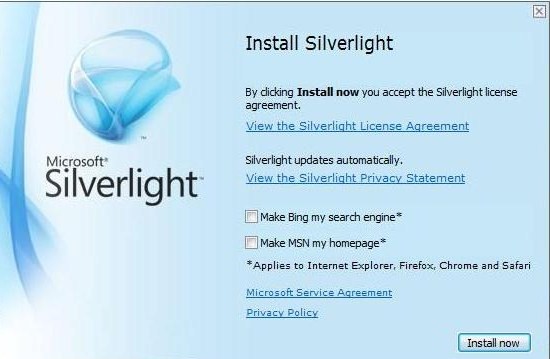
silverlight

Before installing SilverLight, make sure you uncheck the installation of the Bing Search Engine, and making MSN as your homepage, unless this is something you would like installed.

I hope this helps.

Putting God First!!! God gets the Glory!!!

No Disc, now what do I do?


I recently was having some trouble with my computer. I was trying to watch a sermon from Greg Laurie at his website http://www.harvest.org. It was becoming very glitchy and I couldn’t figure out what was going on. I believe I was reminded by the Lord, about the video card on my computer which i had totally forgotten about. The Video Card  is a Ati Radeon HD 2600 Xt. What I had forgotten to do was load the driver on the computer, after I had recently reinstalled Windows Vista. i began searching  all over for the disk but, to no avail. I then began checking the internet for a possible website, turns out there are a lot of companies out there that will try to solve your problem, like driver update websites, some end up not helping you at all, just giving you more problems. Lucky I was able to find a link from Microsoft.com, which had a link to the AMD website. I have provided a link below

http://support.amd.com/en-us/download

when you get to the website,

AMD Automatically Detect

go down where you see Latest AMD Drivers and Software, I had tried the Automatically Detect and Install you Driver, and found this was not much help for me, maybe your results will be different.

Once you locate your specific driver, for your particular Video card you will notice that there is not one listed for the Windows Vista,

Radeon HD 2600


here click “OTHER” which will take you to another page, which ask if you have a 32 or 64 bit. To find out you will need to go  to Start> type in the Search Field “System” once you click on this, you will be taken to another window, look under “System Type, here is displayed if your computer is a 32 or 64.

Radeon HD

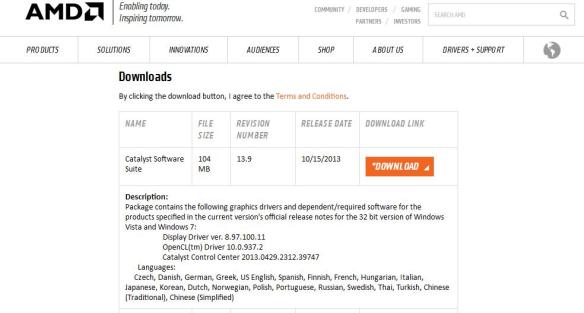
Once you have clicked on the proper bit size go down to where you see Downloads click on where you see Catalyst Software Suite

Catalyst Software

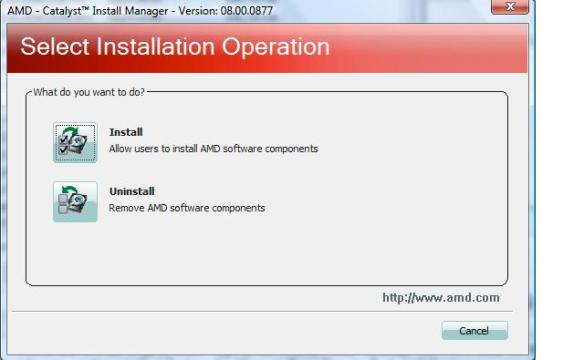
After downloading the program, a Window will open up, click install.

Select Installation Operation


Once the program has loaded you will be prompted to click Next, and install.

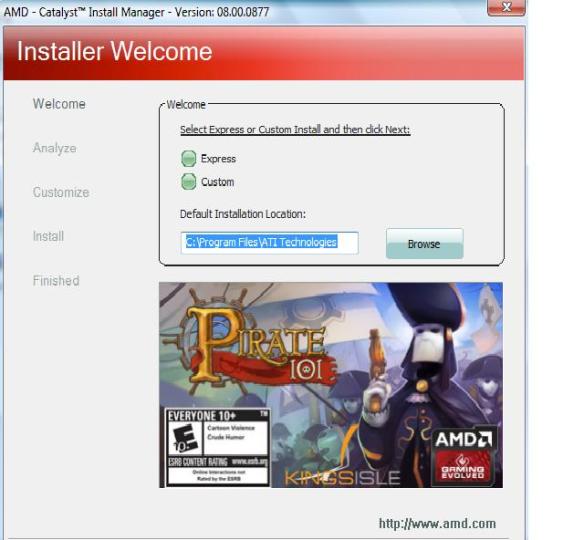
Here you will have the option to either choose Express or Custom,

Express or Custom


choosing Custom will provide you more security when downloading programs. After clicking next the program will start loading.

installling components


Make sure to read the End User License Agreement, before excepting.

End User License Agreement


After the program loads it will make some adjustments to your computer monitor, the screen will go blank for a couple of minutes, click Finish and your done.

Putting God First!!!

I can’t get my cd to play, is there something I can do?


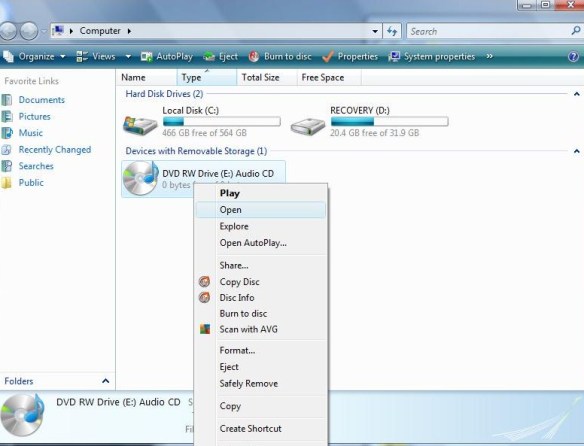
Let’s say we have some music or  videos  and the disc is not playing. Today we are going to be using Windows Vista, and what were are going to be doing is taking files that are not working and placing them on a new compact disc. To get started, go the start button. You will notice that off to the right is a set of tabs, click on computer and a window will pop open. computer WorkGroup

computer kim


Left click-open

Locate the  Cd-ROM, Right click, on disc, then Left click  this will open the files on the disc.

(Remember, each mouse has two parts, a left side and a right side. so if you are right clicking, use the right side.)

(Below is what pictures of files on computer)

tracks on disc

(Setting up a Folder)

On setting up a folder, Go to the desktop, right-click, and a menu will open up   move down to where you see NEW, then click on FOLDER

kimmy


(Drag and Drop)

After naming  the folder,

Set  both folders, next to each other (The blank folder and the computer folder)

The next step is to highlight those songs or videos you wish to copy.  While holding down the shift key, hold down the  arrow key that points down. This function  will high-light your files.  You can either Right or Left-click then Drag contents to the empty folder.

dragging music to new folder

Now, you have the option to play your music from the desktop .

To do this Right click on the folder, when the menu opens up, it will ask if you wish to open the file, choose either open or Play whichever player is set as the default.. “Play with VLC media player. Once you click on this the player should take over.

Open menu for folder


The next step is to transfer the files to a compact disc,. The way to carry out this is to open Computer Window,  Left click on the file FOLDER on the desktop  and drag it over to the device labeled  DVD RW Drive and release. You will be prompted to insert a BLANK disc, after the computer has  set up the disc for formatting, your files will be transferred and you’ll be on your way, to listening to favorite music.

Remember, Focus on Jesus, not your problem

Putting God First

God Bless

Using VirtualBox


I have heard about Virtual Ware, and really didn’t know much about it until I ran across  VirtualBox. I decided to write a blog on it use. This provides a safe and secure environment and could be fun!

So, lets get started. I have provided a link below.

https://www.virtualbox.org/wiki/Downloads

Welcome to Virtualbox

We will be using the  Windows, platform. Once downloaded, click New.

VirtualBox Manager

Upon naming your system choose which operating system you are going to be setting up. The program will automatically, select the required memory for that particular OS (operating System)and you have the option to choose to increase the memory size if you wish.

memory size Virtual Machine

Next is setting up the type of drive, if you are a standard user you don’t need to do anything. Below is link to the VirtualBox Manual which goes into detail of the different types of drives

VDI (VirtualBox disk Image) http://www.virtualbox.org/manual/ch05.html#vdidetails

Next is setting up the size of the hard drive, you have the option of setting up a particular size or having it expand as it is being used.

storage on physical drive

Next Place the operating system disc, inside the Cd-ROM, then click the start button as shown in the pane below.

Start Button (2)

Windows will start to load just like your regular computer, so if you’re using windows XP,  I have provided a link below on how to install XP.

How to install a fresh copy of Windows xp

Good Luck. Until Next time.

Putting God First

God Bless

Try this if your CD is not working.


Last week, I popped in a cd on the book of Daniel by Chuck Missler. For whatever, reason the CD-ROM wasn’t working. I figured i would have to pick up another CD Rom, so I went around looking for ones on Amazon.com. I was told that they were pretty inexpensive. Boy,  sure glad waited.  I decided not to buy. God must have had a reason for me to wait. It turns out that Microsoft.com had something that worked perfectly. A Fix. I will provide a link this is for Windows Vista, Windows XP, and Windows 7 and windows 8.1.

https://support.microsoft.com/en-us/mats/cd_dvd_drive_problems

click the “Run now” button

Fix it

after downloading the file, click run

diagnostic

After accepting to the agreement, the program will run a diagnostic

installing Microsoft Fix it

This next step is either have Microsoft do this for you or for you to pick, if your like me you probably just want to get it over  with in that case click Recommend.

applying the fixes (Recommended)

Detecting problems

Next you can either select your device if it’s listed, otherwise select not listed.

selecting cd drive

Then you will be asked if your trying to read or write to that particular drive

Trying to read or write to device

Once it finishes your CD ROM should be working normally.

Thank you Jesus

Putting God First

custom or Quick: Avoiding problems

Video


This slideshow requires JavaScript.

Today, we will be talking about how to prevent problems in the future, by doing something simple, it may take a few minutes but, in the long run, it will be well worth it. I run across several computers and they all run into the same problem, be it something they were in a hurry to do, or they didn’t know that there is an alternative, or just didn’t notice. Like for instance do we notice that when you are about to download Adobe, that it includes a free virus Scan from McAfee.

Enhanced by ZemantaThere are many programs out there it is sometimes hard to keep track of them, some them even include toolbars, so where am I going with this? Once a person download a new program, the immediately want to run it sometimes overlooking the obvious, if you do the quick install you will not notice it until your computer starts to act strange. Then there are those that include a toolbar and all of sudden your browser is offering something, that you really didn’t want. By downloading something simple as “SpeedFan” we find we could end up with such programs as Conduit Search, Optimizer Pro, so in order to avoid having these programs installed on our computer, we clicked on decline, now if we didn’t notice that there was a decline button, and just pressed next, we would have these two programs, to not install Optimizer pro, you still have to UN-check the box, then click “Decline”I hope this gave you some insight into what can happen, and if we go slowly and just don’t click with out reading each item, we will solve a lot of problems and headaches in the long run. If you do get into a mess if you download from my blog Malwarebytes, this should take care of all of your problems.
Putting God First
God Bless

Windows 8 accessing Safe-mode

Video


This slideshow requires JavaScript.

Safe-mode is   when you have a problem and you are trying to diagnose what the problem might be. Let’s say you have some malware or a virus, the safest way to remove these problems would be to go into  safe-mode.   If you are using Windows XP, Vista or Windows 7, the quickest way is to hold down the F-8 key or  hitting the F-8 key repeatedly.

For Windows 8, there are some steps that you must take. First off, pull up the Charm Bar, go to Settings, “change PC Settings, Move down to Update and Recovery,this will take you to another page,  Move down to where you see the word” Recovery”, Under Advanced Start-up, click restart.

After restarting the computer, you will have a few options: Choose Troubleshoot>  Advanced Options> Start up Settings> Restart the computer, and this will take you to  Startup Settings,  press the number 5 on the keyboard, which is Safemode with Networking. Using this will enable you to update any anti-Malware program, or anti-Virus.  Use  the administrator account in Safe Mode.

below is link of what devices are working during safemode

http://windows.microsoft.com/en-us/windows-vista/which-drivers-get-loaded-in-safe-mode

This is a break-down of  all safe modes:

http://windows.microsoft.com/en-us/windows-vista/advanced-startup-options-including-safe-mode

below I have provided ways to boot into safe mode with Various Windows operating systems including Mac

http://support.apple.com/kb/HT1564?viewlocale=en_US

booting into Windows XP

http://support.microsoft.com/kb/315222

booting into Windows Vista

http://windows.microsoft.com/en-us/windows-vista/advanced-startup-options-including-safe-mode

booting into Windows 7

http://windows.microsoft.com/en-US/windows7/Advanced-startup-options-including-safe-mode

link for using diagnostic tools in safe mode

http://windows.microsoft.com/en-us/windows-vista/diagnostic-tools-to-use-in-safe-mode

Putting GOD First

Be safe and Aware

user beware

Video


antivirus_system_pro

antivirus_system_pro (Photo credit: chrisdigo)

Spyware

Spyware (Photo credit: Wikipedia)

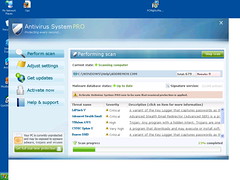
Below you will find a list of what i like to call rogue spyware software. Their claim is that these will help your computer to run faster, do not believe  their claims most of these do the opposite I have come across a few of these.

Please check the list before downloading any of these rogue software programs.

http://en.wikipedia.org/wiki/List_of_rogue_security_software

Putting God First

Security firms warn of spreading Windows AutoRun malware – CSO Online – Security and Risk


Security firms warn of spreading Windows AutoRun malware – CSO Online – Security and Risk.

Do this before you get the “blue screen of Death”


Blue Screen of Death as seen in XP, Vista and 7

Blue Screen of Death as seen in XP, Vista and 7 (Photo credit: Wikipedia)

Today, we are going to delve into system recovery, sometimes when you load a program that’s not compatible to protect the computer, you will get what they call the “BLUE SCREEN OF DEATH” Now when this happens you will get the blue screen, but it quickly moves so fast that you are not able to read what the error is. I’m going to tell you a way, which will freeze the screen so, you can write that error down, and then decide what the cause is.

So, to begin if you are using Windows XP   go to the start button, control panel, click on System, click the advanced tab,go down to startup and recovery, Click settings, go to the bottom  click the box next to Automatic restart click OK on the first and second panel.

For Windows Vista, and Windows 7, go to the control panel click on system, on the upper left hand corner,  click on Advanced system settings,go down to Startup and recovery, click settings tab, go down to system failure, click the box next to Automatic restart, click OK on the first and second panel. Then your done.

Beginner Geek: How to Burn an Audio Disc in Windows 8 – How-To Geek


Beginner Geek: How to Burn an Audio Disc in Windows 8 – How-To Geek.


Recovery discs


Inner view of a Seagate 3.5 inches hard disk d...

Inner view of a Seagate 3.5 inches hard disk drive Medalist ST33232A model manufactured in Malaysia in 1998. Parallel ATA interface, ultra DMA mode 2, I/O data-transfer rate 33.3 MB/s max, 3,227 MB, 3 platters, 6 physical read/write heads, spindle speed 4,500 RPM, cache buffer 128 kB, MTBF 300,000 hours, dimensions 146.8 x 102.4 x 26.2 mm, weight 540 grams. (Photo credit: Wikipedia)

It used to be that when you bought a computer, it came with what is known as recovery disc‘s. These discs were provided by whichever manufacturer sold your computer. It was a nice way of knowing that if something went wrong on your hard drive, you could wipe it clean using  these discs.

Now however the companies put the recovery discs on a partition a small area of the hard drive. When you have the time, hopefully sooner than later. Reason being is if you do this after getting a virus on your computer because you don’t have virus protection. You might have to order the discs from the manufacture.  You will  need 3 DVDs-r, (this will only copy the operating system, not any programs that you have added) to do this go to the start button,  all programs,  recovery manager and the recovery disk creation progrm for windows 7. Then follow the prompts, each set of instructions will be different.

using spybot search and destroy


This slideshow requires JavaScript.

SPYBOT SEARCH AND DESTROY is a free program used to get rid of spyware on your computer.

After you download Spybot search and destroy from http://www.cnet.com, or http://www.safer-networking.org

You will want to go through some steps,  a small window opens up, Press the green arrow to back up the registry.

> click “UPDATE” on the far left column, the program will take you to another site using mirrors. Use  any one of the flag” mirror.

Now you will have to shut off the UAC ( which stands for User Account control). In order to  get to this  you will want to click on the start button, going to the control panel, Then click on user account. Once there UN-check   Turn user account control on or off.   Click OK and restart the computer.

When your back to the desktop, open up spy bot,  on the left hand side about half way down you should see the Immunize button,  click on this. In the  upper right hand corner you should see small bricks starting to form a wall. The numbers will change, after immunizing twice you will or  should see 0 unprotected. When you are through. enable the UAC, and restart the computer.

After the computer has restarted you can begin running spy bot. Click the button “CHECK FOR PROBLEMS” When spy bot is done, it will register what it has found, all you have to do is click fix problems.