Tampilkan postingan dengan label Linux. Tampilkan semua postingan

Minggu, 28 November 2010

Mobile Broadband Telkomsel di Linux Fedora Core 13 dan Huawei E220 3G

Awalnya cukup ragu akan ada driver Huawei E220 di linux fedora core 13, namun setelah mampir dan sedikit mencuri ilmu di gramedia (tanpa membeli bukunya), ternyata ada caranya..

mungkin dengan gambar gambar berikut ini dapat menggambarkan bagaimana kita dapat melakukan koneksi Mobile Broadband Telkomsel di Linux Fedora Core 13. Internetan dengan modem 3G di Linux sama saja dengan di Windows, hanya saja kita tidak perlu melakukan instalasi modem disini.


Mobile Broadband Telkomsel di Linux Fedora Core 13 dan Huawei E220 3G

Mobile Broadband Telkomsel di Linux Fedora Core 13 dan Huawei E220 3G

Mobile Broadband Telkomsel di Linux Fedora Core 13 dan Huawei E220 3G


Mobile Broadband Telkomsel di Linux Fedora Core 13 dan Huawei E220 3G

Mobile Broadband Telkomsel di Linux Fedora Core 13 dan Huawei E220 3G

Jumat, 15 Oktober 2010

Locate Command can not open. [SOLVED]

Locate is a command to find file or directory in LINUX.


LOCATE COMMAND can not open `/var/lib/mlocate/mlocate.db': Permission denied [SOLVED]


You can solve problem with:

1)cd /var/lib

2)chmod -R 755 mlocate/mlocate.db

Senin, 01 Maret 2010

Linux User Password Reset

How can we do a Linux User Password Reset? It's a simple way to do User Password Reset in Linux.

1. To reset a User Password Reset, use passwd command. You have to change it to a different password.
2. Open terminal or shell prompt
3. Login as the root user (Only Root User can do User Password Reset)
4. Type the following command to do User Password Reset.
# passwd username
5. For example, reset a sanjaya's password, enter:
# passwd sanjaya
6. Type a new password twice to do User Password Reset.

After you type a new password twice, you have User Password Reset in Linux Successfully.

That's it, a simple way to do User Password Reset in Linux.

Selasa, 29 September 2009

Putty Command Line on Linux / Bash Command on Linux

A lot of Linux command line is difficult to beginner user, but we can learn it continuously.

If we forgot, here is The Complete Putty Command Line on Linux / Bash Command on Linux

Link Complete Bash Command on Linux

Kamis, 16 Juli 2009

Windows Network Configuration connecting to Another Computer

Below We can see Windows Network Configuration connecting to connecting to Another Computer. What is the purposes..? --> Usually the purposes is to File Sharing.

1. First of all click start --> Control Panel Network Connection, Right Click on LAN (Local Area Networking) and then choose Properties.


2. Choose TCP / IP Configuration, and Click Properties

2. If Properties Clicked, do a configuration like picture below. Example here we use 192.168.0.2 for Windows and 192.168.0.1 for Another Computer.
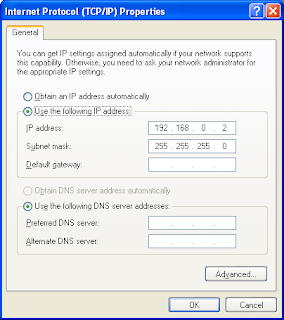
4. Click Ok. How can we ensure our IP is 192.168.0.2? Just write

ipconfig
on cmd (windows command prompt)


5. Test the connection with
ping IP

to Linux Computer (on cmd (windows command prompt)). Example here

ping 192.168.0.1


Windows now have LAN connection to Another Computer. Image above shows that connection succesfully. If failed it will be Request Time Out or Destination Host unreachable.

If Something wrong try to check Windows Firewall Configuration. Set Windows Firewall to OFF both of the Computer

Selasa, 14 Juli 2009

Fedora Core eth0 or LAN Configuration

If we want to Connect To Linux Operating System Computer, we must setting the eth0 or LAN in Windows Operating System.

How can we configure Fedora Core eth0 ?. Follow the instruction below.
1. Click System --> Administration --> Network to go to Network Configuration.


2. Activate the eth0.


3. Double Click eth0. For example we set IP 192.168.0.2 for the Linux and 192.168.0.1 for the Windows.

Test the connection with Ping Command from Linux Fedora.

ping 192.168.0.1


Image above shows that connection succesfully. If failed it will be Request Time Out or Destination Host unreachable.

4. Try also Ping from Windows.


eth0 or LAN Configuration is only beginner steps to do next thing, but this steps is very important, because ensure the connection between Windows-Linux computer.

If Something wrong try to check Windows Firewall Configuration. Set Windows Firewall to OFF

Firewall Windows Block Port 80

If Linux web browser cannot connect to Windows Web Server, there maybe something wrong with windows firewall configuration. The firewall block http port, Port 80.

Check your Windows Firewall configuration from Start --> Control Panel --> Windows Firewall.


If Windows Firewall status is On, it will cause Network Timeout to do a web browsing activity to another computer like 2 images below.


Set Windows Firewall status to Off is the way to make browsing to another computer web server can be done. But remember set Windows Firewall status to Off is will make your computer more vulnerable.


SSH To Remote Linux Fedora Server From Windows

SSH (Secure Shell), Is Protocol to remote Linux Server. The remote command is important to control and manage the Server. With SSH we can remote another Server that locate in long distance.

How can We Remote Linux Server using SSH?. Just follow steps below.

1. Click Putty.exe and Provide the Information in Putty Configuration.

2. Provide User Login to Server (Username and Password).

3. Enjoy The Remote Server using Command Line.

a. Example Linux Remote Command (1)

Figure 1.

b. Example Linux Remote Command (2)

Figure 2.


Putty Text Color and Background Color Configuration

Usually Comand Line Background Color being unconfortable for us. Putty or command prompt have black background color. Sometimes it's hard to read the information there. So if we want to change putty background color we can just follow this steps


1. Click Properties at Windows Caption (One line with Close, Maximize and Minimize)

2. Choose Colour, Sub Menu of Windows.

3. Configure Cursor Text Color [Example Here we choose Black (R,G,B)=0]


4. Configure Default Backgroun [Example Here we choose White(R,G,B)=255]


5. The Result


Selasa, 07 Juli 2009

Service in Fedora Core 10 like Task Manager Process in Windows

Services That Run In Fedora Core 10 can be shown with this command
ls /etc/init.d/


Hang Process can be restart with command, example :
/etc/init.d/httpd restart


With this manner, we can restrat single process without physically restart the Computer.

Senin, 06 Juli 2009

SSH to Remote Linux Fedora Core 10 Server

Have You Ever See People Remote Another Computer [Linux Computer] By Using Putty like image below.


How We Can Do That..? Follow the Instruction Below..
1. Open Putty.Exe [ Window to Linux Telnet, SSH, etc ] and then fill Host Name, Port and SSH


2. If Succes [IP address, Port and Connection Type are Correct], Then You will be ask for username and password.

3. If Login is Correct then Enjoy !!! Enjoy the Linux remote command


Jumat, 05 Juni 2009

Change Bootloader In Linux (Fedora 10)

If Computer Power is On, the first time it will boot Operating System. In Computer with 2 Operating System, it needs to manage which operating system boot first.
This can be manage in Linux (I'm Using Fedora 10).

It Quietly Easy to do this. Just Choose Bootloader in Linux Start Menu. Then A prompt show to login as root (Note that only root can change the bootloader).


Set The default bootloader and the timeout.

If we choose Windows as primary bootloader, choose others in the Bootloader Configuration Window. Don't Forget to Set The Timeouts.

Kamis, 04 Juni 2009

PrintSreen in Linux

It was completely complicated if we are newbie in Linux. I have a big motivation in learning Linux. But I am so Newbie..!!!
Just try to documented.

I'm using Fedora 10 to Learn Linux and the first thing I Learn is How to Print Screen.
Just search one by one in Linux Start Menu (I'm Usually call start menu In Windows)
and I Got Window Like This


Use This GUI (Graphical User Interfaces to Take Screenshot / Printsceen in Fedora 10)