Add Your Header/ Event Banner #
- Go to Settings and click the Appearance section.
- Upload a header image to the Event banner field.
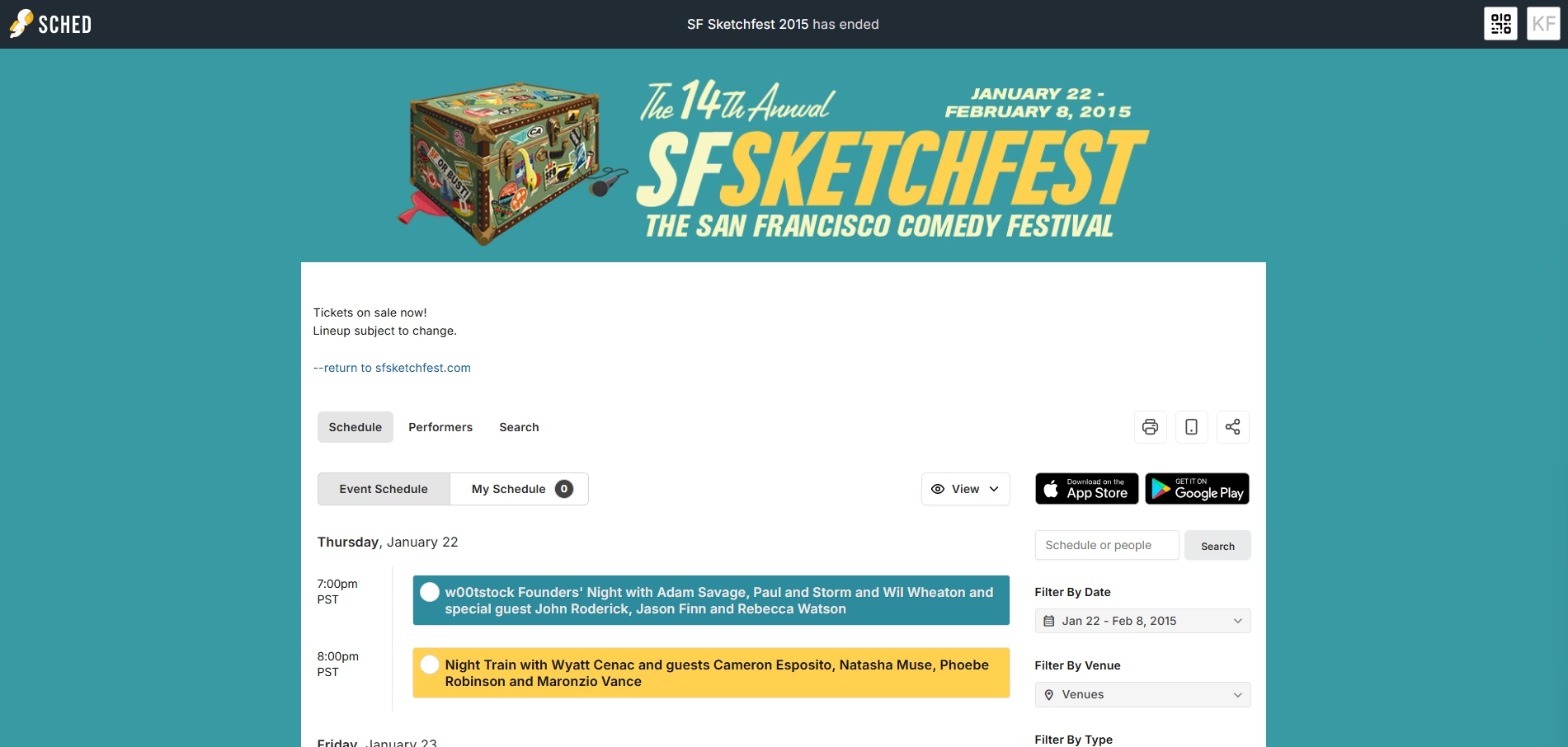
Requirements:2400 x 500 (PNG, GIF, JPG)
Sample Event banner:
Add your Mobile Header Image #
- Go to Settings and click the Appearance section.
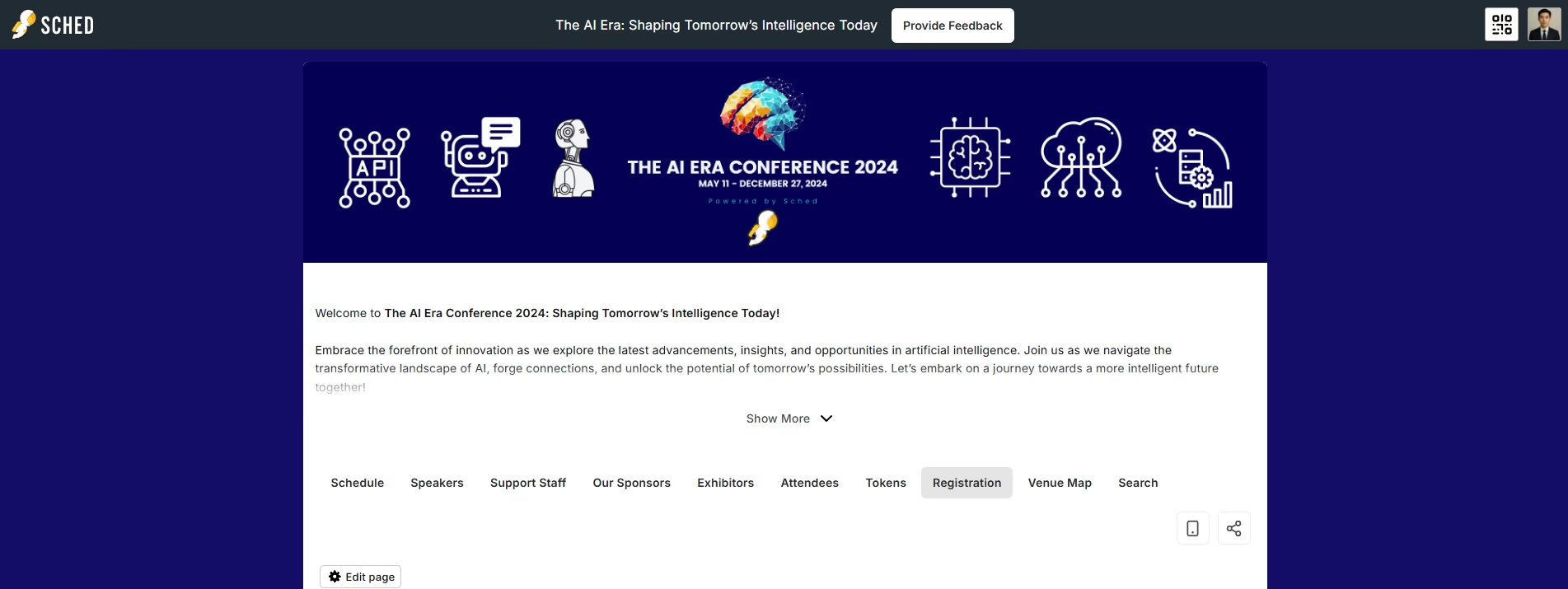
- Upload a header image to the Mobile Header Image field. This header will also display on your mobile event site and Mobile app.
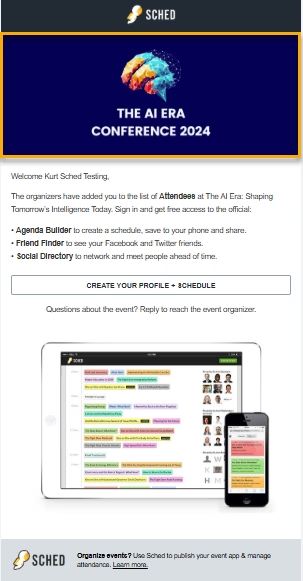
Requirements: 1200 X 500 (PNG, GIF, JPG)
Sample email header:
Add Your Header Text #
Use the header text area to provide instructions or important announcements. The header text can include bold/italic styling, paragraphs, and links. It will show up under your header image.
Go to Settings => Appearance.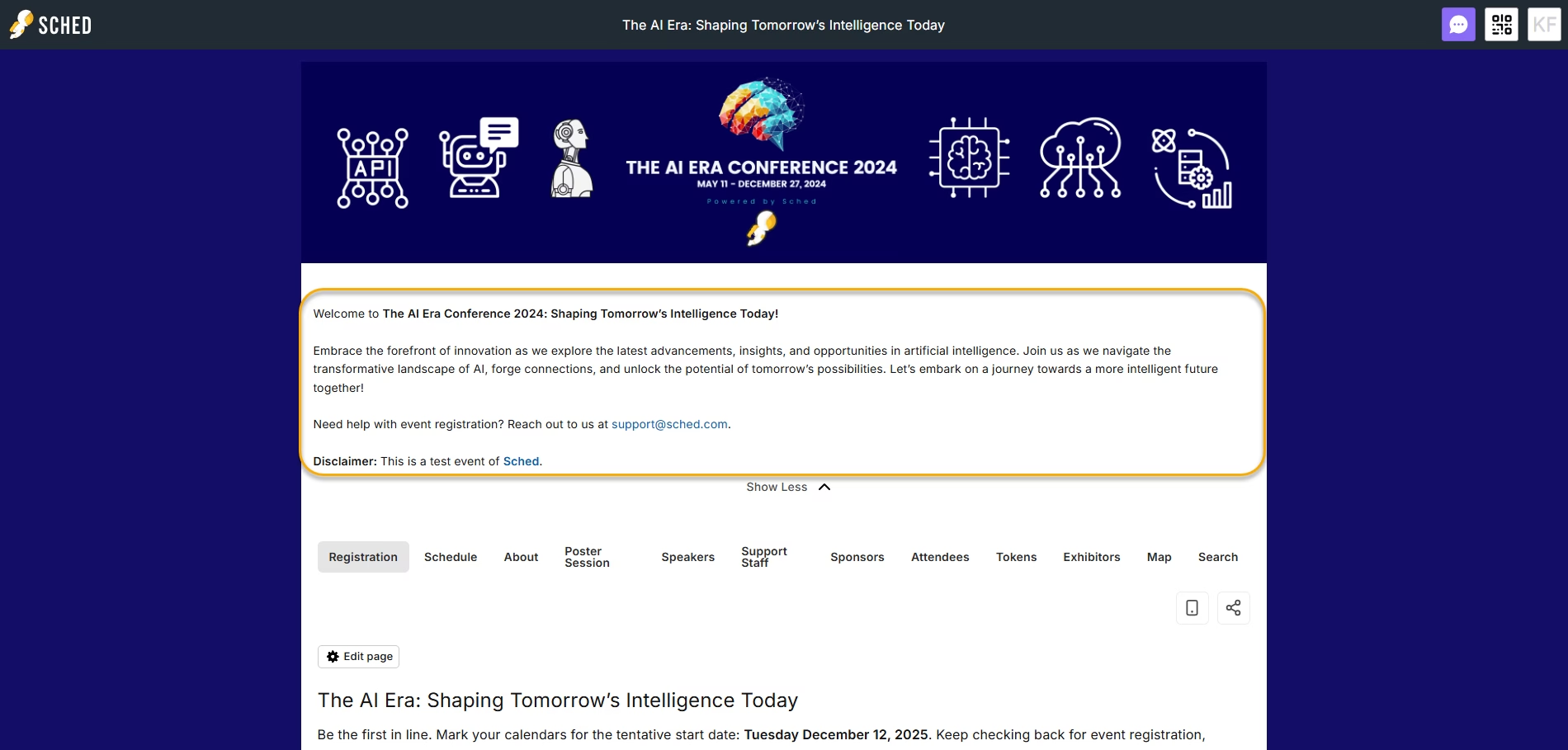
Add Your Footer Image #
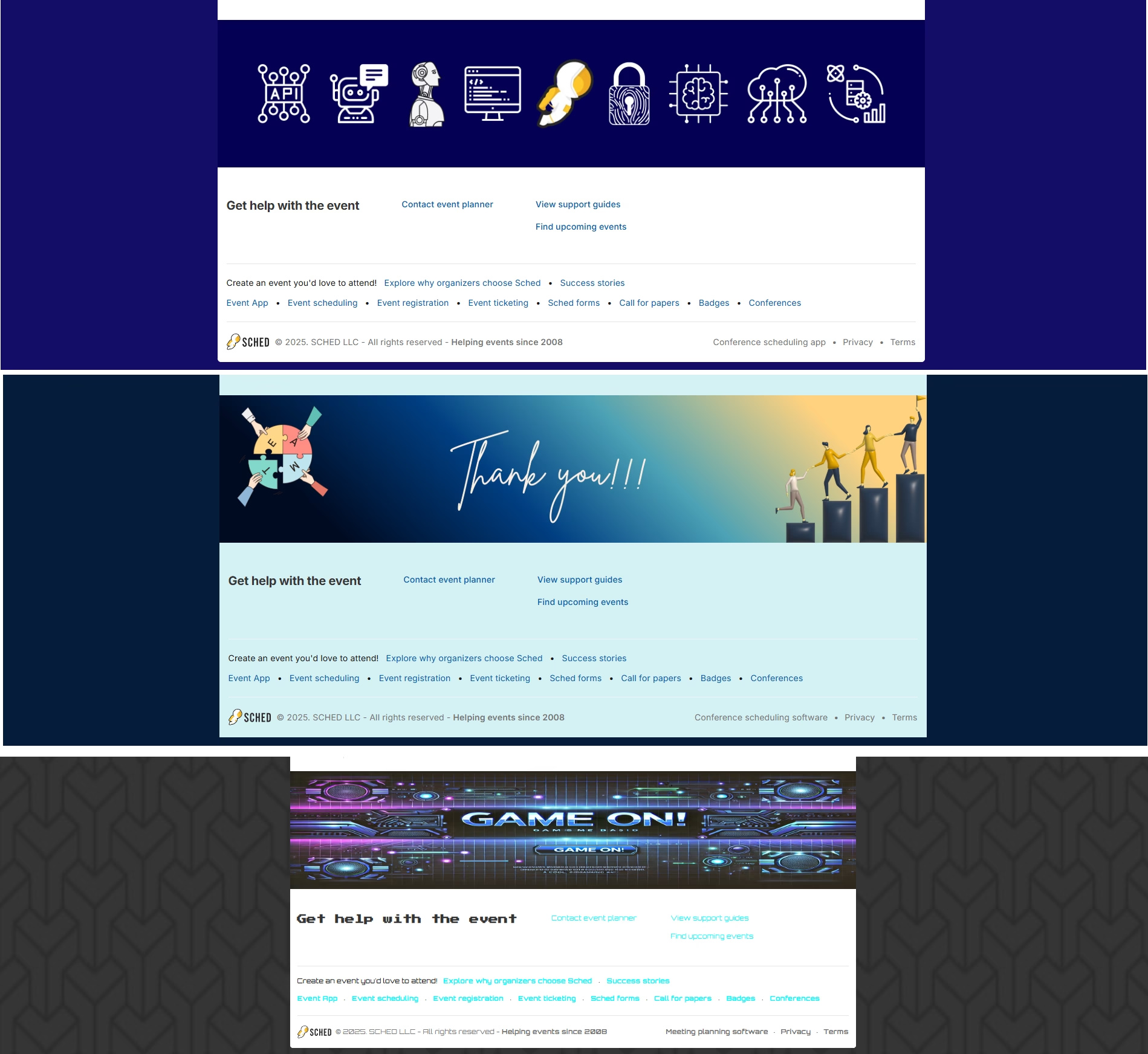
Use the footer image to add further design or sponsor information to the bottom of your event on web view.
Requirements: JPG, PNG, or GIF, and less than 2MB in size. We recommend a 2400px width and 500px height.
Go to Settings => Appearance.
Change Your Background #
Change the background color of your site to best fit with your event theme. You can also use Custom CSS to specify a background image.
- Go to Settings => Appearance.
- Next to “Background Color,” click the field.
- Drag the color picker or enter a hexadecimal code to use a specific color.
- Click “Save.”
Here’s an example where the event background is dark navy blue :
Allied Media Conference used a white background, so the page looks more open: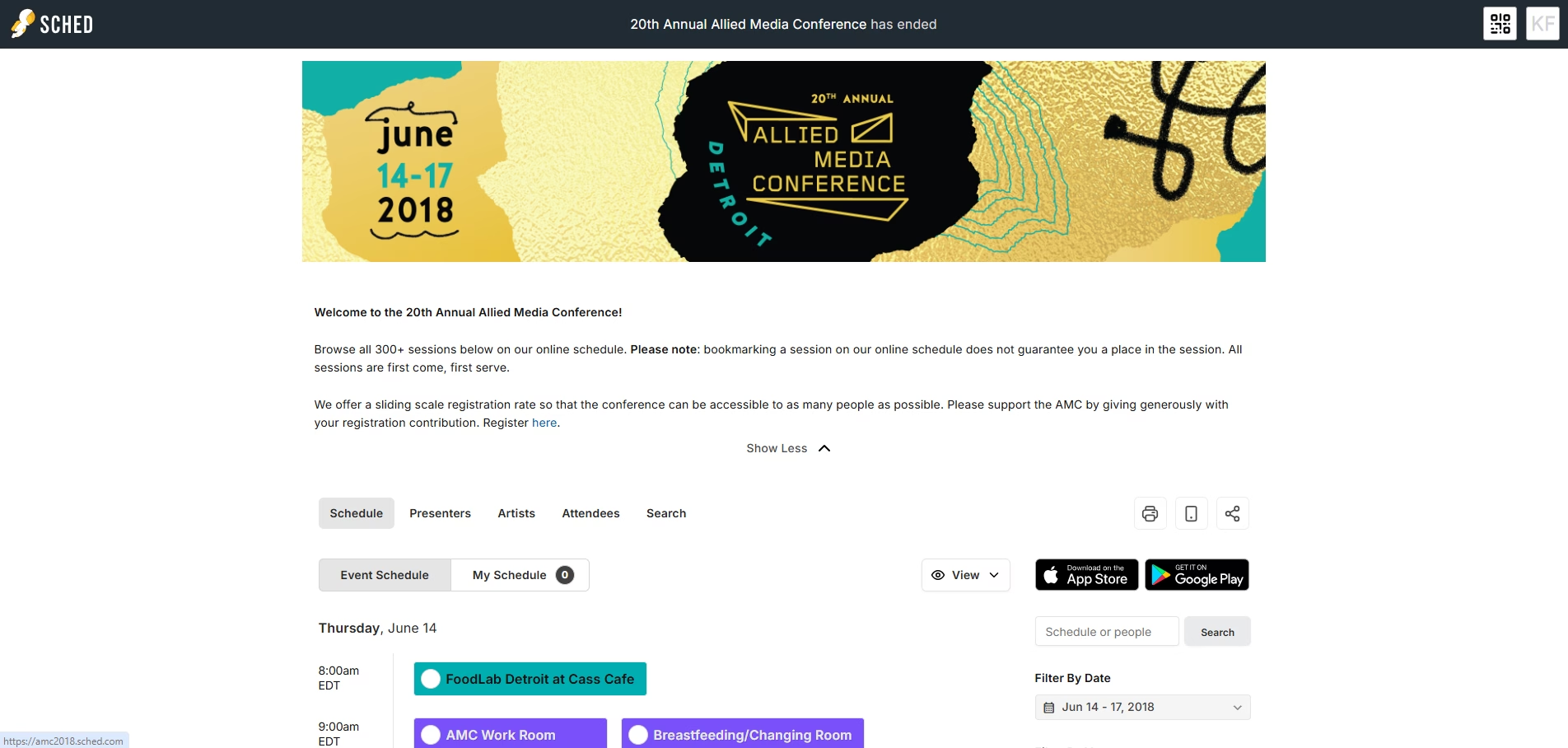
SF Sketchfest matched the background color to their header image: