6 Special Websearch Services from Google

Google, the big daddy of Search also offers special search features for anything related to US Government, Linux, BSD, Microsoft, Mac and Firefox.

To check out these special Search Features from Google, read out more below 

1.)  Searching for something related to US Government? Check Out  http://www.google.com/unclesam 

2.) Stuck with something in Linux? try out Google’s special Linux search at      http://www.google.com/linux

3.) For all your search related to BSD, refer http://www.google.com/bsd

4.) Own a Mac? Try out searching forMAC related information at http://www.google.com/mac

5.) Google also offers a search about Microsoft, find it at http://www.google.com/microsoft

6.) Another very interesting Topic covered on Google is Firefox, search for it at http://www.google.com/firefox

5 Freeware Softwares Worth Giving a Try

Freeware Software can be defined as a program distributed free of charge by the author. This software can then be downloaded off the internet or from other computer bulletin boards, freely available cd or dvd’s.

Below is a list of 5 Freeware Softwares which are worth a try.

1.) Launchy: Launchy is a free windows and linux utility designed to help you forget about your start menu, the icons on your desktop, and even your file manager. 

Launchy

Launchy

Launchy indexes the programs in your start menu and can launch your documents, project files, folders, and bookmarks with just a few keystrokes. Download Launchy from here. Launchy is available for both Windows as well as Linux.

2.) Defraggler: Defraggler is a freeware program, created by Piriform, that defragments files individually or on a whole hard drive. It works with Microsoft Windows.

Defraggler-Defragment files with ease

Defraggler-Defragment files with ease

It differs from other defrag tools on the market, by enabling you to quickly and simply defrag the files you want to, without having to process the whole drive. Simply run it, select the file and defragment in seconds. No more struggling with the Windows defragmentation tool. Download Defraggler by clicking here.

3.) Tiny USB Office: Tiny USB Office replaces the former FloppyOffice package, it is an improved version of the small, portable productivity software suite which offers a collection of unique standalone free software applications.

Tiny USB Office

Tiny USB Office

If you find yourself working on different machines and like the idea of having portable software that you can access hassle-free from any computer, then this is the package for you. Download Tiny USB Office from here.

4.) LinkScannerLite: LinkScanner Lite integrates with major search engines to check search results for a variety of online threats before you click.

LinkScannerLite in action

LinkScannerLite in action

LinkScanner Lite inspects each search result as it is returned to your browser. One of four color-coded icons will appear next to each result. LinkScanner Lite provides the most accurate analysis of the safety of Web search listings. Download LinkScannerLite from here.

5.) True Crypt: True Crypts is a Free open-source disk encryption software for Windows Vista/XP, Mac OS X, and Linux. 

True Crypt -- For on the fly encryption

True Crypt -- For on the fly encryption

It can create a virtual encrypted disk within a file, or a device-hosted encrypted volume on either an individual partition or an entire storage device. It can encrypt the Windows boot partition or entire boot drive, and has the ability to create and run a hidden encrypted operating system whose existence is deniable. Download TrueCrypt from here.


Also read: DNSDataView: NSLookup with a GUI

[Utilities] 3 System Utilities you should Try

How-To: Stripping attachments from Microsoft Outlook.

How-To: Display two time zones in Microsoft Outlook

Top 5 Tutorials on Ruby on Rails


You can follow me on Twitter at http://twitter.com/vaibhav1981

Do stay tuned to Technofriends for more, one of the best ways of doing so is by subscribing to our feeds. You can subscribe to Technofriends feed by clicking here.

Cheers

Vaibhav Pandey

Installing Ubuntu on Windows using Wubi

If you are one of those Windows user who is planning to install Ubuntu on your machine, but have no clue of how to do it, Wubi is for you.

Wubi-Logo

Wubi-Logo

Wubi is an officially supported Ubuntu installer for Windows users that can bring you to the Linux world with a single click. Wubi allows you to install and uninstall Ubuntu as any other Windows application, in a simple and safe way. Wubi installer installs Ubuntu as a file on your Windows system. The best thing is it runs as if you are using a seperate partition for Ubuntu.

Wubi adds an entry to the Windows boot menu which allows you to run Linux. Ubuntu is installed within a file in the Windows file system (c:\ubuntu\disks\root.disk), this file is seen by Linux as a real hard disk.

To begin with Wubi, follow the steps below

1.) Download Wubi and run the same, insert a password for the new account, and click “install”. The installation process from this point is fully automatic. The installation files (700MB) will be downloaded and checked, after which you will be asked to reboot. Do so and select Ubuntu at the boot screen. The installation will continue for another 10-15 minutes and the machine will reboot again. This is it. Now you can select Ubuntu at the boot screen and start using it.

Wubi Installation Screen

Wubi Installation Screen

2.) Once the reboot is done, you shall be presented with an OS selection screen as shown below

OS Selection screen

OS Selection screen

Select Ubuntu to log on to Ubuntu. If things don’t look good, try logging into Windows and re-installing Wubi.

Wubi also gives you an option of installing Ubuntu from your existing ISO/CD instead of letting Wubi download a new one. If you have an image on CD,physical CDs will be detected automatically, pre-downloaded ISOs should be placed in the same folder as Wubi.exe. Please note that Wubi 8.04.1 requires the Desktop 8.04.1 CD/ISO, while Wubi 8.04 requires the 8.04 CD/ISO. The DVD and Altrenate CD/ISO will not work. You can find the 8.04.1 ISO here. If Wubi does not find an appropriate ISO/CD and/or if the ISO/CD is corrupted, it will automatically download a new ISO. It is recommended to let Wubi download the ISO for you.

If you ever wish to uninstall Wubi, you can uninstall it as any other applications. In Windows go to the control panel and select “Add or Remove Programs”, then select Wubi/Ubuntu and uninstall it. You can also use the uninstaller that you find in the installation folder.

Wubi-Uninstallation

Wubi-Uninstallation

Give Wubi a try and share your comments.

Also read: [How-To] Automating data backup in Windows

[How-To] Automating data backup in Windows

You can follow me on Twitter at http://twitter.com/vaibhav1981

Do stay tuned to Technofriends for more, one of the best ways of doing so is by subscribing to our feeds. You can subscribe to Technofriends feed by clicking here.

Cheers

Vaibhav

Interesting reads from the Blogosphere

Below are some of the interesting reads from the Blogosphere.

Interesting reads from the blogosphere

Interesting reads from the blogosphere

1.) How to use Gmail’s SMTP server and Gmail to send mails using Ruby : This post gives a very precise and clear way to use Gmail’s SMTP server and Gmail to send mails using Ruby. Once you are done with this tutorial you can send an email using Google’s Gmail server in three easy steps using Ruby.

2.) Web-Based Tools for Optimizing, Formatting and Checking CSS: Stylesheets can get large real quickly, both in terms of length and file size. To ensure that your web pages render correctly and quickly, here’s a compilation of some of the best free, web-based CSS optimizers/compressors, code formatters, and validation services. Check them out and pick the ones that work best for you.

3.) Learning the Linux Lingo: If you are new to Linux and wish to learn the various lingo’s of Linux like bash, fork etc , this is one of the very good posts to learn from.

4.) Top 10 TED Talks of all time: With speakers like neuroanatomist Jill Bolte Taylor and global health expert Hans Rosling, the list proves one of the compelling ideas behind TEDTalks: that an unknown speaker with a powerful idea can reach — and move — a global audience through the power of quality web video

Also read: Do you store your passwords using Firefox?

Asterisks Password Viewer

Tools to Use: Clearing BIOS password

How to Open Password Protected PDF’s

Spoofing Explained : Another attempt to cover Hacking fundas

You can follow me on Twitter at http://twitter.com/vaibhav1981

Do stay tuned to Technofriends for more, one of the best ways of doing so is by subscribing to our feeds. You can subscribe to Technofriends feed by clicking here.

Cheers

Vaibhav

[How-To] Use Gmail to Remote Control your PC

Its a known fact that Gmail is the most popular email service available today. Though, utilities for using Gmail as a disk space were out pretty long back; there is another interesting utility called GCALDaemon which can be used to remote control your PC using Gmail.

GCALDaemon is an OS-independent Java program that offers two-way synchronization between Google Calendar and various iCalendar compatible calendar applications. GCALDaemon was primarily designed as a calendar synchronizer but it can also be used as a Gmail notifier, Address Book importer, Gmail terminal and RSS feed converter. GCALDaemon uses very less memory ( ~ 10-20 MB) and runs in service mode on Windows NT/2000/XP.

GCALDaemon, when initially installed, is not configured to do anything. Based on the services you wish to use, it should be configured. In this post, we shall be using GCALDaemon to remote control our PC. As a practical implementation, this scenario can be useful to users who have a very protected network but still wish to do certain tasks with it. It assumes that port 80 of your computer is open. 🙂

GCALDaemon can be used to remote control your PC

GCALDaemon’s ‘mailterm’ service enables Gmail users to remotely control their PC by sending an email to their Gmail account. This management service keeps checking a Gmail inbox regularly, if it finds an email from a trusted sender and with a secret subject, it reads and executes a specified script file. Then GCALDaemon sends back a response, which contains the script’s output. Most mobile carriers and recent phones have built-in support for sending email through SMS gateways, therefore a simple cellural phone should be enough to manage a computer.

In order to configure ‘mailterm‘ service follow the steps mentioned below

1.) Install GCALDaemon. You can download GCALDaemon from here

2.) Enable IMAP on your Gmail. Check my previous postGmail gets IMAP Support for further information on this.

3.) You will need to encode your Password by starting out the Password Encoder application. This application takes in your Gmail Password and encodes it. Copy the encoded password.
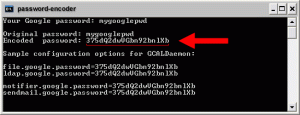
GCALDaemon-Password Encoder feature encodes the password

4.) Open ‘gcal-daemon.cfg’ and edit the same with your favorite text editor. On Windows, this file is located in C:\Program Files\GCalDaemon\conf\gcal-daemon.cfg as part of the default installation. In case, if you have chosen to change the installation path, please look for the file in the respective location.

A) Set the ‘mailterm.enabled’ property to ‘true’
B) Set the ‘mailterm.google.username’ property to your Gmail address
C) Set the ‘mailterm.google.password’ property to your encoded password

Configuring Mailterm in GCALDaemon

5.) At the time of setup, you may choose your own unique email subject for mailterm. This subject must be at least 6-8 characters long and contain a combination of letters and numbers. Basically, you do not want any word or number which can be associated with you, or typical in ordinary messages. The subject is case sensitive. Start the password encoder again, input your mailterm subject and press ENTER. Copy the encoded subject.

Cinfiguring Mailterm on GCALDaemon- Part2

6.) 6) Edit the ‘gcal-daemon.cfg’ with text editor.

GCALDaemon- Configuring Mailterm Part3

A) Put the encoded subject for the variable ‘mailterm.mail.subject’.
B) Put the list of the trusted e-mail senders for the variable ‘mailterm.allowed.addresses’.

7.) Create a new script file (BAT or SH) and save this file into the mailterm’s scipt folder (e.g. ‘/scripts/ls.bat‘). The folder’s location is determined by the ‘mailterm.dir.path’ property in the gcal-daemon.cfg file.

Configuring Mailterm on GCALDaemon-4

8) Setup finished – launch GCALDaemon.

9) Create a new mail message, put your mailterm subject for the mail’s title, and enter you mailterm command in script name [optional parameters] format. You can use either a single quotation mark (‘) or quotation marks (“) to enclose script parameters.

Configuring Mailterm on GCALDaemon - Part5

10) Click on ‘Send’ button. You will receive the script’s output within 10 minutes after submitting your mail.

Configuring mailterm on GCALDaemon - Part7

You can further do some fine adjustments to this installation. Please visit the official page of GCALDaemon for further details.

Also read: Interesting Gmail Hacks

How-to Exclude Chat from Gmail Search Results

How-to show unread mails at the top in your inbox in Gmail.

You can follow me on Twitter at http://twitter.com/vaibhav1981

Do stay tuned to Technofriends for more, one of the best ways of doing so is by subscribing to our feeds. You can subscribe to Technofriends feed by clicking here.

Cheers

Vaibhav