
Ruby on Rails Tutorial
 Jennifer Rodriguez
⚡ Smart Summary
Ruby on Rails Tutorial introduces the open-source web framework written in Ruby that powers Airbnb, GitHub, and Shopify. The walkthrough covers installation on Windows, Mac, and Linux, Rails generators, routing, views, ActiveRecord, validations, and debugging.

What is Ruby?
Ruby is a high-level, interpreted, object-oriented programming language. It is a dynamic open-source language with a large community behind it. Ruby was designed for simplicity and productivity. It encourages writing software code that is human-first and computer-second. Yukihiro Matsumoto created Ruby in Japan in 1995.
What is Rails?
Rails is a development framework written in Ruby for building web applications. It was created as the foundation of the Basecamp application and then released as open-source software in 2004. Rails offers many in-built standard features and functionalities, which makes it a suitable choice for MVP prototyping and rapid product development.
Rails was created by David Heinemeier Hansson, popularly known as DHH. It is one of the most influential and popular tools for building web applications. It is used by major sites such as Airbnb, GitHub, and Shopify.
Why Rails?
Before installing the toolchain, it helps to understand why Rails remains a popular choice for shipping web applications quickly.
- Rails is packaged as a Ruby gem, and you can use it to build a wide variety of applications.
- It allows you to build regular web applications, e-commerce sites, content management systems, and more.
- Rails is a full-stack framework that includes everything you need to create a database-driven web application using the Model-View-Controller (MVC) pattern.
- All layers are designed to work seamlessly together, so Rails projects typically need fewer lines of code than equivalent projects in other frameworks.
How to Download and Install Ruby on Windows
The installation process depends on your operating system. The next sections cover installing Ruby on Windows, Mac, and Linux.
Step 1) Download Rubyinstaller.
The easiest way to install Ruby on your Windows computer is through Ruby Installer, available at https://rubyinstaller.org/.
Once downloaded, run the installer.
Step 2) Click on the downloaded installer.
Double-click the downloaded installer file, for example rubyinstaller-2.4.1-2-x64.exe.
Step 3) Accept the license.
Select the “I accept the license” radio button and click the “Next” button. You should see the screen below.

Step 4) Check the first two checkboxes.
Check the first two checkboxes to make running Ruby scripts easier.
Click the “Install” button to start the installation. You should see the screen below when it completes.

Step 5) Click on Finish.
Do not uncheck the option that installs MSYS2. Click “Finish” to complete the installation. A command prompt window opens as shown below.

Step 6) Install MSYS2.
This step installs MSYS2, a build platform that features a package manager for easy installation of packages on Windows.
Press Enter to install all components since they are all required for a smooth Ruby on Rails development environment on Windows.

Installing Rails
You should have Ruby installed from the previous section. Next, install Rails. You can install Rails using a package from RailsInstaller, but the package often does not ship the latest version of every required dependency.
If you already have the latest Ruby and the baseline RubyGems and extensions installed, simply run the following command at the command prompt to install Rails on your system: gem install rails.
You will also need to install Node.js if you do not already have it, because some libraries that Rails depends on require a JavaScript runtime to work correctly. Get Node at https://nodejs.org.
A more common and preferred approach on Windows is to use the Windows Subsystem for Linux. It provides a GNU/Linux environment with command-line tools, utilities, and common applications directly inside Windows.
Installing Ruby on Mac
Your Mac already has Ruby pre-installed. However, the pre-installed version is often outdated, so you should install a newer version.
The easiest way to do this is to use a package manager such as Homebrew. You may first need to install Homebrew by running the command below in the Terminal.
/usr/bin/ruby -e "$(curl -fsSL https://raw.githubusercontent.com/Homebrew/install/master/install)"
This displays a warning and prompts you to enter your password. Enter your Mac password (the characters do not appear as you type) and press Enter when done. Then run this Homebrew command to install Ruby on your Mac.
brew install ruby
Then run this command:
echo 'export PATH="/usr/local/bin:/usr/local/sbin:$PATH"' >> ~/.bash_profile
This sets the new Ruby installation as the default Ruby on your system instead of the pre-installed Ruby.
To confirm the installation was successful, run the following in the Terminal:
ruby --version
This prints the Ruby version number you have installed. The output looks something like:
ruby 2.6.0p0 (2018-12-25 revision 66547) [x86_64-darwin18]
Installing Ruby on Ubuntu (Linux)
The easiest way to install Ruby on Ubuntu is through the apt package manager. Run the following commands in the Terminal to install the latest Ruby from the Ubuntu repositories.
- sudo apt update – This updates the default Ubuntu repositories.
- sudo apt install ruby-full – This downloads and installs the latest Ruby.
To confirm the installation, run ruby –version. This prints the Ruby version you have installed.
Installing Rails on Ubuntu (Linux)
Follow the steps below to install Rails on your Linux machine.
Step 1) Update your gem manager by running gem update –system in the Terminal or command prompt.
Step 2) Run gem install rails to install the latest version of Rails on your computer.
Step 3) Install the bundler gem for easy Rails application gem dependency management. Run gem install bundler.
Two Principles of Rails
Rails follows basic software design principles and encourages you to use them too.
The two most common are:
- Don’t Repeat Yourself (DRY) – this leads to concise, consistent, and maintainable code.
- Convention over Configuration – Rails is pre-configured with sensible defaults that fit most common usage. This makes application development fast and leaves you with less code to maintain.
Rails – Project File Structures
With Rails installed on your system, create a Rails application. The next sections walk through a Ruby on Rails example by building a Todo list application. Run the following command in your Terminal to create the application:
rails new todo_app
This command creates a directory named todo_app in the current directory with the basic folder structure of a Rails web application, as shown below.

Here are the main directories generated for the project:
app – groups subdirectories for the UI/layout (views and helpers), the controller (controllers files), and the models (business/application logic).
app/controllers – stores controller files used by Rails to handle requests from the client.
app/assets – contains static files needed by the application’s front-end, grouped by type: JavaScript files, images, and stylesheets.
app/helpers – contains helper functions that keep your application model, view, and controller logic focused, small, and uncluttered.
app/models – contains files that model your application’s database. The model classes make working with the database very easy.
app/views – holds the template/layout files the user of your application interacts with. The templates combine HTML with data from the database.
bin – contains Rails scripts that start your application. It can also include other scripts that you use to set up and upgrade the application.
config – holds configuration files such as database.yml, environment.rb, routes.rb, etc., that your application needs to run.
db – contains files and scripts used to manage your application database.
lib – contains extended modules for your application.
log – contains log files such as server.log, development.log, test.log, and production.log, used for debugging or monitoring your application.
public – contains static files and compiled assets, such as HTML files, JavaScript files, images, and stylesheets.
test – contains test files you write to test your application functionality.
tmp – contains temporary files like cache and pid files.
vendor – contains third-party libraries.
Gemfile – specifies the basic gem requirements to run your web application. You can group the gems into development, test, or production, and Rails will know when to include each gem.
Gemfile.lock – unlike the Gemfile, which explicitly lists the gems you want in your application, Gemfile.lock additionally contains other gems that those listed in the Gemfile depend on. These are automatically installed to satisfy the dependencies.
Readme.md – use this file to share essential detail about your application, such as what the app does and how to install and run it.
Rakefile – contains various rake task definitions that help automate everyday administration tasks of your application.
config.ru – a Rack configuration file that provides an interface to the web server to start your application.
Change directory into the todo_app directory Rails generated and run rails server to start the application. Type localhost:3000 in the address bar of your web browser. You should see the screen below if all went well.
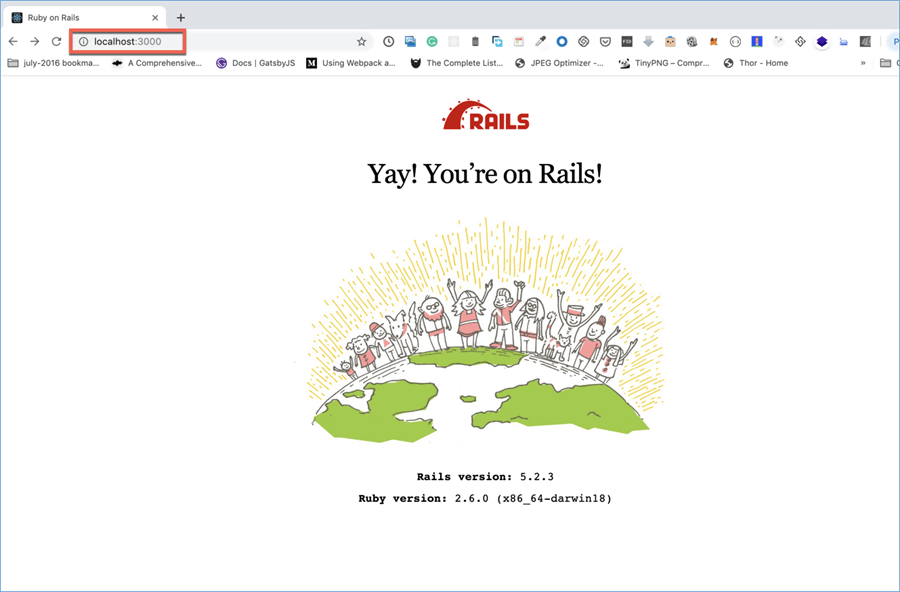
This is the default homepage of your application. You will change it in a later section of this Ruby on Rails tutorial. You can stop the server by pressing Ctrl+C.
Rails – Generate Commands
The Rails generate command uses templates to create many useful things in your application. These generators save a lot of time.
They write boilerplate code that is necessary for your web application to work. Run rails generate by itself at the command prompt or Terminal to see a list of available generators, as shown below.

You can also run rails generate <command> to see a description of what the command does. It lists convenient options and a usage example. The figure below shows the output of running rails generate controller.

Use the rails generate scaffold command to automatically create the model, view, and controller for the Todo list application you are building. Run the following in your Terminal (make sure you are still in the todo_app directory):
rails generate scaffold todo_list title:string description:text
This creates a full CRUD (Create, Read, Update, Delete) web interface for the TodoLists table.
Another useful command to know is rails destroy. It reverses whatever rails generate does.
Rails – Routing
The Rails routing system, called the Rails router, handles all incoming requests to your web application. It examines the URL of each request and maps it to the controller action responsible for handling it, using the syntax specified in the routes file (config/routes.rb).
The routes file controls every URL aspect of your web application. Rails uses a RESTful design based on the REST architectural style, which provides a mapping between HTTP verbs and request URLs to controller actions.
The routes file was generated when you ran rails new earlier. Continuing with the Todo application you are building, run the following:
rails db:migrate
Make sure you are still at the root of the application (the todo_app directory).
Start the server again with rails server. Type http://localhost:3000/todo_lists/ in your browser and press Enter. You should get back a webpage like the one below.
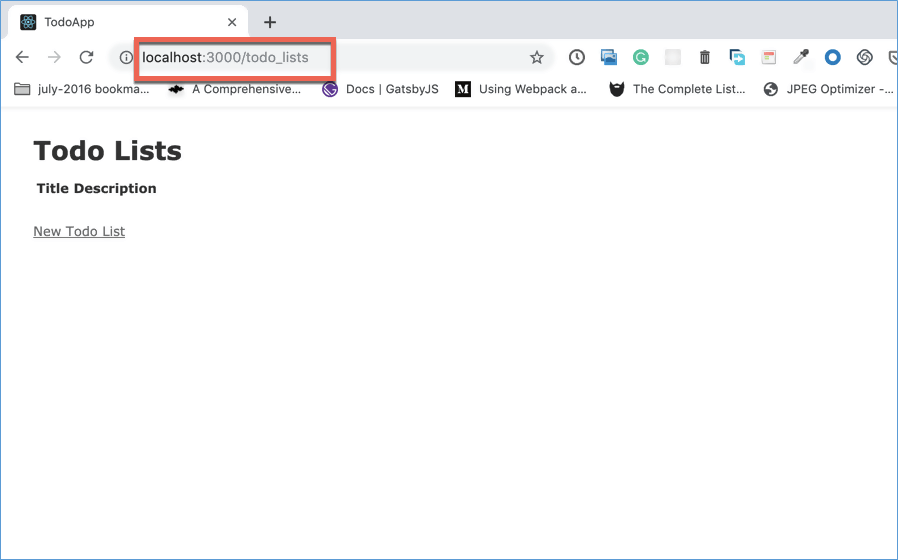
This is the Todo lists view that the scaffold command generated, and it is controlled by the TodoListsController’s index action.
Add a Todo list by clicking “New Todo List” on the page. You should see the screen below.

Notice the URL is now http://localhost:3000/todo_lists/new. This is the page to create a new Todo list, and it is controlled by the TodoListsController’s new method.
Enter your Todo list title and description in the form and click “Create Todo list”. The URL should change to http://localhost:3000/todo_lists/1, as shown below.

This is the show page of a Todo list, controlled by the TodoListsController’s show method. If you go back to http://localhost:3000/todo_lists/, you should now see the screen below with the new Todo list added.

Rails was able to map each request to the corresponding TodoListsController action using the route definition in config/routes.rb.
If you peek at this file, you will see a single line resources :todo_lists, which is the Rails default way of writing RESTful routes. This single line creates seven routes, all mapping to the TodoLists controller.
By convention, each controller action maps to a specific CRUD (Create, Read, Update, Delete) operation in the database.
Run rails routes in your command line to see the various routes available in your application. The figure below shows the output of running rails routes.

Rails – Views
The view layer is one of the components of the MVC paradigm and is responsible for generating the HTML response for each request to your application. Rails uses ERB (Embedded Ruby) by default, which is a powerful templating system for Ruby.
ERB makes templates easy to write and maintain by combining plain text with Ruby code for variable substitution and flow control. An ERB template uses the .html.erb extension.
You will mostly use two tag markers, each of which causes the embedded code to be processed and handled in a particular way.
A tag with an equals sign <%= %> indicates that the embedded code is an expression, and the result of the code should be substituted into the output when the template renders.
The other tag with no equals sign <% %> indicates to the renderer that the result of the code should not be substituted or printed in the output.
Each controller in your Rails application has a corresponding subdirectory in app/views, and each action in a controller has a corresponding .html.erb file in that subdirectory.
Take a look at app/views of the Todo app you are building. You will find a subdirectory named todo_lists containing .html.erb files with names corresponding to the actions in the TodoLists controller.
Rails – ActiveRecord, Active Record Pattern, and ORM
ActiveRecord is the Ruby implementation of the Active Record pattern. In this pattern, a class represents a database table, and an instance of the class represents a row in that table.
ActiveRecord is commonly referred to as an ORM (Object Relational Mapping) layer, a technique that lets you manage your database using a language you are most comfortable with. It is database-agnostic, so you can easily switch between databases — for example, SQLite, MySQL, PostgreSQL, SQL Server, or Oracle — using the same code and logic.
For example, to get an array containing every Todo list in your application, you do not have to write code that opens a connection, runs an SQL SELECT query, and converts the result.
You just type TodoList.all, and ActiveRecord returns the array filled with TodoList objects that you can use as you like.
All you need to do is set up the configuration in config/database.yml, and ActiveRecord handles the differences between database systems. When you switch from one database to another, you do not have to rewrite your code.
You focus on application logic, and ActiveRecord takes care of the low-level details of connecting to your database. It uses naming conventions to map models to database tables.
Rails pluralizes your model class names to find the corresponding database table. So, for a class TodoList, ActiveRecord uses a database table called todo_lists.
Rails – Migrations
A Rails migration is a script that you use to evolve your application database. It is used to set up or change your database without manually writing SQL.
It uses Ruby to define changes to the database schema and makes it possible to use version control to keep your database synchronized across environments.
Rails Migrations use a Ruby Domain Specific Language (DSL). This acts as an abstraction and makes it possible to use or change your database engine based on your requirements.
Migrations can be shared with anyone working on the application and can also be rolled back to undo changes. This is a strong safety mechanism, so you do not need to worry about doing permanent damage to your database.
Rails – ActiveRecord Associations
A connection between two ActiveRecord models is known as an association. Associations make it much easier to perform operations on related records in your code. There are four common categories.
One to One: a record contains precisely one instance of another model. A good example is a user profile — a user has only one profile. It uses the has_one keyword.
One to Many: the most common association — one model has zero or more instances of another model. Use the has_many keyword to denote this association.
Many to Many: a bit more complicated. ActiveRecord provides two ways to handle it: has_and_belongs_to_many and has_many :through, which gives you access to the join model defined in a separate table.
Polymorphic One to Many: a more advanced association in Rails. It defines a model that may belong to many different models on a single association.
Rails – ActiveRecord Validations
Validation helps to ensure that you have correct data, because working with bad data is risky and can cost your business money.
Validation also provides an extra layer of security against malicious users trying to insert harmful data into your database. Rails offers a clean API of validation helpers in ActiveRecord that keep your database clean, secure, and free of errors.
ActiveRecord validations run on model objects before saving to the database, which makes them more reliable and follows best practice.
The following ActiveRecord methods trigger validations when called on model objects: create, create!, save, save!, update, and update!. The bang versions (create!, save!, and update!) raise an exception if the record is invalid, while the non-bang versions return false instead.
The most common ActiveRecord validation helpers are:
- Confirmation: validates that two fields have the same value, for example password and password confirmation. It is used together with the presence validation helper.
- Presence: checks that the field is not empty.
- Uniqueness: ensures a unique value for a field, for example username.
- Length: enforces a limit on the character length of a field.
You can also create your own custom validation by using the validate method and passing it the name of a custom validation method.
Check the model’s errors object to find out why a validation failed. This gives you everything you need to make your application more constrained and secure, allowing only valid data into your database.
Rails – ActionController
The Rails controller is the center of your web application. It facilitates and coordinates the communication between the user, the models, and the views.
Your controller classes inherit from ApplicationController, which contains code that can be run in all other controllers, and which in turn inherits from ActionController::Base.
The controller provides the following to your application:
- It routes external requests to internal actions.
- It manages caching, giving performance boosts to your application.
- It manages helper methods that extend view template capabilities and also manages user sessions, giving users a smooth experience.
Rails – Configurations
You can configure components such as initializers, assets, generators, and middlewares using your Rails application initializers and configuration files in the config directory. Files like config/application.rb, config/environments/development.rb, and config/environments/test.rb are used here. You can also add custom settings for your application.
Rails – Debugging
As you build your application, you will need to debug your code. Rails makes this easy with the byebug gem. You can start a debugging session by placing the keyword byebug anywhere in your application code.
This temporarily stops execution at that point. The byebug gem offers several commands. The most useful ones are:
- next: moves to the next line of code, skipping all methods invoked by the current line.
- step: similar to next, but steps into each invoked method.
- break: stops the code execution.
- continue: continues code execution.
Other debugging gems are available, such as pry. They all offer similar functionality with slightly different syntax. Debugging gems should not be used in production, as they pose risks to your application and a bad experience for your users.
Log files can be inspected for errors in production and handled accordingly. You should also follow a Test-Driven Development (TDD) approach when building your application to ensure everything works well before deploying to production.
