

MySQL Settings
The Database Settings page configures the database server and manages MariaDB configuration profiles. Since panel 1.9.3 its sidebar entry and its title read MySQL Settings, inside the Databases group.
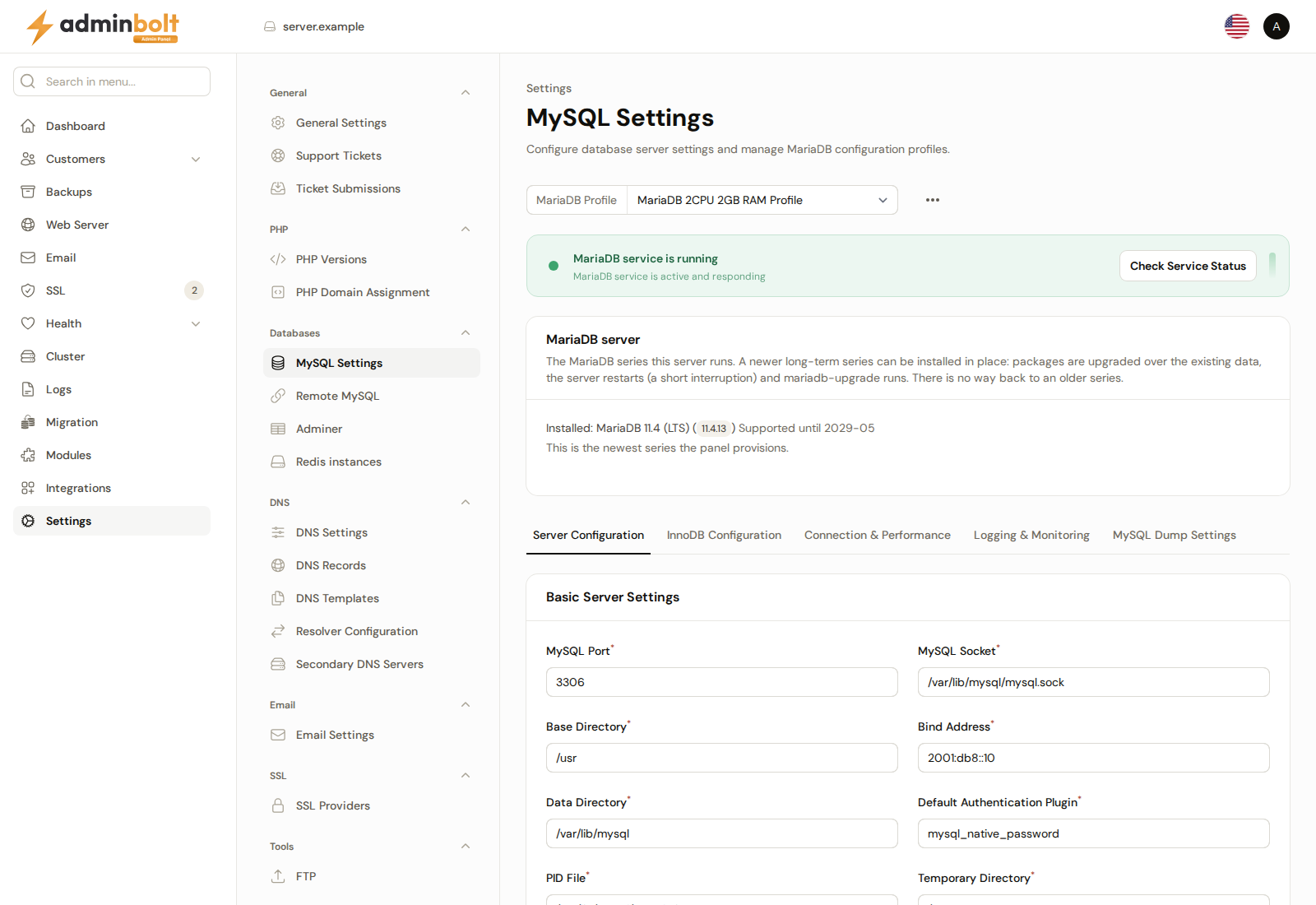
Overview
URL: /admin/settings/database-settings
Navigate to Settings > Databases > MySQL Settings. The other entries in the same group are Remote MySQL and Adminer, plus the PostgreSQL pages once that module is installed and MySQL Governor on CloudLinux. Since panel 1.9.2 the group has no PHPMyAdmin entry: administrators open the databases in Adminer, and customers keep phpMyAdmin in the client panel.
The page header reads: "Configure database server settings and manage MariaDB configuration profiles."
MariaDB Profile
At the top, a MariaDB Profile dropdown allows selecting a configuration profile (e.g., "MariaDB 2CPU 2GB RAM Profile"). An options menu (three dots) is available next to the profile selector.
Service Status
A status banner shows whether the MariaDB service is running, with a Check Service Status button.
Configuration Tabs
The settings page is organized into five tabs, and the tab you have open is recorded in the address, so reloading keeps you on it. Each field below lists the value AdminBolt ships with. When a MariaDB profile is loaded, the form shows that profile's values instead, so what appears on screen can differ from the defaults documented here.
1. Server Configuration

Basic Server Settings
- MySQL Port (required) - The port the database listens on (default:
3306). - MySQL Socket (required) - Path to the MySQL socket file.
- Base Directory (required) - The MySQL installation base directory.
- Bind Address (required) - The address the server binds to. The profiles AdminBolt ships with use
*, every IPv4 and IPv6 address of the server; see Listening addresses. - Data Directory (required) - Path to the data directory.
- Default Authentication Plugin (required) - The default authentication method.
- PID File (required) - Path to the process ID file.
- Temporary Directory (required) - Path to the temporary directory.
Performance Settings
- Max Allowed Packet (required) - Maximum packet size.
- Max Connect Errors (required) - Maximum connection errors before blocking.
- Skip External Locking - Whether to skip external locking (toggle).
- Skip Name Resolve - Whether to skip DNS name resolution (toggle).
- Key Buffer Size (required) - Size of the key buffer.
- Low Priority Updates (required) - Priority for update operations.
- Concurrent Insert (required) - Controls concurrent insert behavior.
- Default Storage Engine (required) - The default storage engine for new tables.
2. InnoDB Configuration

InnoDB Storage Engine
- Default Storage Engine (required) - Storage engine used for new tables (default:
InnoDB). - InnoDB Buffer Pool Size (required) - Memory reserved for caching table data and indexes (default:
4G). The single most important setting for InnoDB performance. On the Default profile the value follows the server's memory; see Default profile sizing. - InnoDB File Per Table - Store each table in its own file rather than one shared tablespace (toggle, on by default).
- InnoDB Flush Log At Transaction Commit (required) - How aggressively the log is flushed to disk (default:
0). Higher values trade throughput for durability. - InnoDB Flush Method (required) - Method used to write data to disk (default:
O_DIRECT). - InnoDB Log Buffer Size (required) - Buffer for transactions not yet committed to the log (default:
16M). - InnoDB Log File Size (required) - Size of each redo log file (default:
1G). - InnoDB Sort Buffer Size (required) - Buffer used when building indexes (default:
4M). - InnoDB Stats On Metadata - Recalculate statistics when metadata is read (toggle, off by default).
- InnoDB Read IO Threads (required) - Threads serving read requests (default:
64). - InnoDB Write IO Threads (required) - Threads serving write requests (default:
64).
3. Connection & Performance

Connection Settings
- Max Connections (required) - Maximum simultaneous client connections (default:
90). - Back Log (required) - Connection requests queued while the server is busy (default:
512). - Thread Cache Size (required) - Threads kept for reuse instead of being recreated (default:
100). - Thread Stack (required) - Stack size per thread (default:
192K). - Interactive Timeout (required) - Seconds an idle interactive connection is held open (default:
180). - Wait Timeout (required) - Seconds an idle non-interactive connection is held open (default:
180).
Buffer Settings
- Join Buffer Size (required) - Buffer for joins that cannot use an index (default:
4M). - Read Buffer Size (required) - Buffer for sequential table scans (default:
3M). - Read Random Buffer Size (required) - Buffer for reads following a sort (default:
4M). - Sort Buffer Size (required) - Buffer per session performing a sort (default:
4M). - Table Definition Cache (required) - Table definitions kept in memory (default:
50000). - Table Open Cache (required) - Open tables kept across sessions (default:
50000). - Open Files Limit (required) - File descriptors the server may hold (default:
60000). - Max Heap Table Size (required) - Largest permitted in-memory table (default:
128M). - Temporary Table Size (required) - Size at which an in-memory temporary table is written to disk (default:
128M).
4. Logging & Monitoring

Logging Settings
- Error Log File (required) - Path to the error log (default:
/var/lib/mysql/mysql_error.log). - Log Queries Not Using Indexes - Record queries that run without an index (toggle, off by default).
- Long Query Time (required) - Seconds after which a query counts as slow (default:
5). - Slow Query Log - Enable the slow query log (toggle, off by default).
- Slow Query Log File (required) - Path to the slow query log (default:
/var/lib/mysql/mysql_slow.log).
Full-Text Search
- Full-Text Minimum Word Length (required) - Shortest word indexed by full-text search (default:
3).
5. MySQL Dump Settings

Applies to mysqldump, which is what database backups use.
- Quick Dump - Stream rows straight to the output instead of buffering the whole table in memory (toggle, on by default).
- Quote Names - Quote table and column names in the output (toggle, on by default).
- Max Allowed Packet for Dump (required) - Largest single statement the dump may produce (default:
1024M).
Click Apply Configuration to apply the configuration for the active tab. See When the server refuses a change.
Size values
Since panel 1.9.6, a size field carries its unit in the value, and the fixed unit label next to the field is gone. Write a size as a whole number of bytes, or as a number followed by K, M, G, or T, for example 512M. KB, MB, GB, and TB work too. Any other form is refused under the field with "Field must be a size: a whole number of bytes, or a number followed by K, M, G or T (KB, MB, GB and TB work too), for example 512M.", and nothing is sent to the database server.
Listening addresses
Since panel 1.9.6, the MariaDB and MySQL profiles AdminBolt ships with set Bind Address to *, so the database server listens on every IPv4 and IPv6 address of the server. Websites and scripts that use 127.0.0.1 as their database host connect once the settings are applied.
A server whose stored settings still hold the earlier value :: needs no manual change. The next time settings are applied, from this page, with Connect Database to AdminBolt Panel, or over the API, :: is applied and stored as *. Any other Bind Address is applied as you entered it.
Default profile sizing
Since panel 1.9.6, the Default profile is sized to the memory of the server it is applied on. The InnoDB buffer pool, the temporary and in-memory table sizes, and the sort, join, and read buffers are lowered to fit a small server. They never go above the values the profile ships with, so a server with plenty of memory gets the same settings as before. The defaults listed under Configuration Tabs are those shipped values.
The sized values are used in three places:
- at install, when the Default profile is applied to the new server,
- when you click Connect Database to AdminBolt Panel on this page,
- when you pick Default in the MariaDB Profile dropdown: the form fills with the values sized for this server, ready for Apply Configuration.
The other profiles AdminBolt ships with, such as "MariaDB 2CPU 2GB RAM Profile", and the profiles you saved are loaded as they are stored. When the panel cannot read how much memory the server has, it sizes the Default profile as for a small server.
MariaDB server
The MariaDB server section names the MariaDB series this server runs, with the date its support runs out, and offers the way up to a newer one.
AdminBolt provisions one of two long-term series:
| Series | Supported until |
|---|---|
| MariaDB 10.11 (LTS) | 2028-02 |
| MariaDB 11.4 (LTS) | 2029-05 |
Since panel 1.9.4 a new server gets MariaDB 11.4, unless the installer's --mariadb-version names 10.11. A server updated from an earlier version keeps the series it runs: the update records that series, so a later MariaDB install or repair on the server keeps it too.
When a newer supported series exists, the section says so and offers Upgrade to MariaDB <series>. The packages are upgraded in place over the existing databases, the server restarts, and the system tables are updated. Sites lose their database connection for a few seconds while it restarts. The page follows the job and records the new series once the server really reports it.
Warning: Take a backup before you start. Once a server is upgraded, it cannot go back to the older series, and a downgrade is never offered.
MySQL server
Since panel 1.9.5, AdminBolt manages a server whose database server is MySQL 8.0, also under CloudLinux MySQL Governor. On such a server the page shows a MySQL server section in place of MariaDB server:
- "Installed: MySQL" with the version the server reports.
- "This server runs MySQL, so MariaDB is not installed over it." The page offers no MariaDB install and no series upgrade.
- MySQL 8.0 has no query cache, so the page names the query cache settings it does not apply on this server. When you apply the configuration, they are taken out of the settings, and the notification names them.
On a MariaDB server run by CloudLinux MySQL Governor, the MariaDB server section says that the Governor manages the database server, and offers no series upgrade: change the version with the MySQL Governor tools of CloudLinux. See MySQL Governor.
On MySQL, a database user name is at most 32 characters, including the account prefix. Health names the database row MySQL.
When the server refuses a change
Since panel 1.9.3 the configuration is saved only once MariaDB runs it. When the server refuses the change, the Database Configuration Failed notification says "Nothing was saved, because the change was not applied to MariaDB.", followed by the cause and a correlation ID to give support. The page keeps showing the settings MariaDB runs, and the form keeps your edits, so you can correct the cause and click Apply Configuration again. Before 1.9.3 a refused change stayed stored and was reported as saved but not applied.
Values the page refuses
Since panel 1.9.4, every value is checked when you click Apply Configuration, before anything is sent to MariaDB. A value with a line break or another control character is refused with "Field must not contain line breaks or other control characters.", and a value that is too long with "Field is too long.", followed by the maximum. The message stands under the field it names, and nothing is sent or stored. Enter each value on one line, or shorten it, then apply the configuration again. The PostgreSQL Settings page checks its values the same way.
Settings that need more memory than the server has
Since panel 1.9.6, settings whose buffers need more than 75% of the server's memory are refused when you click Apply Configuration, before anything is applied, because the database server would not start with them. The check adds up InnoDB Buffer Pool Size, InnoDB Log Buffer Size, Key Buffer Size, and the query cache size.
The Database Configuration Failed notification gives the sizes: the memory the settings need when the database server starts, the limit, the memory this server has, and the buffer pool size that fits. Nothing is applied or stored, and the form keeps your edits. Lower InnoDB Buffer Pool Size to the size the message names, or pick the Default profile, which is sized to the server's memory, then apply the configuration again. A profile made for a larger server is refused the same way when you apply it.
When the panel cannot read how much memory the server has, this check is skipped.
When MariaDB does not start with the new settings
Since panel 1.9.4, when MariaDB refuses a new value as it restarts, the previous settings are put back and MariaDB is started with them, so the databases stay available. The Database Configuration Failed notification says which of these happened:
| Message | What it means |
|---|---|
| "MariaDB did not accept the new settings, so the previous settings are back and MariaDB is running with them." | Nothing changed. Correct the refused value, then apply the configuration again. |
| "MariaDB did not accept the new settings. The previous settings are back and the MariaDB service started, but MariaDB did not answer within 30 seconds." | Check that MariaDB answers before you apply the configuration again. |
| "MariaDB did not accept the new settings. The previous settings are back, but MariaDB did not start with them either, so MariaDB is stopped." | Find out why MariaDB does not start. The next step says where to look. |
| "MariaDB did not accept the new settings, and the previous settings could not be put back. MariaDB is stopped." | The next step says how to put the previous settings back by hand, then start MariaDB. |
Where MariaDB names the cause, the message adds it, for example "MariaDB does not know the setting name.", "MariaDB did not accept the value of name.", "MariaDB could not get the memory these settings ask for.", or "MariaDB could not use a file, folder or port that these settings name." Each message ends with a correlation ID to give support. As before, nothing is stored in the panel for a refused change, and the form keeps your edits.
The administrator API
Since panel 1.9.5, the administrator REST API reads and applies the settings of this page with the same checks as Apply Configuration. The calls need an administrator API key; none of them needs an explicit grant.
| Method and path | What it does |
|---|---|
GET /api/mysql/settings | The settings the database server runs, in the mysql, mysqld, and mysqldump groups of this page, under their field names. They are empty until the server is connected on this page. |
PUT /api/mysql/settings | Apply the fields sent, like Apply Configuration. The other settings keep their values. |
Every apply restarts the database server, which drops open database connections for a few seconds; the answer says so and lists what it restarted. The checks are the page's: a value out of its range, a line break, or a value that is too long answers 422 naming the field, and so do directives the panel cannot apply. When the new settings are refused as the server restarts, the previous settings are put back as described in When MariaDB does not start with the new settings, and the answer says which of those outcomes happened, with the next step and a reference. Nothing is stored in the panel for a refused change.
Directives the server's database series no longer accepts are taken out on every apply and named in removed_directives. On a MySQL 8.0 server that includes the query cache settings. A change while another one is applied, or before the database server is connected on this page, answers 409. Connecting the server, the series upgrade, and saved profiles stay on this page.
Since panel 1.9.6, PUT /api/mysql/settings runs the page's memory check. Settings that need more memory than the server has answer 422 with the message, the directives the check added up, and a memory object that holds the sizes in bytes: needed, limit, ram, buffer_pool, and suggested, the buffer pool size that fits. A size in a form other than those under Size values answers 422 naming the field. A bind_address of :: is applied and stored as *; see Listening addresses.
Profiles and Service Control
Configuration profiles and service controls are available at the top of the page:
- Save as New Profile - Save the current configuration as a reusable profile.
- Load Profile / Download Profile - Restore or export a saved profile.
- Apply Configuration - Apply the current settings to the database service.
- Refresh - Reload the current service status.
- Restart - Restart the database service.