Review and restore file changes
Read a file diff, try the result in Preview, or restore one file to how it was before the last task.
See what one reply changed
Under a reply that edited files, choose Changes in this turn. It shows how many files changed and how many lines were added and removed. Select a file to read its patch. While a task is running, this list can still change.
To inspect a single edit, expand the reply’s activity line, such as Edited files, then Edit file. Original excerpt and Replacement excerpt show the text the agent changed.
For a local Desktop project, comparing a turn’s files requires a Git repository. If an earlier turn has no record, open the current file in your editor.
Review the latest task
After a task finishes, choose + beside the workspace tabs and open Changes. It lists the files changed since your last task started. Lines starting with + were added and lines starting with - were removed. Choose Refresh changes if you kept working while the tab was open.
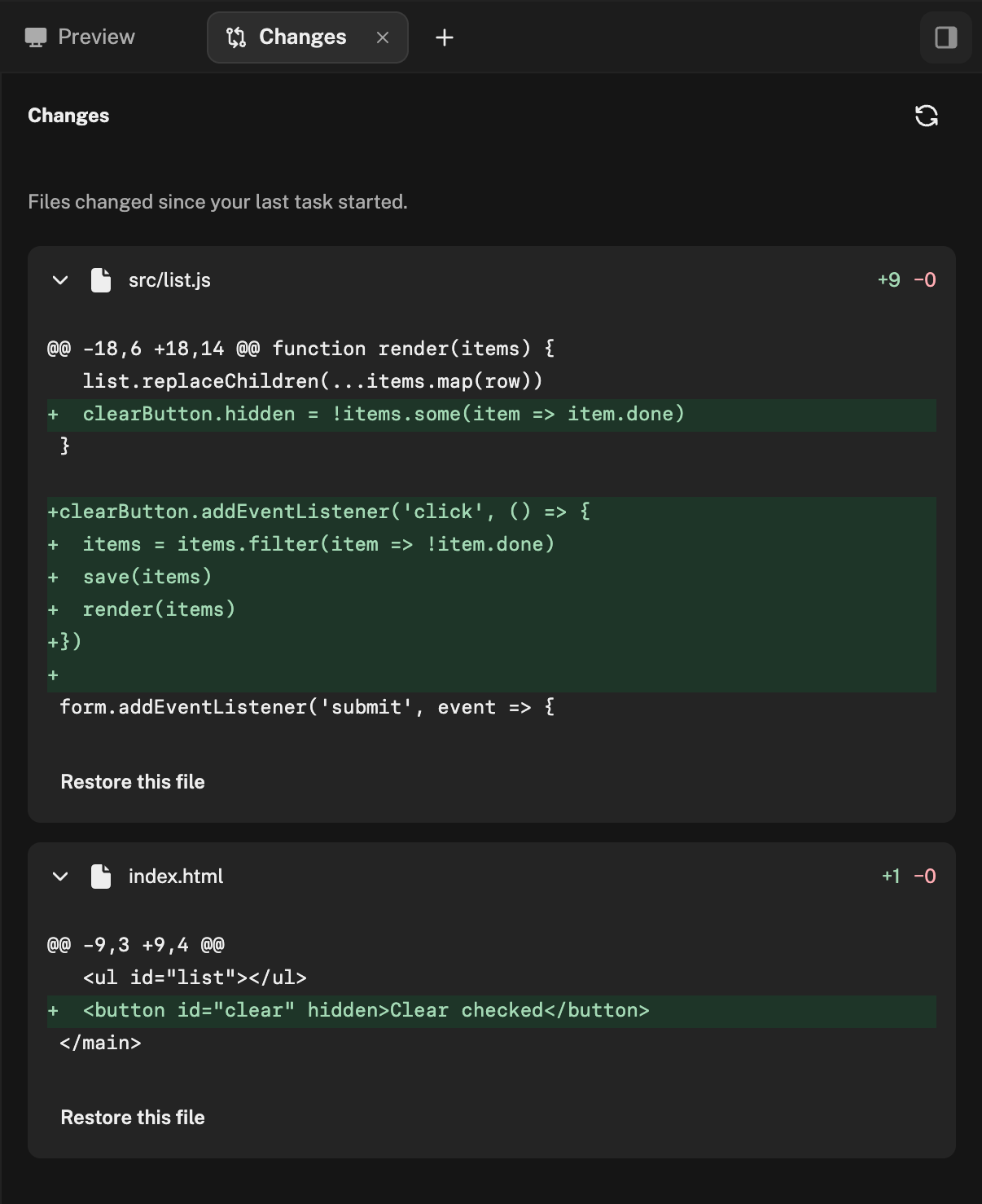
If a diff is too large to display or the file is binary, download the source to inspect it.
If the tab says No saved file changes, the task may have only answered a question. Ask which file it edited before starting another task.
Check the result
For a web project, open Preview and try the action you asked for. If you asked freecode to fix a form, submit it once with valid input and once with a required field empty. Preview is for trying the project; it does not publish a website.
Restore one file
In Changes, find the filename and choose Restore this file. Check the path in the confirmation before restoring. Only that file goes back to its state before the last task, and other files stay as they are. If the task created the file, restoring removes it.
Afterward, check files that depend on it. For example, if you restore a component that another file now imports, make sure the page still opens.