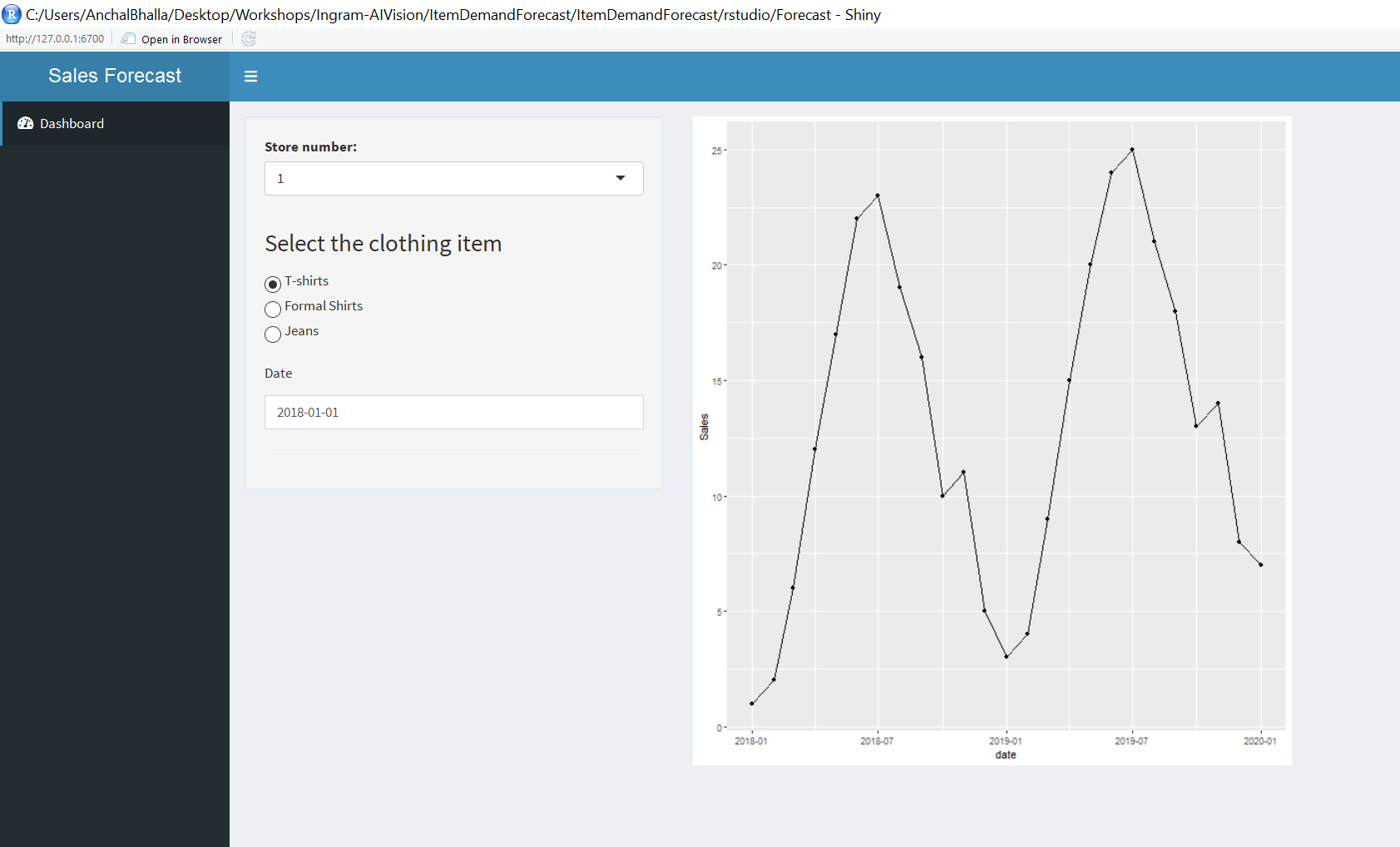
A data science project focused on the retail industry. This projects demonstrates the end to end capabilities of IBM Watson Studio, from data collection to model deployment and usage
-
Create an IBM Cloud account: https://ibm.biz/ingrammicro
-
Once you have created your account, you will see your dashboard. Search for the following services and create them:
- Machine Learning [take note of the credentials especially the api key and ML instance id]
- Watson Studio
- IBM Cognos Dashboard Embedded
-
Lauch Watson Studio and create a project
-
Upload the demand.csv file to the project by going to the left hand and clicking the 'Find and add data' tab
-
Let's move on to data preparation, for that click on Add project, and add data refinery flow.
-
Do the following to prepare the dataset for modelling:
-
Click on operation on the left - Select the Column "Item". Select Replace Substring and replace the strings with the following numbers TShirt - 1, Formal Shirts - 2, Jeans - 3, Formal Trousers - 4, Blazers - 5, Jackets - 6, Shoes - 7, Heels - 8, Scarves - 9, Hats - 10 (We will only be working with the first 3 items for this lab)
-
Click on Date column > Convert Column > select date
-
Click on Item column > Convert Column > select integer
-
Click on Store column > Convert Column > select integer
-
-
Save the flow and Run it as a job, this will create a new file: demand.csv_shaped.csv
-
Click on Add project, and add dashabords.
-
Enter a name for the dashboard > Click Create > Select free form
-
Select the data source to be demand.csv
-
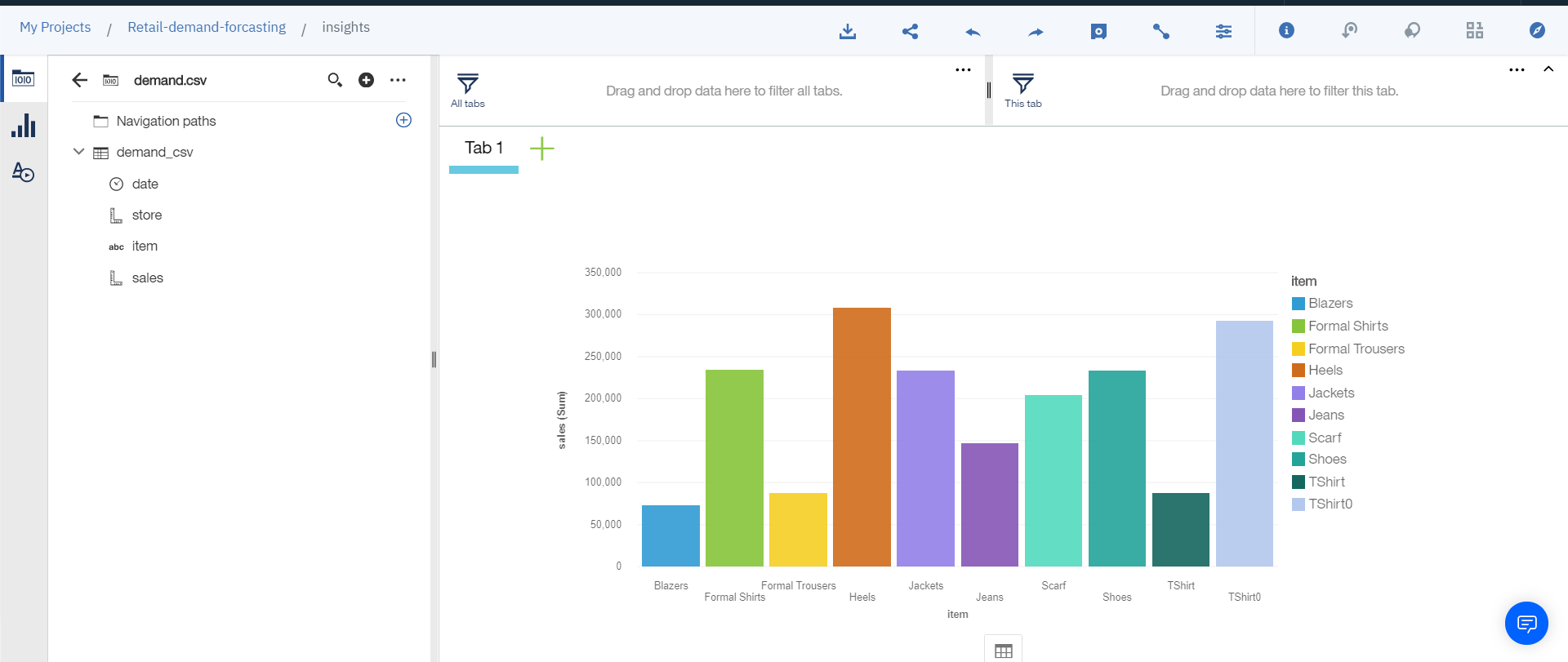
Select the item and sales attibutes and drag and drop them onto the canvas and you will get the following results:

-
Click on Add project, and add modeler flows.
-
Enter a name for the SPSS flow > Click from file > Select the store1.str file
-
Replace the data input node if the flow gives an error while running and select the demand.csv_shaped.csv file
-
Run the flow
-
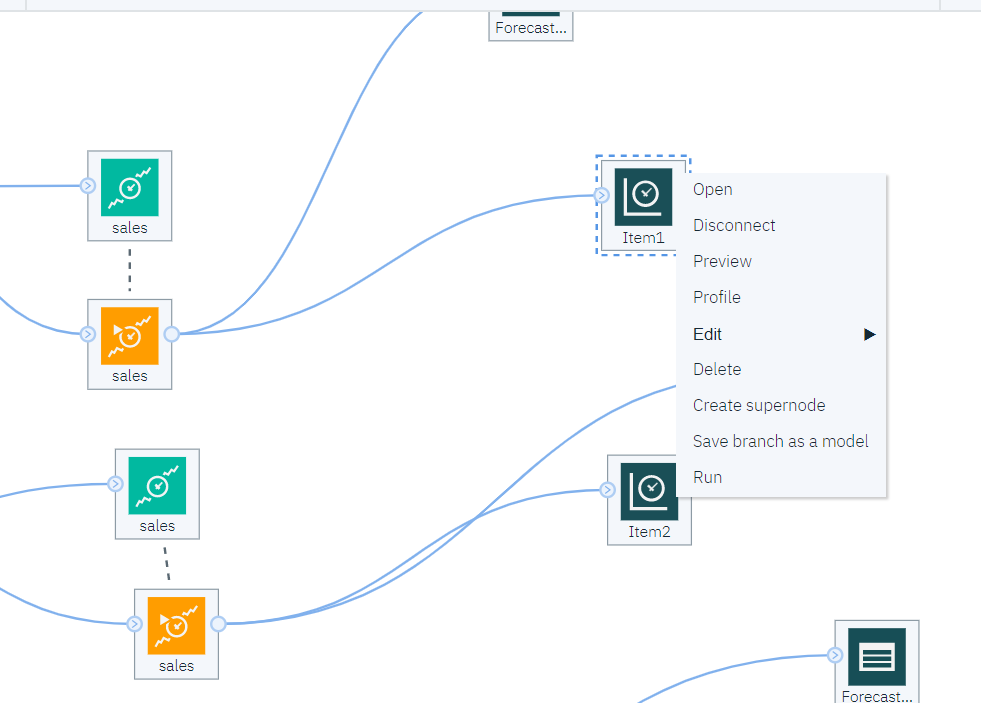
Save all the three time series model in the following manner:
-
Go back to the project and will see all 3 models under Watson machine learning models.
-
Go to each one of them and deploy them by clicking on add service
-
You can now test them by going to the test tab under the models. Make note of the scoring URLS in the implementation tab

-
Go back to the project and click on launch IDE to open up the R studio on cloud
-
Click on upload and upload the app file (shiny R app)
-
Enter the api key from the machine leanring service at the start
-
Enter the ML instance id where specified and copy paste the scoring URLS in the three places as mentioned
-
You will get the following shiny app: