

Niimbot Label Printer Home Assistant Integration
| B1 / B1 Pro | B21 Pro | D110 |
|---|---|---|
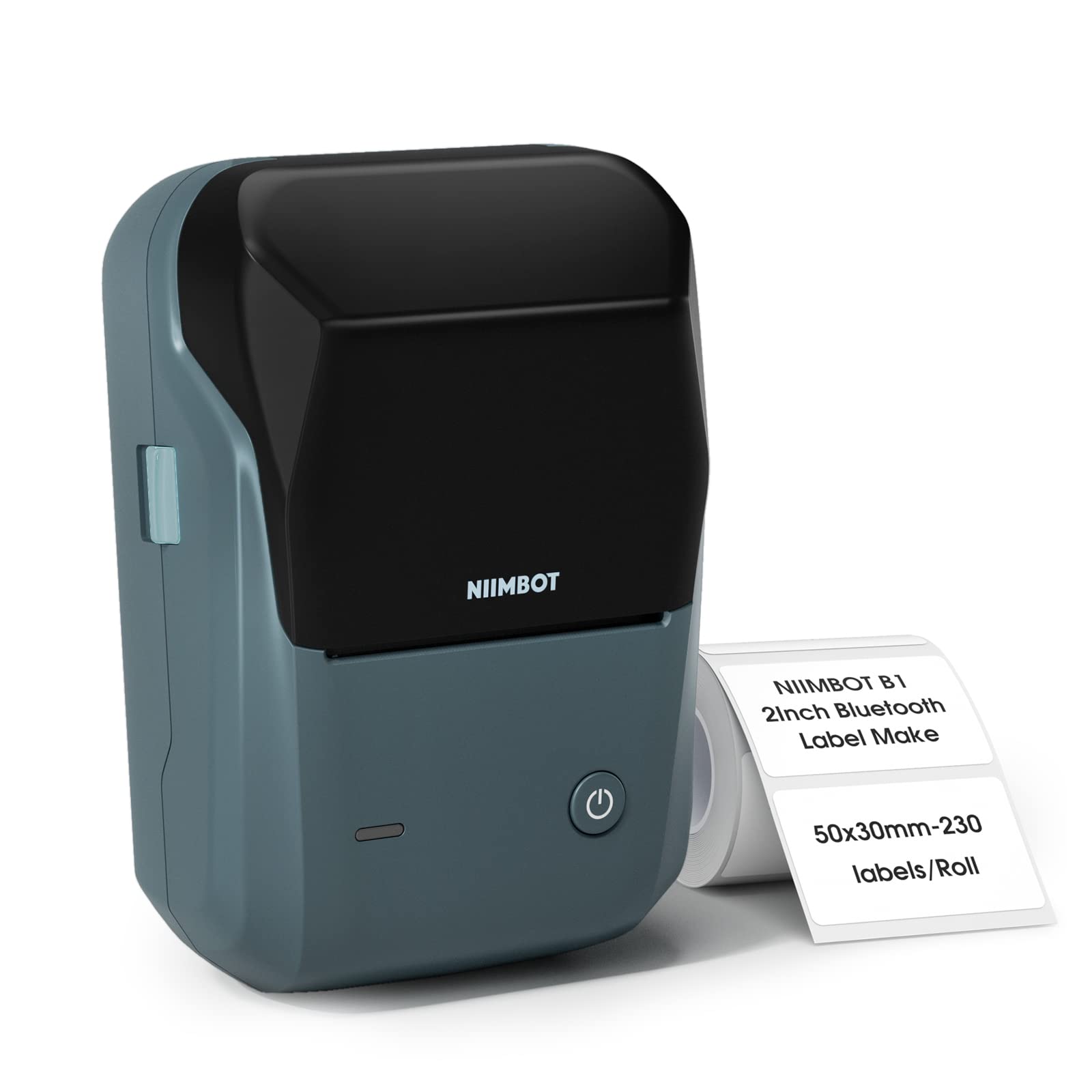 |
 |
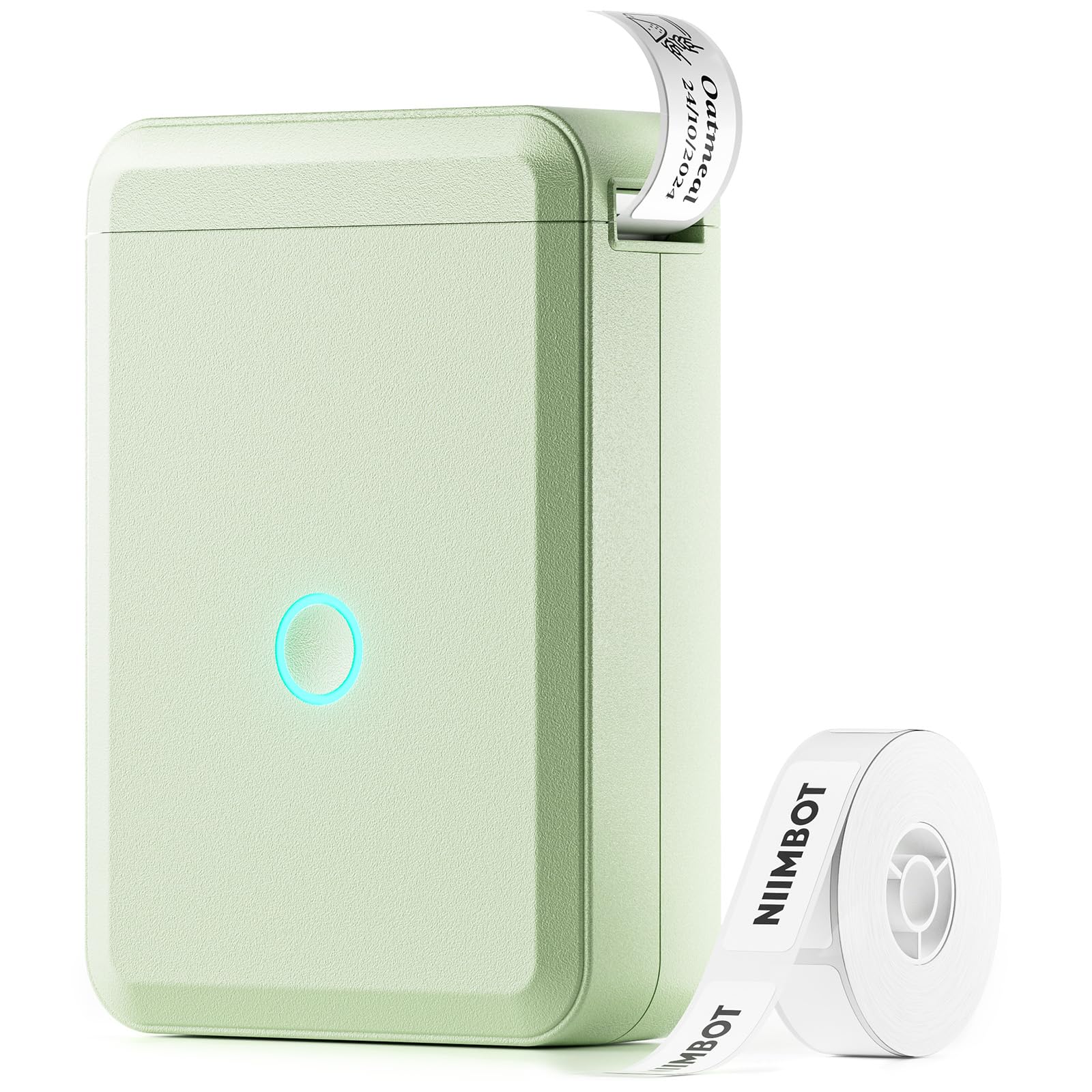 |
Important
For all NIIMBOT users using Bluetooth proxies: Please update your proxy devices to ESPHome 2025.11.2 or later.
Benefits of updating:
- Much faster printing (almost instant)
- Greatly improved reliability
- Reduced delays thanks to improved internal GATT handling
- Found a bug? Open an issue
- Questions or ideas? Join the discussion
Stash can print labels via this Home Assistant integration.
| Model | Status |
|---|---|
| B1 | confirmed |
| B1 Pro | confirmed |
| B2 Pro | confirmed |
| B21 Pro | confirmed |
| D110 | confirmed |
| Other models with Bluetooth | may work |
- Install with HACS (custom repository required), or copy this repo into
custom_components/niimbot. - Restart Home Assistant.
- Go to Settings → Integrations and add Niimbot.
- Select a discovered printer from the list.
It is strongly recommended to use a Bluetooth proxy instead of a built-in Bluetooth adapter for more stable connections and better range.
Tip
Hardware recommendations: Great ESP32 Board for an ESPHome Bluetooth Proxy
When using a proxy, keep the scan interval reasonable. Example ESPHome config:
esp32_ble_tracker:
  scan_parameters:
    active: true

bluetooth_proxy:
active: trueConfigure via Settings → Devices & Services → Niimbot → Configure:
| Option | Default | Range | Description |
|---|---|---|---|
| Use Sound | On | On/Off | Play sound when the printer connects |
| Scan Interval | 600 | 10–9999 s | How often to scan for the device |
| Wait Between Each Print Line | 50 | 0–1000 ms | Delay between each line sent to the printer |
| Confirm Every Nth Print Line | 1 | 1–512 | Confirm every N lines (higher = faster, less reliable) |
Tip
If printing is slow, try Confirm Every Nth Print Line = 16 and Wait Between Each Print Line = 10 ms. If prints fail or look corrupted, use more conservative values. See Increasing print speed.
From version 2.0.0, labels are rendered with imagespec — a declarative YAML/JSON list of drawing elements that becomes a bitmap sent to the printer.
Documentation (maintained in imagespec, not duplicated here):
| Topic | Link |
|---|---|
| Element examples with preview images | imagespec/docs/elements.md |
| All element fields & defaults | imagespec README — Element Reference |
| Layout, palette, LLM authoring guide | imagespec/docs/authoring.md |
Niimbot-specific behaviour:
- Palette: black & white only. Off-palette colors (e.g.
red,orange) are quantized to the nearest supported color. - Rotation:
rotate: 90/180/270rotates the drawing and swaps output width/height (label-printer mode). - Default font:
ppb.ttfincustom_components/niimbot/fonts/. Custom fonts also work fromwww/fonts/. plotelement: reads history from Home Assistant Recorder.dither: set on the service call (or per element in the payload) to halftone photos/charts on a 2-color printer. Keep text and barcodes undithered for sharp edges — see imagespec dithering docs.- Layout: prefer
row/column/stackfor stacked content instead of hand-calculated coordinates.
| Parameter | Required | Default | Description |
|---|---|---|---|
payload |
yes | — | List of imagespec elements |
rotate |
no | 0 |
0, 90, 180, or 270 |
width |
no | 400 |
Label width in pixels (10–1600) |
height |
no | 240 |
Label height in pixels (10–1600) |
density |
no | 3 |
Print density 1–5 (some models max out at 3) |
dither |
no | false |
Floyd–Steinberg halftone for the whole label |
wait_between_print_lines |
no | 0.05 |
Seconds between lines (overrides device option) |
print_line_batch_size |
no | 1 |
Lines per batch before confirmation (overrides device option) |
preview |
no | false |
Render only; do not send to the printer |
Use response_variable in scripts to receive the generated image as a data: URL when preview: true.
action: niimbot.print
target:
  device_id: <your device>
data:
  payload:
    - type: text
      value: Hello World!
      font: ppb.ttf
      x: 10
      y: 10
      size: 40
    - type: qrcode
      data: "https://www.home-assistant.io"
      x: 280
      y: 10
      width: 80
      height: 80
  width: 400
height: 240D110 (small label, often rotated):
action: niimbot.print
target:
  device_id: <your device>
data:
  payload:
    - type: text
      value: "Hello World!"
      font: ppb.ttf
      x: 10
      y: 10
      size: 30
  rotate: 90
  width: 240
  height: 96
B21 Pro (large label, high density):
action: niimbot.print
target:
  area_id: kitchen
data:
  payload:
    - type: rectangle
      x_start: 0
      x_end: 584
      y_start: 0
      y_end: 354
      fill: black
  width: 584
  height: 354
density: 5Use preview: true while designing labels so nothing is sent to the printer. The Niimbot Payload Layout Editor can generate YAML via drag-and-drop — paste the result here and preview first.
action: niimbot.print
target:
  device_id: <your device>
data:
  preview: true
  payload:
    - type: text
      value: Preview Test
      x: 10
      y: 10
      size: 30
  width: 400
  height: 240
Every print or preview updates image.<device>_last_label_made (disable in entity settings if unwanted).
new_multiline with fit: true shrinks text to fit the label box — useful for shipping addresses:
alias: Print label with multiple lines of text
fields:
  contents:
    selector:
      text:
        multiline: true
    name: Contents
    required: true
sequence:
  - action: niimbot.print
    target:
      area_id: kitchen
    data:
      payload:
        - type: new_multiline
          x: 0
          y: 20
          size: 100
          width: 520
          height: 300
          fit: true
          font: rbm.ttf
          value: "{{ contents }}"
      width: 584
      height: 350
      density: 5
See new_multiline in imagespec for fit_width, fit_height, and spacing options.
The printer receives data line by line. Over Bluetooth proxies, waiting for a response on every line adds up — especially on dense labels.
Tune per call first:
action: niimbot.print
target:
  device_id: <your device>
data:
  payload:
    - type: rectangle
      x_start: 0
      x_end: 10
      y_start: 0
      y_end: 600
      fill: black
  width: 584
  height: 350
  density: 5
  wait_between_print_lines: 0.01
  print_line_batch_size: 16
Then persist working values in the integration Configure dialog (wait_between_print_lines × 1000 → ms for Wait Between Each Print Line).
Anecdotally, B21 Pro on a busy network is reliable at 10 ms wait and batch size 16 (~4× faster on complex labels). Report what works for your setup in issues.
With preview: true and response_variable, a script can save the rendered image to disk and show it on a dashboard camera card.
- Add to
configuration.yaml:
shell_command:
  update_label: >-
bash -c 'set -o pipefail; echo "$0" | cut -d, -f2 | base64 -d >/config/www/label.png' {{ image_data }}-
Add a Local file camera pointing at
/config/www/label.png. -
Script to preview and update the file:
alias: Iterate on a label
fields:
  payload:
    selector:
      object: {}
    name: Payload
sequence:
  - action: niimbot.print
    target:
      device_id: <your device id>
    data:
      payload: "{{ payload }}"
      width: 584
      height: 350
      density: 5
      preview: true
    response_variable: previewed
  - action: shell_command.update_label
    data:
image_data: "{{ previewed.image }}"Niimbot Payload Layout Editor — drag-and-drop layout designer; exports YAML for niimbot.print.
| Example | Description |
|---|---|
| examples/grocy/README.md | Print a Grocy product label via webhook |
Place .ttf files in custom_components/niimbot/fonts/ or config/www/fonts/ and reference by filename (e.g. ppb.ttf, rbm.ttf).
- imagespec — rendering engine
- MultiMote/niimblue
- OpenEPaperLink