
Subscribe to continue reading
Subscribe to get access to the rest of this post and other subscriber-only content.

Subscribe to get access to the rest of this post and other subscriber-only content.
Awhile back I ordered a refurbished Dell Optiplex 390, after turning it on, I got to thinking about the games that usually come with the computer, mine was windows 7. I distinctively remember playing chess on that operating system, however, I was unable to find it anywhere. After doing some searching I was able to find the answer to my question and decided to share it with my readers who may have ended up with the same dilemma.
After locating the Start button, you want to click on the control panel, go to program and features. On the left side of the windows pane you should see turn on windows features on and off. Click on this,
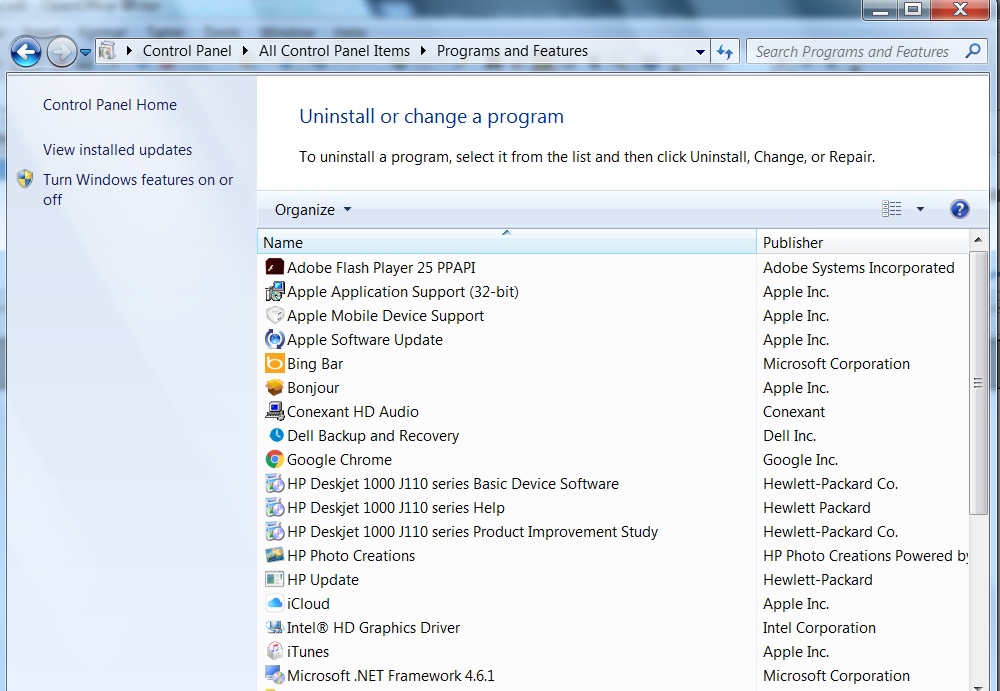
Once the menu opens up you want to look for GAMES.
Click box next to GAMES,
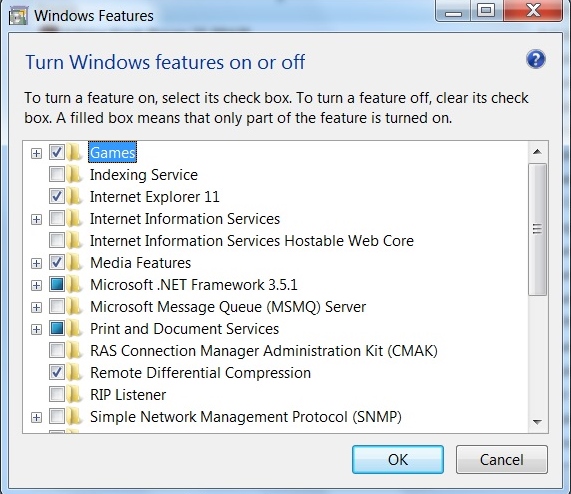
then click OK
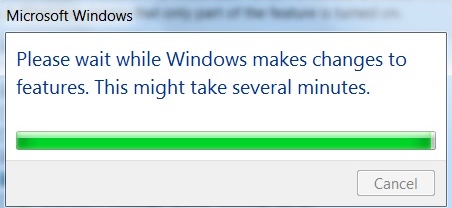
Once this box from above disappears you will be able to play your games.
God Bless, Remember God gets the Glory!!!!

Today we are going to be talking about how to get rid of a blue screen that a friend had encountered on his computer an, he was running Windows 7 on a HP Pro book 4520.
below is the error:
A problem has been detected and windows has been shut down to prevent damage to your computer
If this is the first time you’ve seen this stop error screen, restart your computer. If this screen appears again follow these steps:
check to be sure you have adequate disk space. If a driver is identified in the stop message, disable the driver or check with the Manufacturer for driver updates. Try changing video adapters.
Check with your hardware vendor for any BIOS updates. Disable BIOS memory options such as caching or shadowing. If you need to use safe Mode to remove or disable components, restart your computer. Press F8 to select Advanced startup Options, and then select Safe Mode.
For technical support to this problem, call Windows help line: +1-855-4843589
technical information:
***stop: 0X0000001e(0XFFFFFFFFC00000094,OXFFFFFF800C07
4DIE,0X00000000000,0xFFFFFFFFFFD)
One of the computer programs I came across was called “PC Accurate Pro” First thing I did was to to remove PC accurate pro, since the blue screen is not going to allow this to be done, you have to go into what is called “Safe Mode with Networking” To get here you have to restart the computer, and hold down the F-8 key, once the computer has loaded, then you have to log into the Administrator account, go to Programs and Features on Windows 7.
After trying this and having no luck, the next step you might want to try is System Restore, to get here, under the control panel, click recovery, Click Open system restore on the right side of the screen.
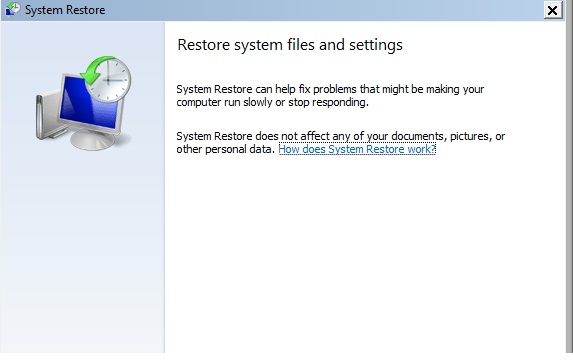
click NEXT this will take you to another screen, which will give you a list of system restore points. Each restore point will cover a certain program, in order to find out which programs will be affected, Microsoft has provided a tab where you can check this. Click the “scan for affected programs” Tab
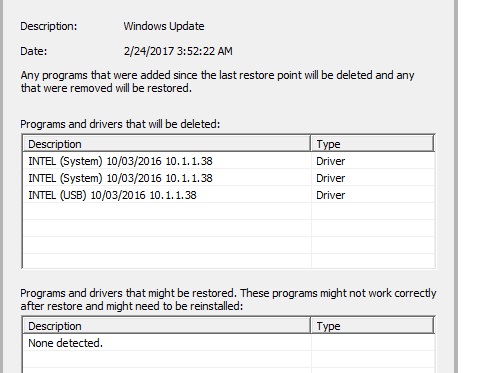
Once you have decided which restore point you want to use, click on that Restore point.
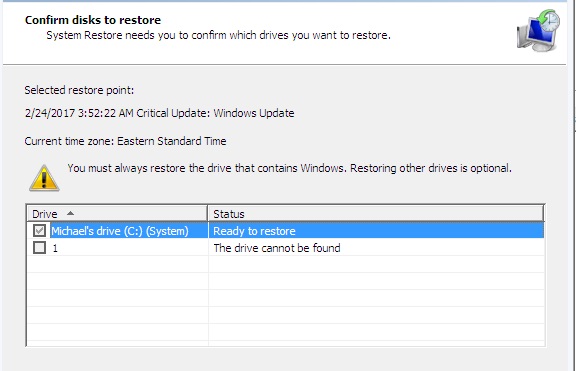
click NEXT and click FINISH. This will start restoring your computer to that particular point.
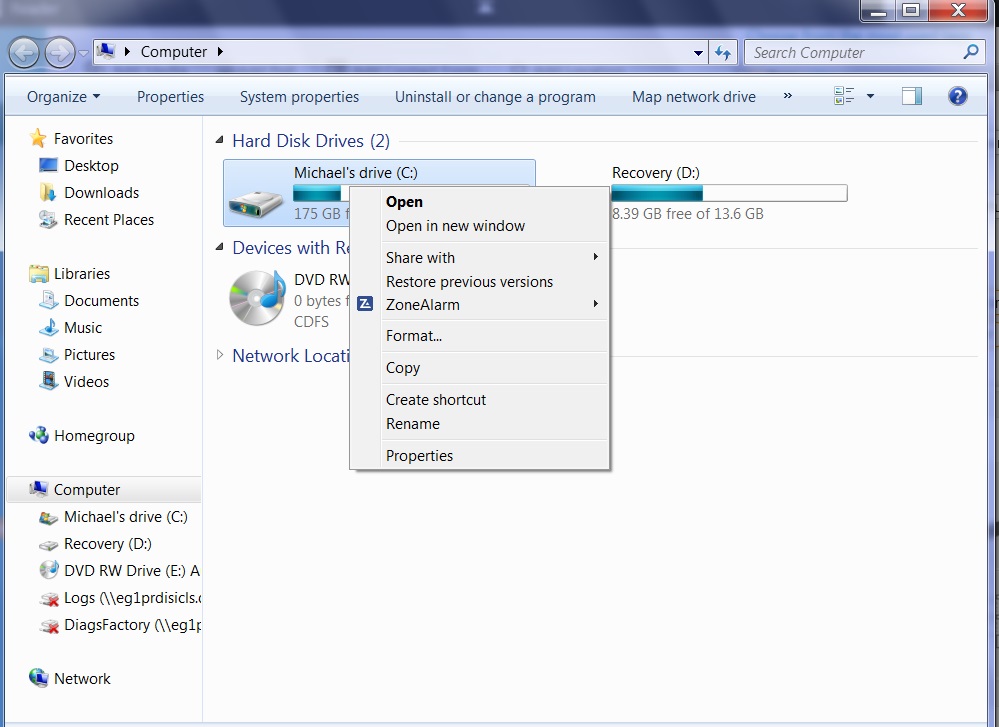
I found that system restore was unsuccessful for me, so the next step was to check the computer’s Hard Drive. To get here, Go to the start button, CLICK on the COMPUTER tab, RIGHT CLICK on the hard disk Drives, this will open a menu then click on PROPERTIES.
Once here click on the TOOLS tab
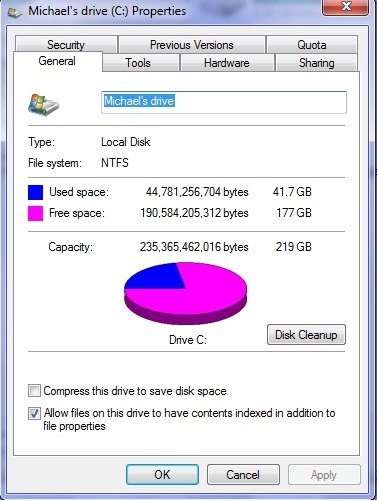
Go to where you see ERROR CHECKING near the top of the Window,
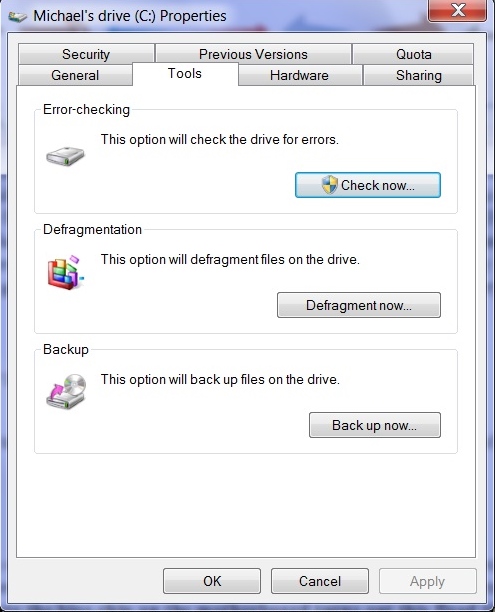
Click CHECK NOW, and this will open up a new menu.
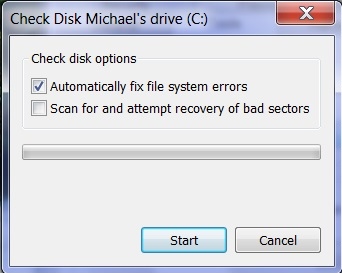
check the two boxes AUTOMATICALLY FIX FILE SYSTEM ERRORS and SCAN FOR AND ATTEMPT RECOVERY OF BAD SECTORS, Click Start button to continue( Make sure you only do this once a month, this is really rough on the hard drive)
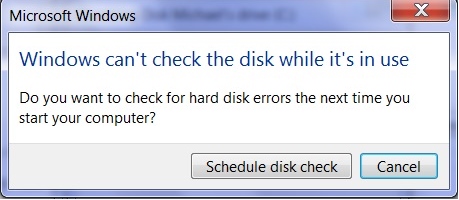
Here you schedule the disk check the next time you restart the computer.
Should this not work, the last step would be to go directly to the HP Website, or which website pertains to your computer.
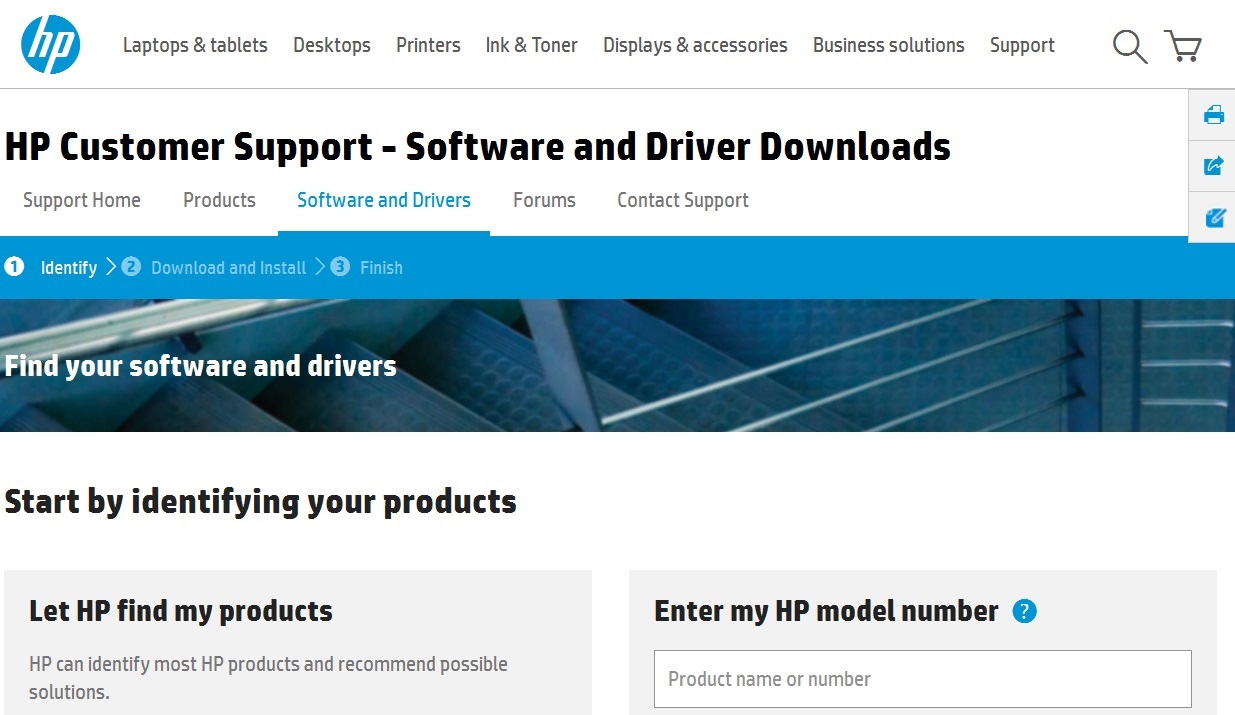
To update the BIOS to the Motherboard, you will normally type in the product name or number, the number that the manufacuter is interested in what is called the service Tag.
Then look around the top of the webpapge, click on support, drivers and download, after clicking this, the page should show a list of current drivers for the Audio, one should be the Bios Click on this and download BIOS update, and you should be up and running.
God Bless,
Putting God first,
God Gets the Glory!!!!
Despite what critics charge, the U.S. isn’t giving away the Internet, but America is relinquishing control over a critical component of its infrastructure.
Source: America to Hand Off Internet Domain Name Control : snopes.com

HP Mini-Note 2133, Asus Eee PC 701 and Everex Cloudbook (Photo credit: Wikipedia)
Today, we will be doing a recovery on a HP Mini model 110-3518cl. After plugging in the computer, switch on the power which is on the right side of the computer, hold down or press the ESC key.
You should see the starup Menu
F1 System information
F2 System Diagnostics
F9 Boot Device Options
F10 BIOS Setup
F11 System Recovery
Once you press F11 you should see the Recovery Manager. There you will be given three choices.
The first box gives you the option to choose:
Microsoft System Restore
System Recovery
Minimized image Recovery
2nd box allows you to run a computer checkup
3rd box is for if you wish to back up your files
If you wish to continue click on System Recovery
The next page gives you the option to back any files before restoring the computer. If you wish not to back up your files, click where it says“Recover without backing up your files.”
After making your selected choice, then click NEXT. A warning will prompt you to make sure to disconnect any devices except for the power and the mouse. Click OK.
You will see Welcome to Recovery Manager, click NEXT to begin.
The computer will start the process of restoring the computer to Factory settings. This may take a while, so you might want to go and do something else. This should take around 20 minutes.
After recovery is complete click FINISH. Install any software to protect your computer, I have provided some links to help you with this process.
Ccleaner
http://www.piriform.com/ccleaner
Below is a link for Free AVG- Antivirus
http://free.avg.com/us-en/homepage
Below is a link for Free ZoneAlarm Anti-Virus
http://www.zonealarm.com/software/free-antivirus/
Below is a link for Free Avast Anti-virus
https://www.avast.com/en-us/index
Malware Bytes prevents and searches types of Malware that you may have inadvertently loaded inside your computer. If your computer is acting weird, run a scan of Malware Bytes. Below I have provided a link for a Free Malware bytes.
https://www.malwarebytes.org/free/

English: Microsoft Windows 3.1 with black screen of death in VMware Virtual machine Deutsch: Black Screen of Death auf einem Microsoft Windows 3.1 in einer virtuellen Maschine mit VMware Español: Una Black Screen of Death en windows, cuando una aplciacion DOS no responde (Photo credit: Wikipedia)
today, we will be working on a hp probook 4520s laptop computer with windows 7,.
when a friend dropped off his computer, he said all that he was getting was a black screen, after doing some searches found some ways to fix this issue. So, when he clicked on the account, the screen would go black showing only the mouse cursor. First thing to do is restart the computer, and go to SafeMode.
To do this power down the computer, then power up the computer holding down the F8 key. This key is along the top of the keys. When you do this you will see a black screen, with text, what the computer is doing is loading certain drivers, at the top you will see the words “SafeMode” move down to where you see the words” Last good configuration (Advanced).
This should work you might have to do this a couple of times.
The next step is to Load Malware Bytes, I will provide a link below:
After this is done, your computer should be working normally, hope this helps.
https://www.malwarebytes.org/free/
God gets the Glory.
Putting God First!!!
People expect to find amazing deals on eBay, but that just makes it harder for them to spot the deals that are “too good to be true.” That’s why eBay is also an ideal platform for scammers.
Here are three eBay scams taking place across the country. Read on so you don’t become a victim.
How many times have you clicked a video or link and waited, and waited? You can’t know for sure if it is your gadget, your Wi-Fi or the website that’s holding up progress. All too often, the fault is your Wi-Fi signal.
To learn more click the link below:
Imagine if this happened to you. Joe Avery of South Bend, Indiana listened to the voicemail message the man left for him several times. A federal agent was letting him know that he was about to be named in a federal lawsuit and that sheriff’s deputies were on their way to arrest him for five criminal allegations.
To learn more click the link below:
Source: A new version of the old IRS scam is spreading | Komando.com
In this 4-part series you’ll learn why mobile security matters. We’ll explain common threats, debunk myths, and give you the tools to protect your phone and
Source: How to avoid paying ransom for your own device and data | Lookout Blog
After reinstalling the Windows Vista operating system, I had gone to a christian Web site http://www.hischannel.com and when I had tried to watch one of the Sermons from their archive this came up below

No video with supported format and MME type found
I began by trying different things, first updating to Service Pack one , installing the Adobe Flash Player, and Real player nothing was working. I was at the end of my wits, then I asked Jesus to help me with this. As I was looking over the website,
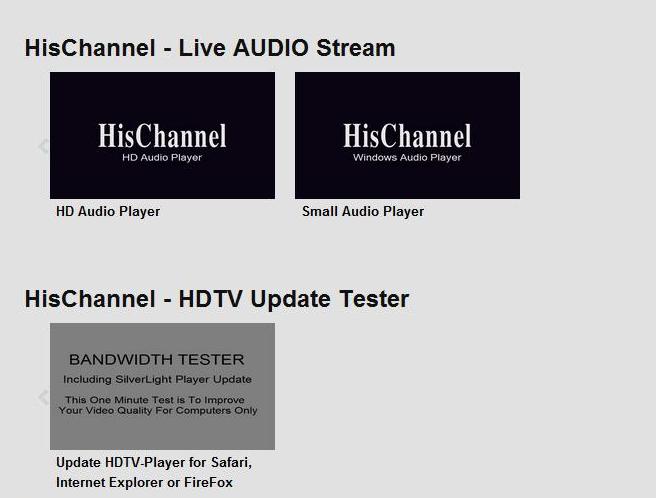
I came across something that said “LIVE AUDIO Stream” TAB near the bottom was this “Live TV Bandwidth Tester” which included “SilverLight“ player update.
Once I downloaded and installed it on my computer, I no longer ended up with the error “No video with supported format and MME type found”
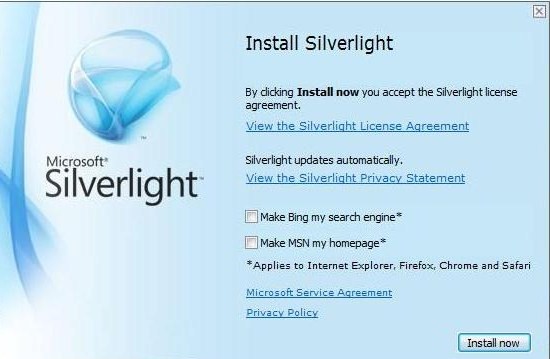
Before installing SilverLight, make sure you uncheck the installation of the Bing Search Engine, and making MSN as your homepage, unless this is something you would like installed.
I hope this helps.
Putting God First!!! God gets the Glory!!!
… and, MORE GREAT GEEK SQUEAK STUFF (#2016-014) I have been involved with computers for nearly 30 years. I have never installed any “paid” antivirus software products and have sol…
I recently was having some trouble with my computer. I was trying to watch a sermon from Greg Laurie at his website http://www.harvest.org. It was becoming very glitchy and I couldn’t figure out what was going on. I believe I was reminded by the Lord, about the video card on my computer which i had totally forgotten about. The Video Card is a Ati Radeon HD 2600 Xt. What I had forgotten to do was load the driver on the computer, after I had recently reinstalled Windows Vista. i began searching all over for the disk but, to no avail. I then began checking the internet for a possible website, turns out there are a lot of companies out there that will try to solve your problem, like driver update websites, some end up not helping you at all, just giving you more problems. Lucky I was able to find a link from Microsoft.com, which had a link to the AMD website. I have provided a link below
http://support.amd.com/en-us/download
when you get to the website,
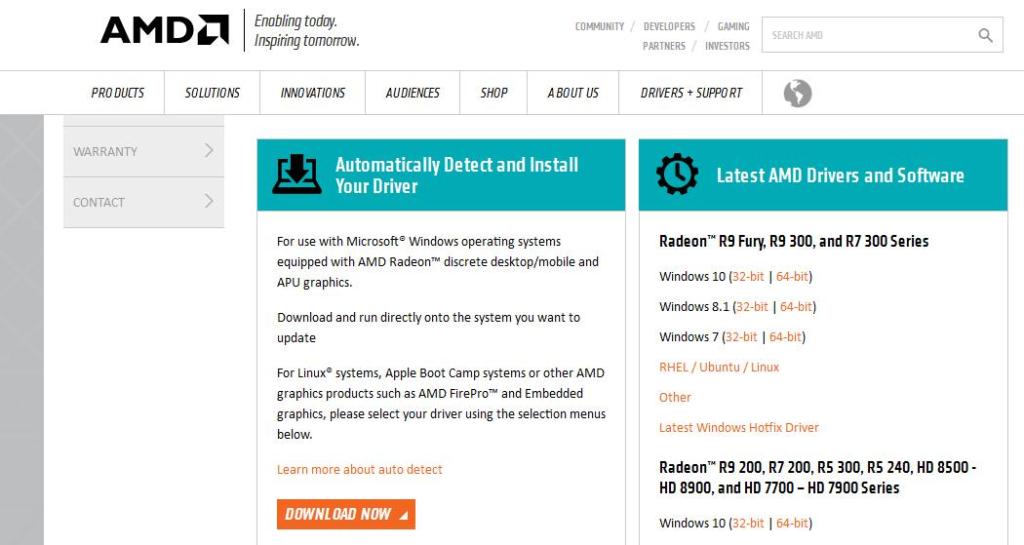
go down where you see Latest AMD Drivers and Software, I had tried the Automatically Detect and Install you Driver, and found this was not much help for me, maybe your results will be different.
Once you locate your specific driver, for your particular Video card you will notice that there is not one listed for the Windows Vista,
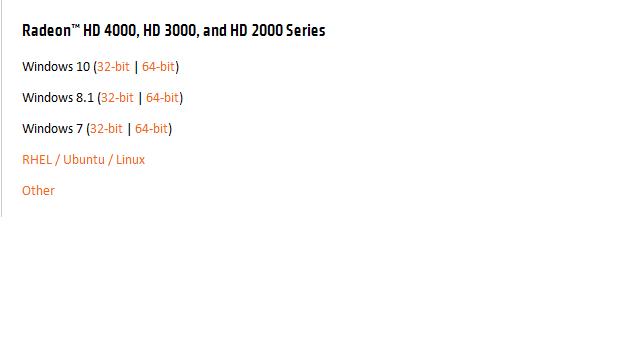
here click “OTHER” which will take you to another page, which ask if you have a 32 or 64 bit. To find out you will need to go to Start> type in the Search Field “System” once you click on this, you will be taken to another window, look under “System Type, here is displayed if your computer is a 32 or 64.
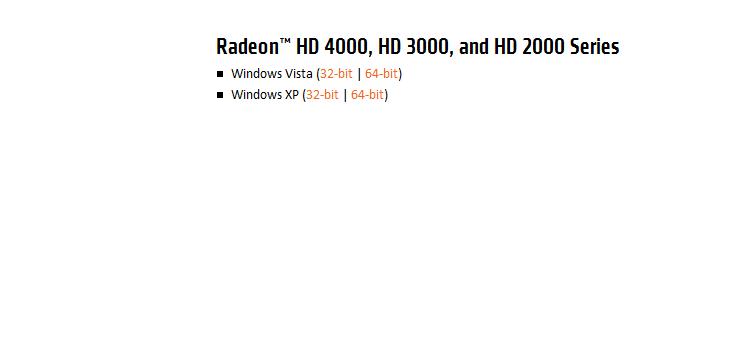
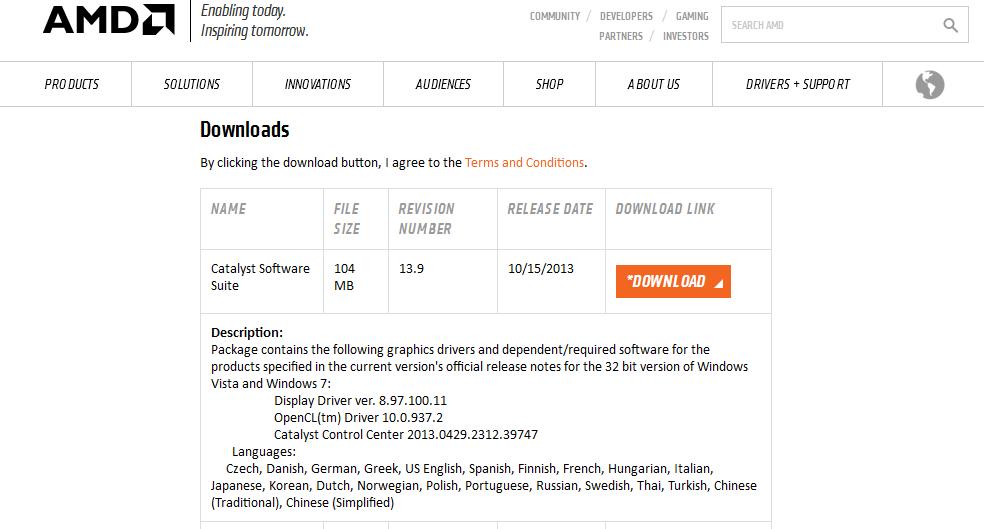
Once you have clicked on the proper bit size go down to where you see Downloads click on where you see Catalyst Software Suite
After downloading the program, a Window will open up, click install.
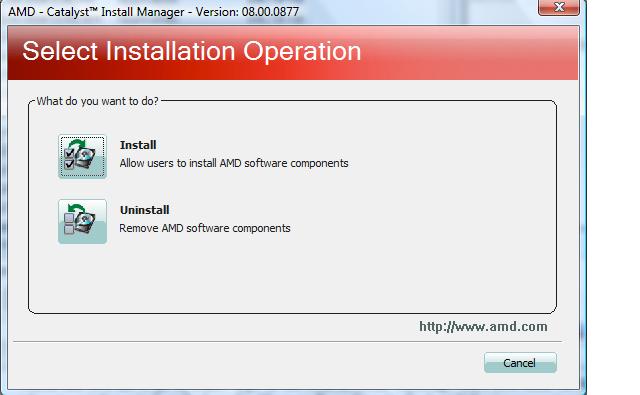
Once the program has loaded you will be prompted to click Next, and install.
Here you will have the option to either choose Express or Custom,
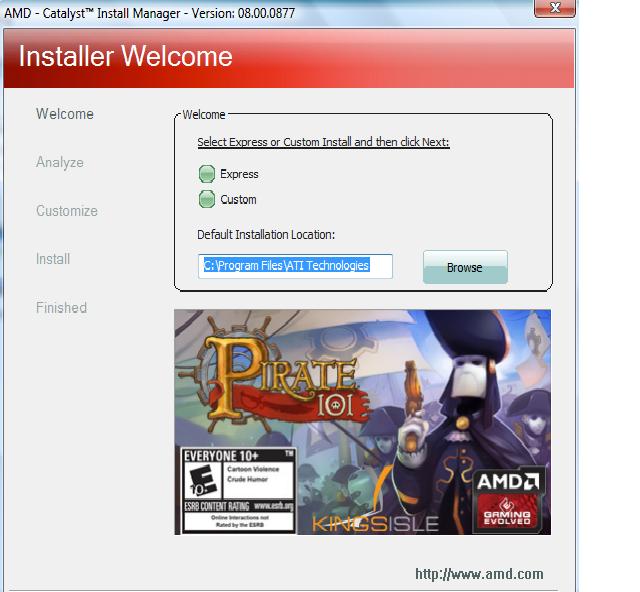
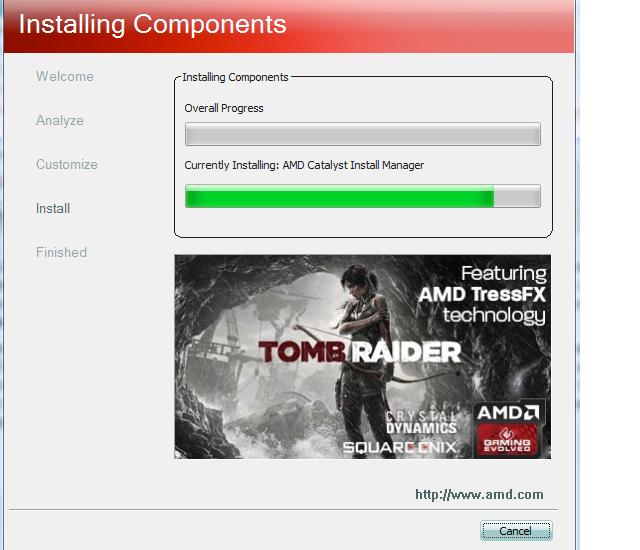
choosing Custom will provide you more security when downloading programs. After clicking next the program will start loading.
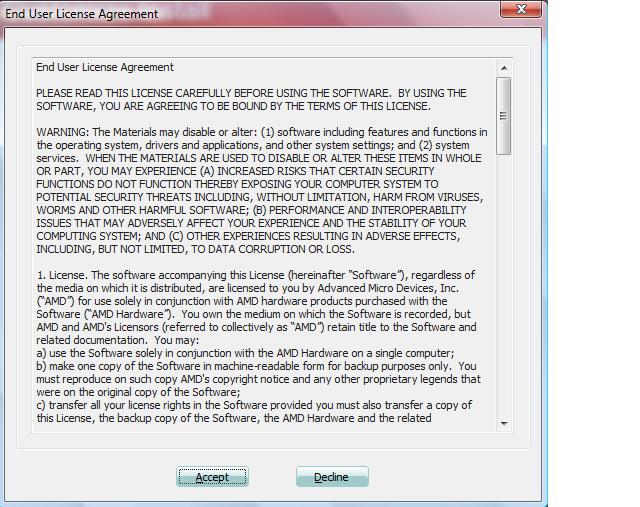
Make sure to read the End User License Agreement, before excepting.
After the program loads it will make some adjustments to your computer monitor, the screen will go blank for a couple of minutes, click Finish and your done.
Putting God First!!!
Face it, you take 99 percent of your photos with your iPhone. Make them the best they can be with these pro tips.
Source: 12 awesome iPhone camera tricks anyone can do | Macworld
The old saying that an ounce of prevention is worth a pound of cure was never so true as when applied to computing.
It’s time for our annual PC checkup. Taking an hour or so now to run through the following steps could save you many hours or even days of troubleshooting down the road.
(Editor’s note: In a sort of Windows Secrets tradition, we publish this story in the first issue of a new year — with some updates, of course. We have included a reference list of other PC-maintenance stories throughout this article.)
AVG’s Web TuneUp extension for Google Chrome fundamentally compromised the browser’s security and broke SSL. Google, needless to say, is not pleased.
Source: AVG Antivirus broke Chrome’s security, and Google’s furious about it | ExtremeTech
This little item was found on a computer that I was working on, sounds pretty nasty. Hope this helps anyone out there, that may have wondered why their computer was acting wacky. To find out go to start, or search Control Panel and then check out programs and features and you should be able to decide if you have it then click on it, uninstall and then restart the computer as usual.
Instructions to remove the Pokki virus and uninstall Pokki and Pokki Download Helper malware. The Pokki virus is spyware and adware that causes many problems. Pokki may replace Windows task bar and start menu. Remove Pokki using our free removal steps.
Windows 10 uses the Internet a lot to support many of its features. The operating system also sports numerous knobs to twiddle that are supposed to disable most of these features and the potentially privacy-compromising connections that go with them. Click link below to read more.
Microsoft’s new Windows 10 has a lot of good points, but since its release it’s come under fire for some serious privacy concerns. The major worries are that it sends a lot of data back to Microsoft, and, by default, shares some things you might not be comfortable sharing. Click link to learn more from Kim Komando

Apple Macbook Pro (Early 2008) 17″ Trackpad (Photo credit: Wikipedia)
The Track pad on a laptop is a useful tool, however, I found out early on, it got to be more of a nuance when I tried searching for something on the internet.
YouTube, had several people who had different ideas, however since I was working with Windows 8.1 at the time, this being a tablet format nothing worked.
To give you an example, I would try to type inside the search field, and I would end up with garbage as the text. This would then delete itself and it got to be so frustrating. I went as far as switching to a large keyboard for a while. I was at my wits ends and just thought that it was something I was going to have to deal with.
I feel the Lord lead me to the answer when I thought of giving it one last try on the internet. It was like there it was, so I figured well it wasn’t going to be easy, having to go through the Bios, my thinking was why there of all places. So, I gave it a shot and sure enough it was just what I needed. Thank You Lord Jesus.
We will be working on Windows 10,
When you open Windows 10, click on the Microsoft Windows logo,

menu tab
Once you click on this, you will see the New Start Menu, move down where you see settings.

double-click on settings
Go to Security and Update

Click on Recovery:

Off to the Right is Advanced Startup>

Click restart.
When the computer restarts, click Troubleshoot
Once you see Advanced Options then click UEFI Firmware Settings>

Click Restart
The BIOS Will open up click on the Advanced Tab>Internal Pointing
device>
Click the + or minus to disable Internal pointing device(Track pad).
press F-10 to save and exit.
The computer will restart and you should have no other problems with the tracking pad.
Putting God First
I have heard about Virtual Ware, and really didn’t know much about it until I ran across VirtualBox. I decided to write a blog on it use. This provides a safe and secure environment and could be fun!
So, lets get started. I have provided a link below.
https://www.virtualbox.org/wiki/Downloads

We will be using the Windows, platform. Once downloaded, click New.

Upon naming your system choose which operating system you are going to be setting up. The program will automatically, select the required memory for that particular OS (operating System)and you have the option to choose to increase the memory size if you wish.

Next is setting up the type of drive, if you are a standard user you don’t need to do anything. Below is link to the VirtualBox Manual which goes into detail of the different types of drives
VDI (VirtualBox disk Image) http://www.virtualbox.org/manual/ch05.html#vdidetails
Next is setting up the size of the hard drive, you have the option of setting up a particular size or having it expand as it is being used.

Next Place the operating system disc, inside the Cd-ROM, then click the start button as shown in the pane below.

Windows will start to load just like your regular computer, so if you’re using windows XP, I have provided a link below on how to install XP.
Good Luck. Until Next time.
Putting God First
Last week, I popped in a cd on the book of Daniel by Chuck Missler. For whatever, reason the CD-ROM wasn’t working. I figured i would have to pick up another CD Rom, so I went around looking for ones on Amazon.com. I was told that they were pretty inexpensive. Boy, sure glad waited. I decided not to buy. God must have had a reason for me to wait. It turns out that Microsoft.com had something that worked perfectly. A Fix. I will provide a link this is for Windows Vista, Windows XP, and Windows 7 and windows 8.1.
click the “Run now” button

after downloading the file, click run

After accepting to the agreement, the program will run a diagnostic

This next step is either have Microsoft do this for you or for you to pick, if your like me you probably just want to get it over with in that case click Recommend.


Next you can either select your device if it’s listed, otherwise select not listed.

Then you will be asked if your trying to read or write to that particular drive

Once it finishes your CD ROM should be working normally.
Thank you Jesus
Putting God First
With the recent news of Lenovo placing Super fish bundling inside of their software, there are other free ware download sites, that are doing the same thing this article covers which sites you should stay away from.
Download.com and Others Bundle Superfish-Style HTTPS Breaking Adware.
Putting God First
If you are thinking of buying a Levovo computer, you might want to read this first.
Lenovo PCs ship with man-in-the-middle adware that breaks HTTPS connections [Updated] | Ars Technica.
Has this ever happened to you? You come home from a hard days work, toss your stuff on the kitchen table and just want to relax. Pick up the remote, hit the power button to switch on the new High-Definition Television
http://www.gettyimages.com/detail/126171109
you just purchased a couple of weeks back. You click on the Netflix icon, the screen gets bright red and it just sits there and nothing happens.
So, you scratch your head wondering what is going on. You go to the den, check that the internet is working. The first thing that many people fail to realize anything blocking the router's Antennae will prevent your WiFi connection from traveling throughout the house.
The first thing is to make sure everything is connected properly sometimes there could be issues with the RJ-45 Cord, check to make sure that the power plug has not been tampered with. After this is done and you are positive that the antennae is not blocked. The next thing to do, is look on the back of the router. You should see a small button(reset Button) next to the power input on the device. If you take a paper-clip and press in on the reset button . Let the router recycle, and you should be back in no time watching your favorite movie or show. Hope this helps. Now, should this not work, you might have to press in on the reset button on the Modem. Til Next time…
Putting God First.
You have toiled long and hard. Maybe, your that student working on that homework or you are working on a project for college, or your boss has you working on that special project. Whatever, it is you press in on the power button on your HP printer
Nothing, happens. The little screen tells you have a paper-jam. No, big deal, you pull out the paper, try re-inserting after looking inside and noticing everything is fine. No stuck paper. So, what gives? You than remove the “Rear Access Cover” and glance inside. Still there is nothing stuck. So, what do you do in this situation? Well apparently, this is fixable. First thing head on over to the HP.com website. Once there type in the model number or brand type. Our’s is a HP printer C7180 All-in-one. According to the instructions from the website: First you want to load paper in the feed tray. Next you want to press in on the “Set-up” button. it is located below the “OK”
button. It has a small wrench. Press in on this, then push in on the arrow key pointing downward, “Print Report” then click “OK” After this is done, move the down arrow key and stop at “Self-Test Report”, click “OK” if everything works out like on our printer you should see a color pattern on your printer. Source: HP.COM
Putting God First
God bless.
Today, we are going to be talking about the Windows Media Player: I have a friend who ran into a problem in getting his CD‘s to rip inside Windows 7 and so I figured if he had the problem maybe there might be others.

When you first open Windows Media Player, you have two options Express or Custom. Choosing Custom allows the user to decide what is important. Now, if you’re in a hurry and just want to delve into the Windows media player the user can choose Express.
At the next window the user can select what privacy options they prefer.

Display media information from the internet and Update music files by retrieving media information from the internet will help the user to download album art and titles of those songs.
usage rights, which has Windows media player to acquire digital rights if you are trying to use a protected file. This protects the artist of the music Under the Privacy tab is how Microsoft handles your personal information and goes into detail on Usage Rights.
Under Enhanced content is sending unique player ID, what this means, is that when streaming Media content, this identifies your specific computer to the server. Which also gathers statistics and may help improve quality.
cookies tab, Gives the user the option to modify the use of cookies. Cookies: allow the user to enter their favorite website without having to re-enter the password.
Windows Media Player customer experience improvement program is designed to send information to Microsoft, which covers the type of Hardware you use and how to improve the software.
History is your most recently played music files.
Next you are given the option to place an icon on the task-bar and on the desktop. On default you can set this to play all your music.
By selecting choose file types, this will bring up a list of type of files that you can listen to on the media player.
Click select All.
Click Media Files and Finish.
Once you have windows media player running, Press Alt on the keyboard, and this will bring up the main menu.

Click on Tools, Options and this menu will appear

Upon clicking Rip Music go down where you see “Windows media Audio“ then depending on your preference click the proper box, click Apply and OK.

Putting God First
You have brought that new computer home. Now after you have unpacked it, and began setting it up for use. your ready to take it for a spin on the internet highway. But wait, hold on there. So much of us never think about the security of our computer. Then when things go array, we want to blame the computer.
Recovery media, is called this for a reason, should the hard drive ever fail, you will still have a copy of the operating system.
Windows 8 offers you several ways, depending on the manufacture.
Each computer system is different, some allow you to make what are known as recovery discs. These consist of transferring your operating system(OS) onto three DVDs.
To set up transfer of the OS(Operating System) bring up the charm bar.

In the search field type “Control Panel” from here click on “recovery” to get started.
We are going to be using a 16GB Thumb Drive to create our recovery Media

See title (Photo credit: Wikipedia)
After you click on Recovery there are three options before you. We are going to choose for this operation “Create a Recovery Drive” After you make your choice, Click the bottom tab marked “Next” then insert the thumb drive and the partition will be transferred to the USB Drive.
The link below will give you some other options to choose from also.
The next step is to protect your investment by protecting it with software. The Internet is just full of programs that want you to believe they can make your computer run faster. That is not the case. Only more memory or a faster Processor.
One of the first programs that you want to install is a good Anti-Virus, if you are a Home User, there is free Anti-virus for you to use.
I have provided you some choices.
Some of these are AVG, ZoneAlarm, and Avast.
To get to the AVG Website click on the link below:

http://free.avg.com/us-en/homepage
To download Avast’s Free Anti-Virus click on the link below
http://www.avast.com/en-us/index
After downloading you will prompted to get a license from Avast. This only takes a few minutes.
ZoneAlarm comes with Firewall and Anti-virus.
Click on the link below for their website:
http://www.zonealarm.com/security/en-us/home.htm
The next thing we want to look at is FoxitReader. This is a PDF(portable document format) that you can use in place of Adobe Reader. FoxitReader has been in the business for along time. The link below will get you to their website.
http://www.foxitsoftware.com/Secure_PDF_Reader/
Stay away from PC cleaner, Optimizer pro the list goes on and on. There is so much garbage out there you have to be extra careful, so if you find something make sure you check what type of problems previous users have had with that program.
Looking for a Registry Cleaner then look no further then Ccleaner.
Below is a link to their website.
http://www.piriform.com/ccleaner
Next would be to find a Anti-Malware program.
The best in the business for getting rid of Malware is MalwareBytes.
https://www.malwarebytes.org/
To keep your computer from bots, there is a program put out by Safer-Networking.org Spybot: Search and Destroy.
Below is a link to their Website
http://www.safer-networking.org/private/compare/
Let’s not forget to use Mozilla Firefox as our browser
http://www.Firefox.com
Using these items will keep your computer safe and secure.
Putting God First
Putting God First
Well if you haven’t heard, Windows 9, is the new “10” This is a sample of what the new windows will look like. Everybody will get a chance to download a rough version of the new operating system and take it for a test drive. Windows 10 won’t officially be out until 2015.
Microsoft Announces Windows 9, but Names it Windows 10.
Putting God First
God Bless
This is some highlights of the new apple watch , you will need to download Quicktime to view this. Have Fun.Putting God First
God Bless
What you do when you have forgotten your password and you end up locked out of your computer? This is a dilemma nobody wants. So, now what do you do? Well, if your me, you create what is known as a password reset disk. I know you can just reinstall the operating system but, what fun is that. You have to reload all the programs and files that you have.
If you wish to know how to do this you can click on the link below for Windows XP:
For Windows Vista: click on this link:
For Windows 7 click on this link:
If you are using Windows XP and you want to reset your password I have provided a link below:
http://www.microsoft.com/resources/documentation/windows/xp/all/proddocs/en-us/ua_password_reset_disk.mspx?mfr=true
http://support.microsoft.com/kb/305478
So what is your next step?
Begin at the start menu, then inside the search field, type in User Accounts

User accounts> under “Tasks” on the left side of the pane click “Create password reset disk”

Make sure you have removable media which means popping a thumb drive into one of the USB ports.

English: A Sandisk-brand USB thumb drive, SanDisk Cruzer Micro, 4GB. (Photo credit: Wikipedia)
After inserting a thumb drive, click “NEXT”

Here: choose where you have your thumb drive inserted and click “NEXT”

Here: type in your current password.


The Next step is to place this thumb drive where you can get to it, should you ever need it.
To make a Password Reset Disk For windows 8.1 You will need to set up a local account .
Bring up the Charm Bar
Type in the search field User accounts> on the left side below “Tasks” on the link click “Create password reset disk” Insert a thumb drive into one of the USB Ports. Then go thru the prompt clicking “NEXT”, choose where you have your thumb drive inserted click “NEXT”. Then type in your current password, click” Finish” and now place this device where you can find it.
Have a great day.
[contact-form][contact-field class="zem_slink" title="Record label" href="http://en.wikipedia.org/wiki/Record_label" target="_blank" rel="wikipedia">label</a>='Name' type="name" required="1" label="Name"/][contact-field label="Email" type="email" required="1"/][contact-field label="Website" type="url"/][contact-field label="Comment" type="textarea" required="1"/][/contact-form]
Putting God First.
God Bless
Sometime files gets corrupted or for whatever reason come up missing. like what happened, the other day when I was working on a friends computer. An error occurred for the task manager “The service cannot accept control messages at this time.”
To get to the Task Ma nager, Right-click the Task-Bar then click on the Task Manager.
To resolve these kind of issues, you can use what is known as SFC/SCANNOW, or the system File Checker. What this program does, is search your operating system, and if it finds a file that needs replacing due to corruption, it will replace it for you.
In order for this work, you will need the operating disc, for that particular OS, if you don’t have one, you can always borrow one for this operation.

if you are using Windows Xp, and you want to get to Command prompt click start >all programs >accessories, >command prompt >run as administrator, i have provided a link below:
If your running Vista or Windows 7 click on the start button, in the search field type in Command Prompt, when you have the link, Right click and choose “Run as Administrator. For Windows 8, go to the Start Menu, Desktop, hit the Windows Key + C, then type in the search field “Command Prompt” Right-Click “Run as Administrator” Once getting to the Command Prompt, you should see C/ from here then type sfc/scannow and press the enter key,
This will probably take a little time, so you might want to go and do something for a while. after it is finished it will let you know if it found anything. It will usually tell you what was found. Once done, go ahead and close the window or if your a new techie, just type Exit, tap the power button and the computer should shut off. Then go and restart the system. Hope this helped. Putting God First, God Bless.
Today, we are going to work on an iPhone, removing some applications we no longer use and giving some help in the process. For those that have an iPhone, or thinking of buying one this should help you.
The first thing you are going to need is to is download iTunes, click on the link below
http://www.apple.com/itunes/download/
Once the download is complete, Click Select All to set associations for programs, this will include, any movies, music and Mp3 files. When you launch iTunes, you will see that there is not a menu bar.

The Registry Editor in Windows Vista and Windows 7 (Photo credit: Wikipedia)
Today, we are going to be talking on how to fix a cd drive. It’s one of those problems sitting in the background, not unlike a sleeper-cell. It wasn’t until I purchased An ASUS laptop. I recently had popped open my CD Rom, inserted “Passion of the Christ” to begin to watch a great Movie. Closed the tray and waited, nothing seemed to be happening. This is when you start to wonder is there something wrong with the computer. I know I could always, pick up a external CD Rom however, this is not the option one would like if they have a laptop. Who wants to carry an external drive around.


 INFOTECHCOMPUTING MINSTRIES: Where God Gets the Glory