So, how do I shut off the track pad on my ASUS X550CA Laptop?


Apple Macbook Pro (Early 2008) 17

Apple Macbook Pro (Early 2008) 17″ Trackpad (Photo credit: Wikipedia)

The Track pad on a  laptop is a useful tool,  however, I found out early on,   it got to be more of a nuance when I tried searching for something on the internet.

YouTube, had several people who had different ideas, however since I was working with Windows 8.1 at the time, this being a tablet format nothing worked.

To give you an example,  I would try to type inside the search field, and I would end up with garbage as the text. This would then  delete itself and it got to be so frustrating. I went as far as switching to a large keyboard for a while.  I was at my wits ends and just thought that it was something I was going to have to deal with.


Embed from Getty Images

I feel the Lord lead me to the answer when I thought of giving it one last try on the internet. It was like there it was, so I figured well it wasn’t going to be easy, having to go through the Bios, my thinking was why there of all places. So, I gave it a shot and sure enough it was just what I needed. Thank You Lord Jesus.

We will be working on Windows 10,

When you open Windows 10, click on the Microsoft Windows logo,

Microsoft Windows Key

menu tabnew start menu

Once you click on this, you will see the New Start Menu, move down where you see settings.

Untitled

double-click on settings

Go to Security and Update

windows 10 setting for bios

Click on Recovery:

recovery

Off to the Right is Advanced Startup>

Advanced Startup

Click restart.

When the computer restarts, click Troubleshoot

Once you see Advanced Options then click UEFI Firmware Settings>

IMG_0156

Click Restart

 The BIOS Will open up click on the Advanced Tab>Internal Pointing

device>

Click the + or minus  to disable Internal pointing device(Track pad).

press F-10 to save and exit.

The computer will restart and you should have no other problems with the tracking pad.

Putting God First

I can’t get my cd to play, is there something I can do?


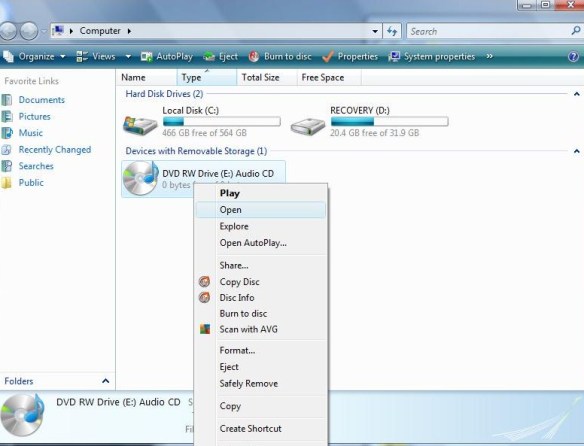
Let’s say we have some music or  videos  and the disc is not playing. Today we are going to be using Windows Vista, and what were are going to be doing is taking files that are not working and placing them on a new compact disc. To get started, go the start button. You will notice that off to the right is a set of tabs, click on computer and a window will pop open. computer WorkGroup

computer kim


Left click-open

Locate the  Cd-ROM, Right click, on disc, then Left click  this will open the files on the disc.

(Remember, each mouse has two parts, a left side and a right side. so if you are right clicking, use the right side.)

(Below is what pictures of files on computer)

tracks on disc

(Setting up a Folder)

On setting up a folder, Go to the desktop, right-click, and a menu will open up   move down to where you see NEW, then click on FOLDER

kimmy


(Drag and Drop)

After naming  the folder,

Set  both folders, next to each other (The blank folder and the computer folder)

The next step is to highlight those songs or videos you wish to copy.  While holding down the shift key, hold down the  arrow key that points down. This function  will high-light your files.  You can either Right or Left-click then Drag contents to the empty folder.

dragging music to new folder

Now, you have the option to play your music from the desktop .

To do this Right click on the folder, when the menu opens up, it will ask if you wish to open the file, choose either open or Play whichever player is set as the default.. “Play with VLC media player. Once you click on this the player should take over.

Open menu for folder


The next step is to transfer the files to a compact disc,. The way to carry out this is to open Computer Window,  Left click on the file FOLDER on the desktop  and drag it over to the device labeled  DVD RW Drive and release. You will be prompted to insert a BLANK disc, after the computer has  set up the disc for formatting, your files will be transferred and you’ll be on your way, to listening to favorite music.

Remember, Focus on Jesus, not your problem

Putting God First

God Bless