No video with supported format and MME type found


After reinstalling the Windows Vista operating system, I had gone to a christian Web site http://www.hischannel.com and when I had tried to watch one of the Sermons from their archive this came up below

No video with supported format and MME type found

No video with supported format and MME type found

I began by trying different things, first updating to Service Pack one , installing the Adobe Flash Player, and Real player nothing was working. I was at the end of my wits, then I  asked Jesus to help me with this. As I was looking over the website,


hischannel

I came across something that said  “LIVE AUDIO Stream” TAB near the bottom was this “Live TV Bandwidth Tester” which included “SilverLight player update.

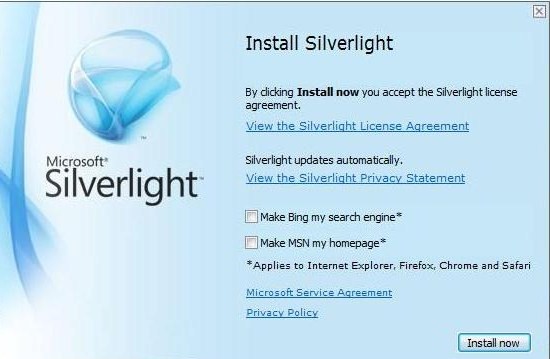
Once I downloaded and installed it on my computer, I no longer ended up with the error “No video with supported format and MME type found”

silverlight

Before installing SilverLight, make sure you uncheck the installation of the Bing Search Engine, and making MSN as your homepage, unless this is something you would like installed.

I hope this helps.

Putting God First!!! God gets the Glory!!!

Using VirtualBox


I have heard about Virtual Ware, and really didn’t know much about it until I ran across  VirtualBox. I decided to write a blog on it use. This provides a safe and secure environment and could be fun!

So, lets get started. I have provided a link below.

https://www.virtualbox.org/wiki/Downloads

Welcome to Virtualbox

We will be using the  Windows, platform. Once downloaded, click New.

VirtualBox Manager

Upon naming your system choose which operating system you are going to be setting up. The program will automatically, select the required memory for that particular OS (operating System)and you have the option to choose to increase the memory size if you wish.

memory size Virtual Machine

Next is setting up the type of drive, if you are a standard user you don’t need to do anything. Below is link to the VirtualBox Manual which goes into detail of the different types of drives

VDI (VirtualBox disk Image) http://www.virtualbox.org/manual/ch05.html#vdidetails

Next is setting up the size of the hard drive, you have the option of setting up a particular size or having it expand as it is being used.

storage on physical drive

Next Place the operating system disc, inside the Cd-ROM, then click the start button as shown in the pane below.

Start Button (2)

Windows will start to load just like your regular computer, so if you’re using windows XP,  I have provided a link below on how to install XP.

How to install a fresh copy of Windows xp

Good Luck. Until Next time.

Putting God First

God Bless

Windows media player (ripping)


Today, we are going to be talking about the Windows Media Player:   I have a friend who ran into a problem in getting his CD‘s to rip inside Windows 7 and so I figured if he had the problem maybe there might be others.

Windows Media Player

When you first open Windows Media Player, you have two options  Express or Custom.  Choosing Custom allows the user to decide what is important. Now, if you’re in a hurry and just want to delve into the Windows media player the user can choose Express.

At the next window  the user can select what privacy options they prefer.

selecting privacy options


Display media information from the internet and Update music files by retrieving media information from the internet will help the user to download album art and titles of those songs.

usage rights, which has Windows media player to acquire digital rights if you are trying to use a protected file. This protects the artist of the music  Under the Privacy tab is how Microsoft handles your personal information and goes into detail on Usage Rights.

Under Enhanced content is sending unique player ID, what this means, is that when streaming Media content, this identifies your specific computer to the server. Which also gathers statistics and may help improve quality.

cookies tab, Gives the user the option to modify the use of cookies. Cookies: allow the user to enter their favorite website without having to re-enter the password.

Windows Media Player customer experience improvement program is designed to send information to Microsoft, which covers the type of Hardware you use and how to improve the software.

History is your most recently played music files.

Next you are given the option to place an icon on the task-bar and on the desktop. On default you can set this to play all your music.

By selecting choose file types, this will bring up a list of type of files that you can listen to on the media player.

Click select All.set associations

Click Media Files and Finish.

Once you have windows media player running, Press Alt on the keyboard, and this will bring up the main menu.
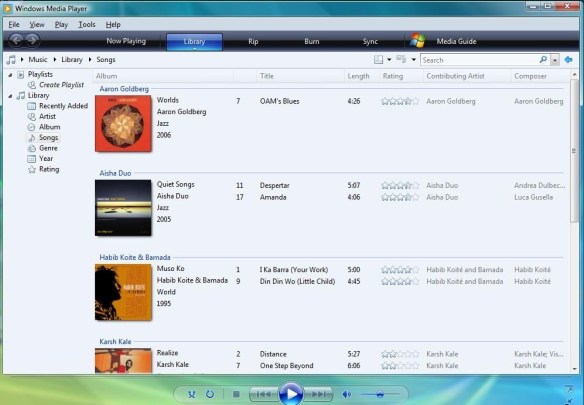
Menu

Click on Tools, Options and this menu will appear
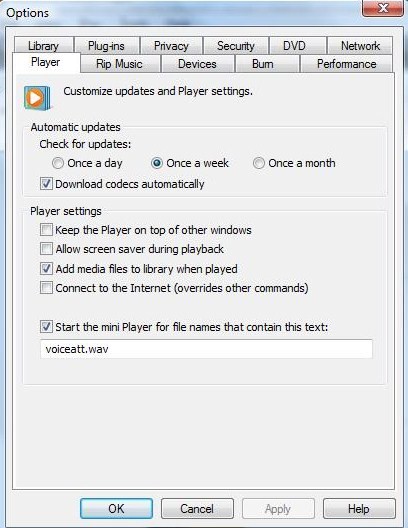
Options

Upon clicking Rip Music go down where you see Windows media Audio then depending on your preference click the proper box, click Apply and OK.

rip music

Putting God First

God Bless

Password reset disk


Embed from Getty Images

What you do when you have forgotten your password and you end up locked out of your computer? This is a dilemma  nobody wants.  So, now what do you do? Well, if your me, you create what is known as a password reset disk. I know you can  just reinstall the operating system but, what fun is that. You have to reload all the programs and files that you have.

If you wish to know how to do this  you can click on the link below for Windows XP:

How to install a fresh copy of Windows xp

For Windows Vista: click on this link:

clean install or loading fresh copy of windows Vista

For Windows 7 click on this link:

installing a fresh copy of Windows 7


If you are using Windows XP and you want to reset your password I have provided a link below:

http://www.microsoft.com/resources/documentation/windows/xp/all/proddocs/en-us/ua_password_reset_disk.mspx?mfr=true

http://support.microsoft.com/kb/305478

So what is your next step?


Begin at the start menu,start button then inside the search field, type in User Accounts

search field User Account


 User accounts> under “Tasks” on the left side of the pane  click “Create  password reset disk”


create a password reset disk


Make sure you have removable media which means popping  a thumb drive into one of the USB ports.

English: A Sandisk-brand USB thumb drive, SanD...

English: A Sandisk-brand USB thumb drive, SanDisk Cruzer Micro, 4GB. (Photo credit: Wikipedia)


After inserting a thumb drive,  click “NEXT”

welcome to forgotten password wizard


Here: choose where you have your  thumb drive inserted and click “NEXT”

creating password on the following drive

Here: type in your current password.

current user account password


completing forgotten password wizard

The Next step is to place this thumb drive where you can get to it, should you ever need it.

To make a Password Reset Disk For windows 8.1 You will need to set up a local account .

Bring up the Charm Bar


charm bar

Type in the search field  User accounts> on the left side  below “Tasks”  on the link click  “Create  password reset disk”  Insert a thumb drive into one of the USB Ports. Then go thru the prompt clicking “NEXT”,  choose where you have your thumb drive inserted click “NEXT”. Then type in your current password, click” Finish” and now place this device where you can find it.

Have a great day.

[contact-form][contact-field class="zem_slink" title="Record label" href="http://en.wikipedia.org/wiki/Record_label" target="_blank" rel="wikipedia">label</a>='Name' type="name" required="1" label="Name"/][contact-field label="Email" type="email" required="1"/][contact-field label="Website" type="url"/][contact-field label="Comment" type="textarea" required="1"/][/contact-form]

Putting God First.

God Bless


Viruses hidden in Microsoft Word and Excel files are making a comeback | Komando.com


Viruses hidden in Microsoft Word and Excel files are making a comeback | Komando.com.

Microsoft will release a new version of Office for Mac this year | Macworld

Video


Microsoft will release a new version of Office for Mac this year | Macworld.


Enhanced by Zemanta

As the Microsoft CEO rumors churn: The Gates factor | ZDNet

Video


As the Microsoft CEO rumors churn: The Gates factor | ZDNet.

Windows 8 accessing Safe-mode

Video


This slideshow requires JavaScript.

Safe-mode is   when you have a problem and you are trying to diagnose what the problem might be. Let’s say you have some malware or a virus, the safest way to remove these problems would be to go into  safe-mode.   If you are using Windows XP, Vista or Windows 7, the quickest way is to hold down the F-8 key or  hitting the F-8 key repeatedly.

For Windows 8, there are some steps that you must take. First off, pull up the Charm Bar, go to Settings, “change PC Settings, Move down to Update and Recovery,this will take you to another page,  Move down to where you see the word” Recovery”, Under Advanced Start-up, click restart.

After restarting the computer, you will have a few options: Choose Troubleshoot>  Advanced Options> Start up Settings> Restart the computer, and this will take you to  Startup Settings,  press the number 5 on the keyboard, which is Safemode with Networking. Using this will enable you to update any anti-Malware program, or anti-Virus.  Use  the administrator account in Safe Mode.

below is link of what devices are working during safemode

http://windows.microsoft.com/en-us/windows-vista/which-drivers-get-loaded-in-safe-mode

This is a break-down of  all safe modes:

http://windows.microsoft.com/en-us/windows-vista/advanced-startup-options-including-safe-mode

below I have provided ways to boot into safe mode with Various Windows operating systems including Mac

http://support.apple.com/kb/HT1564?viewlocale=en_US

booting into Windows XP

http://support.microsoft.com/kb/315222

booting into Windows Vista

http://windows.microsoft.com/en-us/windows-vista/advanced-startup-options-including-safe-mode

booting into Windows 7

http://windows.microsoft.com/en-US/windows7/Advanced-startup-options-including-safe-mode

link for using diagnostic tools in safe mode

http://windows.microsoft.com/en-us/windows-vista/diagnostic-tools-to-use-in-safe-mode

Putting GOD First

Be safe and Aware