HP Mini 110-3518cl


HP Mini-Note 2133, Asus Eee PC 701 and Everex ...

HP Mini-Note 2133, Asus Eee PC 701 and Everex Cloudbook (Photo credit: Wikipedia)

Today, we will be doing a recovery on a HP Mini model 110-3518cl. After plugging in the computer, switch on the power which is on the right side of the computer, hold down or press the ESC key.
You should see the starup Menu
F1 System information
F2 System Diagnostics
F9 Boot Device Options
F10 BIOS Setup
F11 System Recovery

Once you press F11 you should see the Recovery Manager. There you will be given three choices.

The first box gives you the option to choose:
Microsoft System Restore
System Recovery
Minimized image Recovery

2nd box allows you to run a computer checkup

3rd box is for if you wish to back up your files

If you wish to continue click on System Recovery

The next page gives you the option to back any files before restoring the computer. If you wish not to back up your files, click where it says“Recover without backing up your files.”

After making your selected choice, then click NEXT. A warning will prompt you to make sure to disconnect any devices except for the power and the mouse. Click OK.

You will see Welcome to Recovery Manager, click NEXT to begin.

The computer will start the process of restoring the computer to Factory settings. This may take a while, so you might want to go and do something else. This should take around 20 minutes.

After recovery is complete click FINISH. Install any software to protect your computer, I have provided some links to help you with this process.

Ccleaner

http://www.piriform.com/ccleaner

Below is a link for Free AVG- Antivirus

http://free.avg.com/us-en/homepage

Below is a link for Free ZoneAlarm Anti-Virus

http://www.zonealarm.com/software/free-antivirus/

Below is a link for Free Avast Anti-virus

https://www.avast.com/en-us/index

Malware Bytes prevents and searches types of Malware that you may have inadvertently loaded inside your computer. If your computer is acting weird, run a scan of Malware Bytes. Below I have provided a link for a Free Malware bytes.

https://www.malwarebytes.org/free/

No video with supported format and MME type found


After reinstalling the Windows Vista operating system, I had gone to a christian Web site http://www.hischannel.com and when I had tried to watch one of the Sermons from their archive this came up below

No video with supported format and MME type found

No video with supported format and MME type found

I began by trying different things, first updating to Service Pack one , installing the Adobe Flash Player, and Real player nothing was working. I was at the end of my wits, then I  asked Jesus to help me with this. As I was looking over the website,


hischannel

I came across something that said  “LIVE AUDIO Stream” TAB near the bottom was this “Live TV Bandwidth Tester” which included “SilverLight player update.

Once I downloaded and installed it on my computer, I no longer ended up with the error “No video with supported format and MME type found”

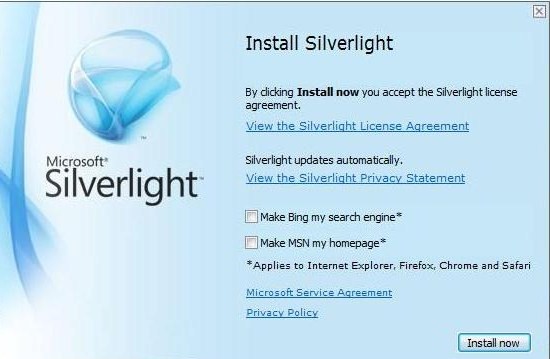
silverlight

Before installing SilverLight, make sure you uncheck the installation of the Bing Search Engine, and making MSN as your homepage, unless this is something you would like installed.

I hope this helps.

Putting God First!!! God gets the Glory!!!

No Disc, now what do I do?


I recently was having some trouble with my computer. I was trying to watch a sermon from Greg Laurie at his website http://www.harvest.org. It was becoming very glitchy and I couldn’t figure out what was going on. I believe I was reminded by the Lord, about the video card on my computer which i had totally forgotten about. The Video Card  is a Ati Radeon HD 2600 Xt. What I had forgotten to do was load the driver on the computer, after I had recently reinstalled Windows Vista. i began searching  all over for the disk but, to no avail. I then began checking the internet for a possible website, turns out there are a lot of companies out there that will try to solve your problem, like driver update websites, some end up not helping you at all, just giving you more problems. Lucky I was able to find a link from Microsoft.com, which had a link to the AMD website. I have provided a link below

http://support.amd.com/en-us/download

when you get to the website,

AMD Automatically Detect

go down where you see Latest AMD Drivers and Software, I had tried the Automatically Detect and Install you Driver, and found this was not much help for me, maybe your results will be different.

Once you locate your specific driver, for your particular Video card you will notice that there is not one listed for the Windows Vista,

Radeon HD 2600


here click “OTHER” which will take you to another page, which ask if you have a 32 or 64 bit. To find out you will need to go  to Start> type in the Search Field “System” once you click on this, you will be taken to another window, look under “System Type, here is displayed if your computer is a 32 or 64.

Radeon HD

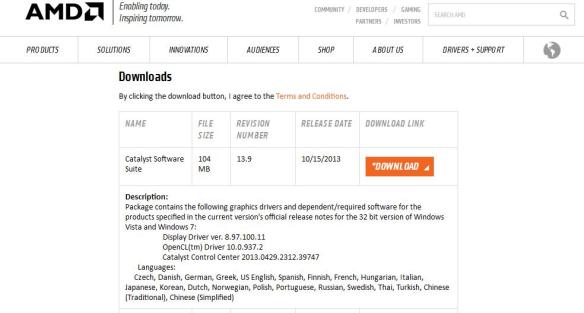
Once you have clicked on the proper bit size go down to where you see Downloads click on where you see Catalyst Software Suite

Catalyst Software

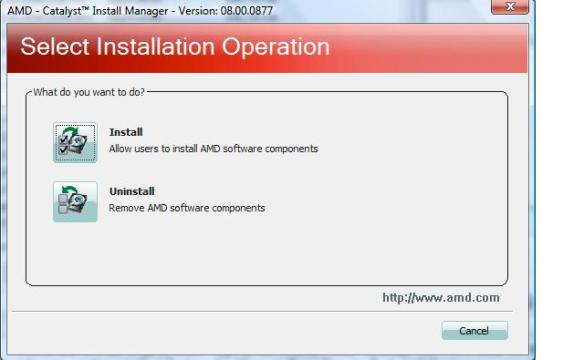
After downloading the program, a Window will open up, click install.

Select Installation Operation


Once the program has loaded you will be prompted to click Next, and install.

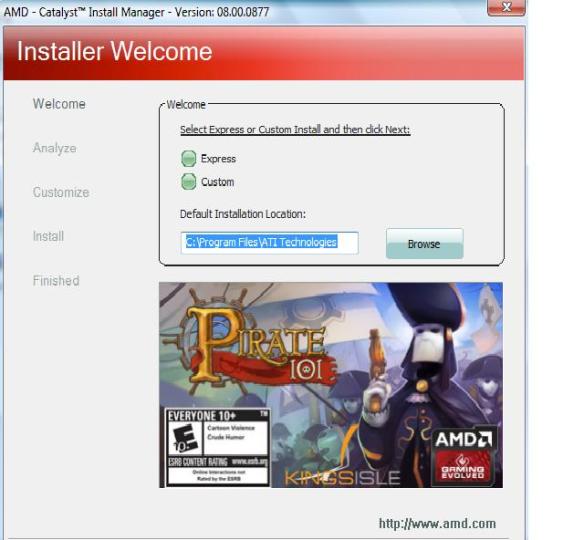
Here you will have the option to either choose Express or Custom,

Express or Custom


choosing Custom will provide you more security when downloading programs. After clicking next the program will start loading.

installling components


Make sure to read the End User License Agreement, before excepting.

End User License Agreement


After the program loads it will make some adjustments to your computer monitor, the screen will go blank for a couple of minutes, click Finish and your done.

Putting God First!!!

So, how do I shut off the track pad on my ASUS X550CA Laptop?


Apple Macbook Pro (Early 2008) 17

Apple Macbook Pro (Early 2008) 17″ Trackpad (Photo credit: Wikipedia)

The Track pad on a  laptop is a useful tool,  however, I found out early on,   it got to be more of a nuance when I tried searching for something on the internet.

YouTube, had several people who had different ideas, however since I was working with Windows 8.1 at the time, this being a tablet format nothing worked.

To give you an example,  I would try to type inside the search field, and I would end up with garbage as the text. This would then  delete itself and it got to be so frustrating. I went as far as switching to a large keyboard for a while.  I was at my wits ends and just thought that it was something I was going to have to deal with.


Embed from Getty Images

I feel the Lord lead me to the answer when I thought of giving it one last try on the internet. It was like there it was, so I figured well it wasn’t going to be easy, having to go through the Bios, my thinking was why there of all places. So, I gave it a shot and sure enough it was just what I needed. Thank You Lord Jesus.

We will be working on Windows 10,

When you open Windows 10, click on the Microsoft Windows logo,

Microsoft Windows Key

menu tabnew start menu

Once you click on this, you will see the New Start Menu, move down where you see settings.

Untitled

double-click on settings

Go to Security and Update

windows 10 setting for bios

Click on Recovery:

recovery

Off to the Right is Advanced Startup>

Advanced Startup

Click restart.

When the computer restarts, click Troubleshoot

Once you see Advanced Options then click UEFI Firmware Settings>

IMG_0156

Click Restart

 The BIOS Will open up click on the Advanced Tab>Internal Pointing

device>

Click the + or minus  to disable Internal pointing device(Track pad).

press F-10 to save and exit.

The computer will restart and you should have no other problems with the tracking pad.

Putting God First

I can’t get my cd to play, is there something I can do?


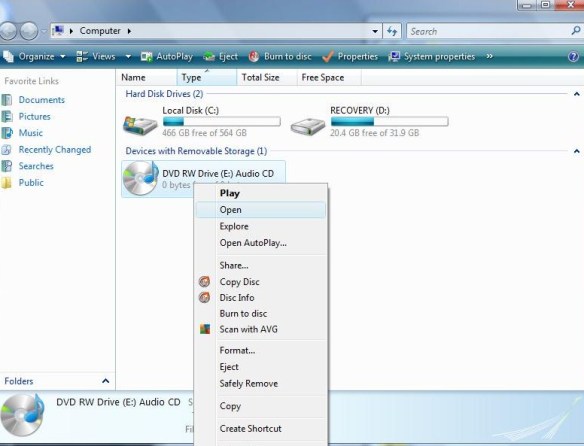
Let’s say we have some music or  videos  and the disc is not playing. Today we are going to be using Windows Vista, and what were are going to be doing is taking files that are not working and placing them on a new compact disc. To get started, go the start button. You will notice that off to the right is a set of tabs, click on computer and a window will pop open. computer WorkGroup

computer kim


Left click-open

Locate the  Cd-ROM, Right click, on disc, then Left click  this will open the files on the disc.

(Remember, each mouse has two parts, a left side and a right side. so if you are right clicking, use the right side.)

(Below is what pictures of files on computer)

tracks on disc

(Setting up a Folder)

On setting up a folder, Go to the desktop, right-click, and a menu will open up   move down to where you see NEW, then click on FOLDER

kimmy


(Drag and Drop)

After naming  the folder,

Set  both folders, next to each other (The blank folder and the computer folder)

The next step is to highlight those songs or videos you wish to copy.  While holding down the shift key, hold down the  arrow key that points down. This function  will high-light your files.  You can either Right or Left-click then Drag contents to the empty folder.

dragging music to new folder

Now, you have the option to play your music from the desktop .

To do this Right click on the folder, when the menu opens up, it will ask if you wish to open the file, choose either open or Play whichever player is set as the default.. “Play with VLC media player. Once you click on this the player should take over.

Open menu for folder


The next step is to transfer the files to a compact disc,. The way to carry out this is to open Computer Window,  Left click on the file FOLDER on the desktop  and drag it over to the device labeled  DVD RW Drive and release. You will be prompted to insert a BLANK disc, after the computer has  set up the disc for formatting, your files will be transferred and you’ll be on your way, to listening to favorite music.

Remember, Focus on Jesus, not your problem

Putting God First

God Bless

Using VirtualBox


I have heard about Virtual Ware, and really didn’t know much about it until I ran across  VirtualBox. I decided to write a blog on it use. This provides a safe and secure environment and could be fun!

So, lets get started. I have provided a link below.

https://www.virtualbox.org/wiki/Downloads

Welcome to Virtualbox

We will be using the  Windows, platform. Once downloaded, click New.

VirtualBox Manager

Upon naming your system choose which operating system you are going to be setting up. The program will automatically, select the required memory for that particular OS (operating System)and you have the option to choose to increase the memory size if you wish.

memory size Virtual Machine

Next is setting up the type of drive, if you are a standard user you don’t need to do anything. Below is link to the VirtualBox Manual which goes into detail of the different types of drives

VDI (VirtualBox disk Image) http://www.virtualbox.org/manual/ch05.html#vdidetails

Next is setting up the size of the hard drive, you have the option of setting up a particular size or having it expand as it is being used.

storage on physical drive

Next Place the operating system disc, inside the Cd-ROM, then click the start button as shown in the pane below.

Start Button (2)

Windows will start to load just like your regular computer, so if you’re using windows XP,  I have provided a link below on how to install XP.

How to install a fresh copy of Windows xp

Good Luck. Until Next time.

Putting God First

God Bless

Windows media player (ripping)


Today, we are going to be talking about the Windows Media Player:   I have a friend who ran into a problem in getting his CD‘s to rip inside Windows 7 and so I figured if he had the problem maybe there might be others.

Windows Media Player

When you first open Windows Media Player, you have two options  Express or Custom.  Choosing Custom allows the user to decide what is important. Now, if you’re in a hurry and just want to delve into the Windows media player the user can choose Express.

At the next window  the user can select what privacy options they prefer.

selecting privacy options


Display media information from the internet and Update music files by retrieving media information from the internet will help the user to download album art and titles of those songs.

usage rights, which has Windows media player to acquire digital rights if you are trying to use a protected file. This protects the artist of the music  Under the Privacy tab is how Microsoft handles your personal information and goes into detail on Usage Rights.

Under Enhanced content is sending unique player ID, what this means, is that when streaming Media content, this identifies your specific computer to the server. Which also gathers statistics and may help improve quality.

cookies tab, Gives the user the option to modify the use of cookies. Cookies: allow the user to enter their favorite website without having to re-enter the password.

Windows Media Player customer experience improvement program is designed to send information to Microsoft, which covers the type of Hardware you use and how to improve the software.

History is your most recently played music files.

Next you are given the option to place an icon on the task-bar and on the desktop. On default you can set this to play all your music.

By selecting choose file types, this will bring up a list of type of files that you can listen to on the media player.

Click select All.set associations

Click Media Files and Finish.

Once you have windows media player running, Press Alt on the keyboard, and this will bring up the main menu.

Menu

Click on Tools, Options and this menu will appear

Options

Upon clicking Rip Music go down where you see Windows media Audio then depending on your preference click the proper box, click Apply and OK.

rip music

Putting God First

God Bless

Microsoft Announces Windows 9, but Names it Windows 10


Well if you haven’t  heard, Windows 9, is the new “10” This is a sample of what the new windows will look like. Everybody will get a chance to download a rough version of the new  operating system and take it for a test drive. Windows 10 won’t officially be out until 2015.

Microsoft Announces Windows 9, but Names it Windows 10.

Putting God First

God Bless

Password reset disk


Embed from Getty Images

What you do when you have forgotten your password and you end up locked out of your computer? This is a dilemma  nobody wants.  So, now what do you do? Well, if your me, you create what is known as a password reset disk. I know you can  just reinstall the operating system but, what fun is that. You have to reload all the programs and files that you have.

If you wish to know how to do this  you can click on the link below for Windows XP:

How to install a fresh copy of Windows xp

For Windows Vista: click on this link:

clean install or loading fresh copy of windows Vista

For Windows 7 click on this link:

installing a fresh copy of Windows 7


If you are using Windows XP and you want to reset your password I have provided a link below:

http://www.microsoft.com/resources/documentation/windows/xp/all/proddocs/en-us/ua_password_reset_disk.mspx?mfr=true

http://support.microsoft.com/kb/305478

So what is your next step?


Begin at the start menu,start button then inside the search field, type in User Accounts

search field User Account


 User accounts> under “Tasks” on the left side of the pane  click “Create  password reset disk”


create a password reset disk


Make sure you have removable media which means popping  a thumb drive into one of the USB ports.

English: A Sandisk-brand USB thumb drive, SanD...

English: A Sandisk-brand USB thumb drive, SanDisk Cruzer Micro, 4GB. (Photo credit: Wikipedia)


After inserting a thumb drive,  click “NEXT”

welcome to forgotten password wizard


Here: choose where you have your  thumb drive inserted and click “NEXT”

creating password on the following drive

Here: type in your current password.

current user account password


completing forgotten password wizard

The Next step is to place this thumb drive where you can get to it, should you ever need it.

To make a Password Reset Disk For windows 8.1 You will need to set up a local account .

Bring up the Charm Bar


charm bar

Type in the search field  User accounts> on the left side  below “Tasks”  on the link click  “Create  password reset disk”  Insert a thumb drive into one of the USB Ports. Then go thru the prompt clicking “NEXT”,  choose where you have your thumb drive inserted click “NEXT”. Then type in your current password, click” Finish” and now place this device where you can find it.

Have a great day.

[contact-form][contact-field class="zem_slink" title="Record label" href="http://en.wikipedia.org/wiki/Record_label" target="_blank" rel="wikipedia">label</a>='Name' type="name" required="1" label="Name"/][contact-field label="Email" type="email" required="1"/][contact-field label="Website" type="url"/][contact-field label="Comment" type="textarea" required="1"/][/contact-form]

Putting God First.

God Bless


Viruses hidden in Microsoft Word and Excel files are making a comeback | Komando.com


Viruses hidden in Microsoft Word and Excel files are making a comeback | Komando.com.

Microsoft will release a new version of Office for Mac this year | Macworld

Video


Microsoft will release a new version of Office for Mac this year | Macworld.


Enhanced by Zemanta

As the Microsoft CEO rumors churn: The Gates factor | ZDNet

Video


As the Microsoft CEO rumors churn: The Gates factor | ZDNet.

movie maker in Windows 8

Video


Today, we are going to download Windows Movie Maker for Microsoft  Windows 8.1

The program is  free, allows you the ability to edit, add music, add credits, use different types of transitions and effects.    I have used this program  in the past, to make a slide show of my dad, and then was able to add music to make it more personal. It was pretty cool. So lets get started. After discovering that Movie Maker was not on Windows 8, I went over to Microsoft.com

I have provided a link below:

http://windows.microsoft.com/en-US/Windows-Live/movie-maker#t1=overview

Once you have started the  download of  Microsoft Essentials 2012, a window pane will open up giving you option to install   Microsoft Skydive, Movie Maker, Photo Gallery, Mail, Writer, and Outlook Connector Pack.

Selecting programs

Selecting programs

I decided I didn’t need all of these  so I just chose Photo Gallery, Movie Maker and Writer. After clicking on your choices, you may be asked to install Net Framework 3.5 to install Windows Essentials.  this only takes a few minutes.

Net-Framework 3.5

Net-Framework 3.5

After Windows Essentials is loaded click close. go to the Start Menu in Windows>  search bar,> type Movie Maker, when it appears Right-click on Movie maker pinning it to start and then to the Task bar, this will make it easier to gain access  . Click on Agreement and you know have Windows Movie Maker.

After you open the program, you will need to click on add Videos and  Photo’s, the next step select a ” Title” then select an effect for your title,  click Home, click on caption, after choosing Caption, you can choose Auto movie theme, click on Home, and choose credits to give it the final touch. It appears unlimited on what you can do with Movie Maker

May the fun begin.

Remember Put God First in everything you do.

Enhanced by Zemanta

Windows 8 accessing Safe-mode

Video


This slideshow requires JavaScript.

Safe-mode is   when you have a problem and you are trying to diagnose what the problem might be. Let’s say you have some malware or a virus, the safest way to remove these problems would be to go into  safe-mode.   If you are using Windows XP, Vista or Windows 7, the quickest way is to hold down the F-8 key or  hitting the F-8 key repeatedly.

For Windows 8, there are some steps that you must take. First off, pull up the Charm Bar, go to Settings, “change PC Settings, Move down to Update and Recovery,this will take you to another page,  Move down to where you see the word” Recovery”, Under Advanced Start-up, click restart.

After restarting the computer, you will have a few options: Choose Troubleshoot>  Advanced Options> Start up Settings> Restart the computer, and this will take you to  Startup Settings,  press the number 5 on the keyboard, which is Safemode with Networking. Using this will enable you to update any anti-Malware program, or anti-Virus.  Use  the administrator account in Safe Mode.

below is link of what devices are working during safemode

http://windows.microsoft.com/en-us/windows-vista/which-drivers-get-loaded-in-safe-mode

This is a break-down of  all safe modes:

http://windows.microsoft.com/en-us/windows-vista/advanced-startup-options-including-safe-mode

below I have provided ways to boot into safe mode with Various Windows operating systems including Mac

http://support.apple.com/kb/HT1564?viewlocale=en_US

booting into Windows XP

http://support.microsoft.com/kb/315222

booting into Windows Vista

http://windows.microsoft.com/en-us/windows-vista/advanced-startup-options-including-safe-mode

booting into Windows 7

http://windows.microsoft.com/en-US/windows7/Advanced-startup-options-including-safe-mode

link for using diagnostic tools in safe mode

http://windows.microsoft.com/en-us/windows-vista/diagnostic-tools-to-use-in-safe-mode

Putting GOD First

Be safe and Aware

Check the Battery

Video


Exquisite-print printer

Exquisite-print printer (Photo credit: Wikipedia)

So, today lets talk about, how crazy things can get. Last week, I needed to print out something, tried to print on Windows 8, but for whatever reason, the printer was not compatible, so, I grabbed my laptop with Windows 7, and connected it, without the cord, so, threw in the battery. Tried to connect the printer but, for whatever reason, it failed to install even with the disk that came with the printer. so, went to the internet, or say tried. I believe I prayed to get the printer to work.

When I returned the next day, tried to get on the internet, couldn’t get on the internet and now the graphics had switched to classic, which is something I never use. I couldn’t figure this out. figured my computer was on its last leg, already the CD-rom was not working, now, there was no internet and somebody must have been  inside the computer, at least that was my thought.We can think of all sorts of things when the computer is not working properly.

Maybe, the Wireless connector was also going out. I decided to restart the computer. There on the screen appeared that the battery had an issue and needed replacing, I removed the battery and guess what everything worked, printer, internet and Windows 7 was back to its normal graphics. My point is this if you are having issues with your laptop, first remove the battery and see if that fixes your problem.

Putting God first


user beware

Video


antivirus_system_pro

antivirus_system_pro (Photo credit: chrisdigo)

Spyware

Spyware (Photo credit: Wikipedia)

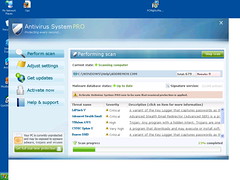
Below you will find a list of what i like to call rogue spyware software. Their claim is that these will help your computer to run faster, do not believe  their claims most of these do the opposite I have come across a few of these.

Please check the list before downloading any of these rogue software programs.

http://en.wikipedia.org/wiki/List_of_rogue_security_software

Putting God First

Warning: Devastating Windows Virus Spreading – Tips, Reviews and Advice on All Things Digital – The Kim Komando Radio Show


Warning: Devastating Windows Virus Spreading – Tips, Reviews and Advice on All Things Digital – The Kim Komando Radio Show.


Microsoft patches 28 vulnerabilities, including zero-day | ZDNet


Microsoft patches 28 vulnerabilities, including zero-day | ZDNet.

Goodbye Microsoft Security Essentials: Microsoft Now Recommends You Use a Third-Party Antivirus


Goodbye Microsoft Security Essentials: Microsoft Now Recommends You Use a Third-Party Antivirus.

What is a NTLDR, and why is mine missing?

Video


NTLDR

NTLDR (Photo credit: albjimenez)


The NTLDR(New Technology loader) is launched by the Master Boot Record, known as the MBR. Then the NTLOADER will launch the operating system on the computer. Sometimes, files get corrupted and then you have to reload the ntldr. You do this by accessing the recovery console in Windows.


You will normally see this error message:NTLDR is missing, Press Ctrl-Alt-Del to start”.You will find if you try to just Press Ctrl-Alt-Del to start, it will restart the computer giving you the same error message


To get started you are going to need a Windows XP operating Disc. Take the disc and place it inside the CD-ROM tray,restart the computer, if this is unsuccessful, power down the computer, by pressing in on the power button, until the unit switches off. Then restart the computer.


Once it comes back on you should see the words: ,……hit any key to boot from CD.


Press the Enter key, you will see a “Windows Set-up” screen. it will start to load Windows files after this is done, You will be presented with a few options, to either load Windows, use the Recovery console, or F-3 to exit set-up.


Since we are going to use the Recovery Console, press the letter “R”, you will now see the DOS also known as command Prompt screen.


if you do not wish to use the Recovery Console you can op-out .


It will then ask which operating system you wish to use. if you only have the one operating system, type in” 1″, it will then ask for a password, if you don’t have a password, just click the” Enter” Button.


At the C:\Windows Prompt,


type in HELP, this will give you a list of directories: if you like to have the computer to check the hard drive, at the C: \windows prompt, type in chkdsk This will check the hard drive, .


Once it has checked the hard drive,it will display the words  “the volume appears to be normal and has not been checked.


To do this type in / P if it is too close, it will give you an error message, “The command is not recognized” this would mean, that you did not leave a space between the back-slash and the letter P.  When the computer is done checking, it will display what it found.


To fix the Ntldr that is missing.


type Copy D : i386\ntldr c:\


type Copy D : i386\ntdetect.com c:\


copy D (this is the letter for this CD drive)


If you need to find out what hard drive letter  is on your computer, this is, type in “map” (without the quotes) this will give you all the devices on the computer, and those letters assigned to those devices


i386 (this is the windows system file)


C:\ (is the letter to the hard drive, you may a letter, that is different)


Press enter, you may be prompted to overwrite the ntldr, and ntdect.com type Y for yes.


It should tell you” 1 file copied” do the same for the ntdect.com


To exit the system c:\windows type “Exit”(without quotes)


.If the computer restarts and everything works out, you have fixed the NTLDR, however if it says that it copied the NTLDR, but it still claims that NTLDR is missing, you can do two things, try clean install or buy another hard drive, if you have any extra partition’s try deleting these.


below is a link to do a clean install


How to install a fresh copy of Windows xp


Press f-1 To continue F2 to enter setup

Video


Today, we are going to discuss on how to possibly get rid of the

Press F-1 To continue, F-2 to enter setup”  error message. IMG_0341 (2)

I was working on a Dell Dimension 9100,   I had just finished re-installing the Operating System Microsoft Windows XP, restarted the computer and then the error message appeared. I have seen this in the past and really wasn’t sure on how to get rid of it, one of the ways, is usually to

replace the CMOS Battery. Below is a link how to replace the Battery. This goes in-depth.

Changing the Cmos battery

Replacing the CMOS Battery didn’t work this time, so I restarted the computer. Pressing F-2, I was able to boot into the Bios Menu.  After going through all the different sub-Menu’s, I came across “Post Behavior” My Bios is a Phoenix bios yours might be something else.

So, I came across four different things to try. They were:  Fast Boot, Num lock Key, Post Hotkey and Keyboard Error

Now, depending on the circumstance or system. this may or may not work.

 When I got to Keyboard Error.  I  set  it up as to not report keyboard errors.

Pressed enter, than saving upon exiting, which is  usually ESC(Escape Key,) F-10 to save settings.

Restarted the computer and the error message was gone. To be sure I restarted the computer, no error message was present.

I Hope this helps you out.

God Bless

Replacing the Hard drive


Photo of SATA ports on a motherboard

Photo of SATA ports on a motherboard (Photo credit: Wikipedia)

Today we begin by working on a hp Pavilion a1709n Desktop. We will replacing the hard drive. The old hard drive has died, so we are going to replace it with a Western Digital sata 500GB.

We will start by going into the Bios(Basic Input/Output System) you should be able to find this on the screen when you first start the computer, however if you don’t find it, try one of the Function Key‘s F1 thru F12

Once you have entered the Bios, look for Advanced setting, you will want to look for something that allows you to adjust the boot order, and make the settings for the cd-rom to be the first so when you put in the cd and start the computer, it will start to load Windows. http://www.ehow.com/how_6186103_boot-cd-hp-pavilion.html

First off, we want to shut off the computer. Then remove the Keyboard, Mouse, Ethernet, Display, which is either a VGA, or DVI power cord from the back of the computer. Put on your Esd (Electrostatic wrist band) grounding yourself to the computer. Next, remove the cover from the computer, removing the thumb screw and sliding off the cover.

There are three tabs on the inside of the case that holds on the front panel , push in on each of these to remove the front panel, it will swing out.

Remove the Sata (“Serial Advanced Technology Attachment Source:http://www.pmicomputersupplies.com) colored wire, and power connector from the back of the hard-drive. you will need to remove the memory card Reader Drive, there is one screw holding in this device, once you slide this out, you can disconnect the cable to the Memory Card Reader or just move it out-of-the-way.

Now, the HP has what is called a latch drive bracket, you have to pull up on the plastic tab to release the hard-drive. Then, you should be able to pull it out through the front of the computer. Remove the new hard drive from the packaging, you will need to remove the mounting screws from the old hard-drive or you can use the several screws that HP has embedded in the front of the computer case.

Once you have screwed in the mounting screws on the hard drive, pull up on the plastic Latch Drive Bracket and slide in the new hard drive. If you are going to use another bay for the hard drive you will have to remove the blank plate, using a flat head screwdriver. Insert and twist to remove this plate.

Once the Hard drive has been slide into the bay, reconnect the Serial(SATA ATA hard drive disk cables to the back of the unit. Reconnect the memory Card Reader Drive,if you had to remove it. Once this is done, remove the ESD static strap from inside the computer, replace the side and front cover.

Now, we can start reformatting the Hard Drive. We will installing Windows Vista Operating system. Take the recovery discs, open up the CD-Rom, pop in the first disc and you should see Windows Loading Files. It will then bring on the screen the recovery Manager, after you click Next, it will ask for the Supplemental disk, place this inside the CD Rom, close the tray and the formatting will begin.

Than it will tell you that it is reformatting the Windows partition of the hard drive. After using the supplemental disk, it will ask for you to put in the first disk. after it is done, it will ask for the Second disk. When it is finished it will display that the “Recovery is Complete.” Click Finish to restart the computer. Make sure you remove the disk.

At some point you will have to produce the product key for the Microsoft operating system. You should find this somewhere on the desktop.

Don’t forget to partition the hard drive. If you notice that the hard drive is only showing 50GB of your 500GB then you didn’t partition the hard drive correctly. Use the Link below

http://pcsupport.about.com/od/windowsvista/ht/partition-hard-drive-vista.htm

You may need to reinstall Windows, after that your done.

Once at the HP website, type in the model of the computer, this will bring you to the drivers and download page. You want to make sure to update your drivers and the Bios.

Now the Bios is tricky in that if for some reason you lose power while downloading the bios, you will lose the computer. Any interruption of power will cause this to happen. This Bios loads directly to the motherboard, I have done this several times and never ran into a problem.

The link below will take you to the downloading page for drivers and Bios

http://h10025.www1.hp.com/ewfrf/wc/softwareCategory?cc=us&dlc=en&jumpid=reg_r1002_usen_c-001_title_r0001&lc=en&product=3354752&#038;

If you run into any problems working on the computer you can go to the link below

Click to access c00873755.pdf


Microsoft confirms public preview of Windows Blue in late June | ZDNet

Video


Microsoft confirms public preview of Windows Blue in late June | ZDNet.

Windows 8.1 will include boot to desktop option to bypass Metro interface | The Verge

Video


Windows 8.1 will include boot to desktop option to bypass Metro interface | The Verge.


Microsoft Recommends Uninstalling Windows 7 Security Update 2823324

Video


Microsoft Recommends Uninstalling Windows 7 Security Update 2823324.

Microsoft pulls Patch Tuesday security fix | ZDNet

Video


Microsoft pulls Patch Tuesday security fix | ZDNet.

Microsoft fixes critical Windows, IE flaws for Patch Tuesday | ZDNet


Microsoft fixes critical Windows, IE flaws for Patch Tuesday | ZDNet.

Adobe releases emergency patches for Reader and Acrobat | Macworld


Adobe releases emergency patches for Reader and Acrobat | Macworld.

Dell sold to Microsoft, Silver Lake for $24 billion: What it means for the PC | ExtremeTech


Dell sold to Microsoft, Silver Lake for $24 billion: What it means for the PC | ExtremeTech.

HTG Explains: Do You Need the Professional Edition of Windows 8? – How-To Geek


HTG Explains: Do You Need the Professional Edition of Windows 8? – How-To Geek.


New Ransomware Encrypts Victim Data | threatpost


New Ransomware Encrypts Victim Data | threatpost.

Best Antivirus for Windows 8 – TopTenREVIEWS


For those looking for an alternative to Windows Security Essentials in Windows 8, this will probably offer some help.

Best Antivirus for Windows 8 – TopTenREVIEWS.

Microsoft Releases Two Critical Patches; Promises Update for IE Watering Hole Zero Day | threatpost


Microsoft Releases Two Critical Patches; Promises Update for IE Watering Hole Zero Day | threatpost.

Microsoft rolls out firmware updates to Windows RT as part of Patch Tuesday | ZDNet


Microsoft rolls out firmware updates to Windows RT as part of Patch Tuesday | ZDNet.

IE Zero-Day Watering Hole Attack Expands to Handful of Political Sites | threatpost


IE Zero-Day Watering Hole Attack Expands to Handful of Political Sites | threatpost.

Patch for IE Zero Day Won’t Be Among Microsoft Security Updates Next Week | threatpost


Patch for IE Zero Day Won’t Be Among Microsoft Security Updates Next Week | threatpost.

Serious security flaw! Upgrade your browser before it’s too late! – Tips, Reviews and Advice on All Things Digital – The Kim Komando Radio Show


Serious security flaw! Upgrade your browser before it’s too late! – Tips, Reviews and Advice on All Things Digital – The Kim Komando Radio Show.

Microsoft re-issues botched Black Tuesday patch | Microsoft windows – InfoWorld


Microsoft re-issues botched Black Tuesday patch | Microsoft windows – InfoWorld.

Microsoft fixes faulty OpenType security patch | ZDNet


Microsoft fixes faulty OpenType security patch | ZDNet.

Windows 8 primer: how to navigate Microsoft’s new operating system | The Verge


Not sure, if you are ready to take the plunge on the new Microsoft Operating system, this will help you get over the jitters.

Windows 8 primer: how to navigate Microsoft’s new operating system | The Verge.

Six awesome built-in Windows utilities no one knows about | PCWorld


Six awesome built-in Windows utilities no one knows about | PCWorld.

8 gotta-know tips for Windows 8 newbies | here’s the thing


8 gotta-know tips for Windows 8 newbies | here’s the thing.

How Scan any File or Folder Using Windows 8’s Built-in Anti-Virus – How-To Geek


How Scan any File or Folder Using Windows 8’s Built-in Anti-Virus – How-To Geek.

Two must-have downloads that make Windows 8 more bearable | ZDNet


Two must-have downloads that make Windows 8 more bearable | ZDNet.

where is the device manager?


Today, we are going to be talking about the device Manager, this program holds all the drivers for your system, if you’re talking about a mouse, display, hard drive,or  Usb’s  (Universal Serial Bus) this is where you will find these devices and others.  For Windows XP  go to the device manager,  click on the  start button,  go to the control panel, click on system, click the hardware tab,  then the Device manager tab, here will list the devices that you have on your computer.  For Windows Vista and Windows 7, you want to go to the start button, click on the control panel, then click on Device Manager. If you have a problem with a driver and you are the administrator for the computer click the + next to the device you’re having the problem with. It  will drop down,  Left-click on the device, then Right-click on the device, you should have four choices displayed for you. Click uninstall, click OK, than go back to the where the device was, doesn’t have to be exact. Left click on one of the devices, than right-click  and click on “scan for hardware changes” and see if this will correct the problem. Other issues could be a red “X” on the device, this means the device is disabled, to fix this just  left click on the device, Right-click  “Enable” and restart the computer.

Week in Geek: Microsoft Security Essentials Loses its Certification after Failing AV Test – How-To Geek


Week in Geek: Microsoft Security Essentials Loses its Certification after Failing AV Test – How-To Geek.

Why disc drives are an endangered species – CNN.com


Is it possible that the disc drive could go bye bye  such as the floppy drive?

Why disc drives are an endangered species – CNN.com.

How To Boot Your Android Phone or Tablet Into Safe Mode – How-To Geek


How To Boot Your Android Phone or Tablet Into Safe Mode – How-To Geek.