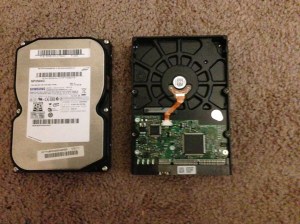
No Disc, now what do I do?


I recently was having some trouble with my computer. I was trying to watch a sermon from Greg Laurie at his website http://www.harvest.org. It was becoming very glitchy and I couldn’t figure out what was going on. I believe I was reminded by the Lord, about the video card on my computer which i had totally forgotten about. The Video Card  is a Ati Radeon HD 2600 Xt. What I had forgotten to do was load the driver on the computer, after I had recently reinstalled Windows Vista. i began searching  all over for the disk but, to no avail. I then began checking the internet for a possible website, turns out there are a lot of companies out there that will try to solve your problem, like driver update websites, some end up not helping you at all, just giving you more problems. Lucky I was able to find a link from Microsoft.com, which had a link to the AMD website. I have provided a link below

http://support.amd.com/en-us/download

when you get to the website,

AMD Automatically Detect

go down where you see Latest AMD Drivers and Software, I had tried the Automatically Detect and Install you Driver, and found this was not much help for me, maybe your results will be different.

Once you locate your specific driver, for your particular Video card you will notice that there is not one listed for the Windows Vista,

Radeon HD 2600


here click “OTHER” which will take you to another page, which ask if you have a 32 or 64 bit. To find out you will need to go  to Start> type in the Search Field “System” once you click on this, you will be taken to another window, look under “System Type, here is displayed if your computer is a 32 or 64.

Radeon HD

Once you have clicked on the proper bit size go down to where you see Downloads click on where you see Catalyst Software Suite
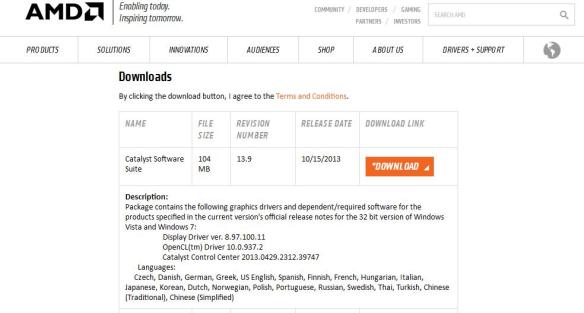
Catalyst Software

After downloading the program, a Window will open up, click install.
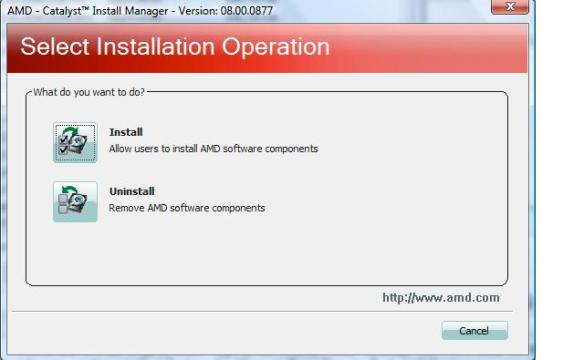
Select Installation Operation


Once the program has loaded you will be prompted to click Next, and install.

Here you will have the option to either choose Express or Custom,
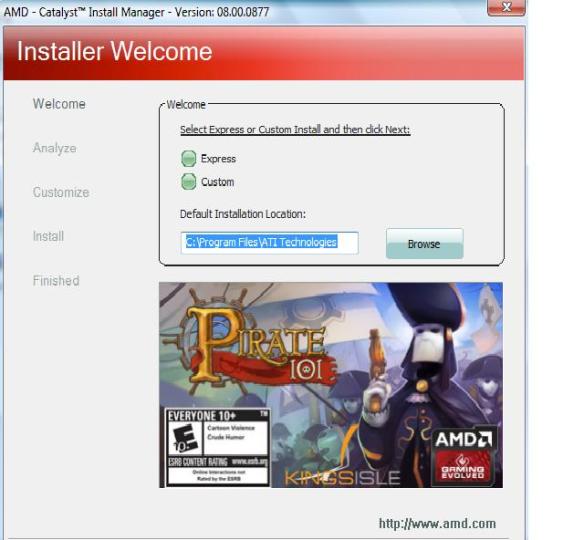
Express or Custom


choosing Custom will provide you more security when downloading programs. After clicking next the program will start loading.

installling components


Make sure to read the End User License Agreement, before excepting.

End User License Agreement


After the program loads it will make some adjustments to your computer monitor, the screen will go blank for a couple of minutes, click Finish and your done.

Putting God First!!!

So, how do I shut off the track pad on my ASUS X550CA Laptop?


Apple Macbook Pro (Early 2008) 17

Apple Macbook Pro (Early 2008) 17″ Trackpad (Photo credit: Wikipedia)

The Track pad on a  laptop is a useful tool,  however, I found out early on,   it got to be more of a nuance when I tried searching for something on the internet.

YouTube, had several people who had different ideas, however since I was working with Windows 8.1 at the time, this being a tablet format nothing worked.

To give you an example,  I would try to type inside the search field, and I would end up with garbage as the text. This would then  delete itself and it got to be so frustrating. I went as far as switching to a large keyboard for a while.  I was at my wits ends and just thought that it was something I was going to have to deal with.


Embed from Getty Images

I feel the Lord lead me to the answer when I thought of giving it one last try on the internet. It was like there it was, so I figured well it wasn’t going to be easy, having to go through the Bios, my thinking was why there of all places. So, I gave it a shot and sure enough it was just what I needed. Thank You Lord Jesus.

We will be working on Windows 10,

When you open Windows 10, click on the Microsoft Windows logo,

Microsoft Windows Key

menu tabnew start menu

Once you click on this, you will see the New Start Menu, move down where you see settings.

Untitled

double-click on settings

Go to Security and Update

windows 10 setting for bios

Click on Recovery:

recovery

Off to the Right is Advanced Startup>

Advanced Startup

Click restart.

When the computer restarts, click Troubleshoot

Once you see Advanced Options then click UEFI Firmware Settings>

IMG_0156

Click Restart

 The BIOS Will open up click on the Advanced Tab>Internal Pointing

device>

Click the + or minus  to disable Internal pointing device(Track pad).

press F-10 to save and exit.

The computer will restart and you should have no other problems with the tracking pad.

Putting God First

Using VirtualBox


I have heard about Virtual Ware, and really didn’t know much about it until I ran across  VirtualBox. I decided to write a blog on it use. This provides a safe and secure environment and could be fun!

So, lets get started. I have provided a link below.

https://www.virtualbox.org/wiki/Downloads

Welcome to Virtualbox

We will be using the  Windows, platform. Once downloaded, click New.

VirtualBox Manager

Upon naming your system choose which operating system you are going to be setting up. The program will automatically, select the required memory for that particular OS (operating System)and you have the option to choose to increase the memory size if you wish.

memory size Virtual Machine

Next is setting up the type of drive, if you are a standard user you don’t need to do anything. Below is link to the VirtualBox Manual which goes into detail of the different types of drives

VDI (VirtualBox disk Image) http://www.virtualbox.org/manual/ch05.html#vdidetails

Next is setting up the size of the hard drive, you have the option of setting up a particular size or having it expand as it is being used.

storage on physical drive

Next Place the operating system disc, inside the Cd-ROM, then click the start button as shown in the pane below.

Start Button (2)

Windows will start to load just like your regular computer, so if you’re using windows XP,  I have provided a link below on how to install XP.

How to install a fresh copy of Windows xp

Good Luck. Until Next time.

Putting God First

God Bless

Windows 8.1 consumers: It’s time to move to Update 1 | ZDNet


Windows 8.1 consumers: It’s time to move to Update 1 | ZDNet.

movie maker in Windows 8

Video


Today, we are going to download Windows Movie Maker for Microsoft  Windows 8.1

The program is  free, allows you the ability to edit, add music, add credits, use different types of transitions and effects.    I have used this program  in the past, to make a slide show of my dad, and then was able to add music to make it more personal. It was pretty cool. So lets get started. After discovering that Movie Maker was not on Windows 8, I went over to Microsoft.com

I have provided a link below:

http://windows.microsoft.com/en-US/Windows-Live/movie-maker#t1=overview

Once you have started the  download of  Microsoft Essentials 2012, a window pane will open up giving you option to install   Microsoft Skydive, Movie Maker, Photo Gallery, Mail, Writer, and Outlook Connector Pack.

Selecting programs

Selecting programs

I decided I didn’t need all of these  so I just chose Photo Gallery, Movie Maker and Writer. After clicking on your choices, you may be asked to install Net Framework 3.5 to install Windows Essentials.  this only takes a few minutes.

Net-Framework 3.5

Net-Framework 3.5

After Windows Essentials is loaded click close. go to the Start Menu in Windows>  search bar,> type Movie Maker, when it appears Right-click on Movie maker pinning it to start and then to the Task bar, this will make it easier to gain access  . Click on Agreement and you know have Windows Movie Maker.

After you open the program, you will need to click on add Videos and  Photo’s, the next step select a ” Title” then select an effect for your title,  click Home, click on caption, after choosing Caption, you can choose Auto movie theme, click on Home, and choose credits to give it the final touch. It appears unlimited on what you can do with Movie Maker

May the fun begin.

Remember Put God First in everything you do.

Enhanced by Zemanta

What is a hard drive anyway?


 SATA  and ATA/IDE Hard Drive Today, we are going to be talking about the hard drive.   What is a hard drive, you  ask. Well,  It is basically a device that stores all your files, including the Operating system, music, pictures, games, and so forth.  Sometimes files get corrupted, and this can create problems for the hard drive. To be safe  a disk check,once a month will help, along with  a disk fragmentation, and disk cleanup.  Do not do a disk check but, once a month, this is very hard on the drive.

As an  extra precaution, Make sure to  transfer all your files on Compact Discs, or DVDs.  That way, should the hard drive die you will be ready. To help keep the hard drive from getting over-cluttered, you can you Ccleaner put out by Piriform. They also offer a  disk Defragmenter called  Defraggler. for disk recovery, they offer Recuva. All these programs are free.

Should you ever start to hear your hard drive making a scratchy noise, this will be the first sign that there is a problem. It may take time before it finally gives out. Hard drive’s are quite inexpensive. Usually run about 50-70 dollars at Bestbuy .

So, to find out what the computer looks inside and find out what that hard drive looks like. Let’s open up the computer. First thing, unplug the computer from the wall-socket.  After you have disconnected the mouse, Keyboard, Display and any USB devices, lay the computer down on a work table, attach the Electrostatic discharge band to your wrist. Grounding the alligator clip to a piece of metal on the computer.

To tell you about the Electrostatic discharge band click here:  https://infotechcomputing.wordpress.com/2012/08/28/warning-use-this-before-working-on-a-computer/

Once you have slid off the cover, you’re going to see many parts. How do you figure out where the hard drive is located? Well the hard drive is thinner, than say an optical drive. On the front of the optical drive you will see the button that slides open the tray, when you want to listen to your favorite  music on a Compact Disc, or CD which is what everybody calls it. Same thing if you want to watch a Movie, DVD, Blue-Ray.  SATA Hard Drive (2)

The Hard drive even though it is enclosed, it  will look different.  It may be inside   what is called a Bay, or it could be by itself such as a SATA Hard Drive. If it is a SATA the wires will be color coded,  IDE(Integrated Drive Electronics) will have a wide 40 pin Ribbon, known as a IDE Interface Cable.

Now, if you are using two  IDE/ATA hard-drives, there is a small plastic connector, that you have to remove from one place to another, on the back of the device. this is known as a Jumper. either case, there are four settings:  single, Dual Master, Dual Slave,  or  cable Select.

Remember this is only if you are using two hard drives. If you are only using the one, set the jumper to Master Setting.

On a SATA device, the computer has what is called auto-detection, which does the setting for you.

This link gives an in-depth illustration on the history of the hard drive

http://www.computerhope.com/jargon/h/harddriv.htm

This is a link on   how to make adjustments using jumpers on an IDE hard drive.

http://www.computerhope.com/issues/ch000413.htm


Apple releases iOS 7 for existing iPhone, iPad upgrades | ZDNet

Video


Apple releases iOS 7 for existing iPhone, iPad upgrades | ZDNet.


Windows 8.1 will include boot to desktop option to bypass Metro interface | The Verge

Video


Windows 8.1 will include boot to desktop option to bypass Metro interface | The Verge.


HTG Explains: Do You Need the Professional Edition of Windows 8? – How-To Geek


HTG Explains: Do You Need the Professional Edition of Windows 8? – How-To Geek.


Two must-have downloads that make Windows 8 more bearable | ZDNet


Two must-have downloads that make Windows 8 more bearable | ZDNet.

Do this before you get the “blue screen of Death”


Blue Screen of Death as seen in XP, Vista and 7

Blue Screen of Death as seen in XP, Vista and 7 (Photo credit: Wikipedia)

Today, we are going to delve into system recovery, sometimes when you load a program that’s not compatible to protect the computer, you will get what they call the “BLUE SCREEN OF DEATH” Now when this happens you will get the blue screen, but it quickly moves so fast that you are not able to read what the error is. I’m going to tell you a way, which will freeze the screen so, you can write that error down, and then decide what the cause is.

So, to begin if you are using Windows XP   go to the start button, control panel, click on System, click the advanced tab,go down to startup and recovery, Click settings, go to the bottom  click the box next to Automatic restart click OK on the first and second panel.

For Windows Vista, and Windows 7, go to the control panel click on system, on the upper left hand corner,  click on Advanced system settings,go down to Startup and recovery, click settings tab, go down to system failure, click the box next to Automatic restart, click OK on the first and second panel. Then your done.

Surface tablet with Windows 8 Pro: DOA | Microsoft windows – InfoWorld


Surface tablet with Windows 8 Pro: DOA | Microsoft windows – InfoWorld.

32 bit or 64 bit which one do I have?


This slideshow requires JavaScript.

Today we are going to be talking how you can find out if you have a 32 bit or 64 bit motherboard. You want to pick up a Ethernet network adapter card or that new browser upgrade asks  is your computer a 32 or 64?  First thing you will have to figure out, is where you might find the answer to this dilemma.

In windows XP,  Click start button,  go to all programs, accessories, look for system tools, system information, a window pane will open up, look for System type   x-86 ,   that means you have 32 bit.  X-64 would mean you have a 64 bit system.

In Windows Vista, Windows 7, go to start button, control panel, click on system a window pane will open up displaying the  basic computer  information, go down where you see system type this will tell you if you have a 32 bit or 64 bit.

After doing a clean install for Windows XP, Vista,7 or 8 you want to do this

Gallery

This gallery contains 3 photos.


Today, we are going to talk about how to do a disk clean up after you have  done a clean install for Windows XP, Vista, and Windows  7   To get to disk cleanup using XP click on the start button, then go to all programs, … Continue reading

Beginner Geek: How to Burn an Audio Disc in Windows 8 – How-To Geek


Beginner Geek: How to Burn an Audio Disc in Windows 8 – How-To Geek.


How To Play DVDs on Windows 8 – How-To Geek


People that run into a problem with windows 8 trying to watch a DVD, this article will explain what you need to do

How To Play DVDs on Windows 8 – How-To Geek.

Firefox browser


This slideshow requires JavaScript.

Today we are going to talk about loading Firefox as your browser. First thing you want to do is head on over to either WWW.Firefox.com or to WWW.cnet.com if you use cnet.com, you’ll want to click the download tab, than in the search bar type in Firefox, click on the link, on the left side,it will list which operating systems that it is compatible with. If that checks out, go ahead and click the download button. Want to set your homepage as your browser? Easy just type in www.msn.com, www.cnet.com  or www.Google.com. Once you have your page, Left click on the Firefox icon next to the arrow(top Left Corner) and Drag it from the search bar to the far right where you see the house along the top. For Bookmarks click on the square with the star inside this will be next to the house. The box will open up, click bookmark this page to save. Than click done.

How to install a fresh copy of Windows xp


Windows XP screenshot

Windows XP screenshot (Photo credit: Wikipedia)

Once a year is always a good time to reinstall Windows. Today, we are going to do a clean install for Windows XP.

First thing though you will need to find the Windows XP Operating disc.  Once you have it, you want to insert in the CD-ROM.  Then Restart the computer, when the screen appears, look for what function key works on how to enter set-up. That way you can set-up the CD-ROM as the boot drive.

Restart the computer but, this time press (F-2) or whatever number your computer screen specifies. It could be f-1, f-2, f-4, f-6, f-8, or f-12. Once you enter setup this is where the bios is.(BIOS) Basic Input Output System controls your connections, display, mouse speakers etc..go to the boot sequence than using the minus and plus sign to move the cd rom to the number 1, spot > hit escape, you should see save and exit, >click enter, bios will exit the system.

Restart computer, on the screen will appear the words “boot from CD  strike any key on keyboard”, it will start to load drivers, it will then ask if you want to repair windows, you’re looking for the other choice to install windows.  Than you will want to delete the partition,>   create a new partition, Making sure you use the largest number for the partition>  The words raw, will appear after it’s done. >Than the computer will start the install Windows XP.

You should do a clean install at least once a year to keep your computer running smoothly.